


🚨 Scope and compliance: Key definitions and archive formats come from public Siemens PDFs –
SINUMERIK 840D sl/828D Universal Operating Manual, the840D sl/828D Turning / Milling / Grinding Operating Manuals(Chinese, Traditional Chinese and English editions), and theSINUMERIK ONE Turning Operating Manual. Circulating Chinese shortcut lists are cited only as the material being corrected, never as a source for key definitions. Key assignments are not fully identical across manual types (Universal / Turning / Milling / Grinding), software versions and HMI hardware:Ctrl+Gswitches between help display and graphic view in parameter screens in the universal manual, but between work plan and graphic view in the ShopMill / ShopTurn program editor;SINUMERIK ONEchanges archive formats to.ARC/.DSF. This page therefore gives verifiable function descriptions and lookup paths only, makes no promise that any combination works on your machine, and requires every key to be checked against the supplied manual’s cover number, software version and corresponding section. Manual text, key tables and screen images are copyright material: no original text is reproduced and no manual download link, file mirror or packaged archive is provided. Archiving, log export and HMI traces involve builder privileges and data records, so treat them as read-only observations; before acting, follow Fanuc PMC Parameter Tables PMCPRM style record-keeping habits and the builder’s written procedure. Nothing here is a backup or modification instruction.
30-Second Triage: Which Class of Key Are You Checking
Table 0. Seven needs and the first decision line
1. Six Operating Areas
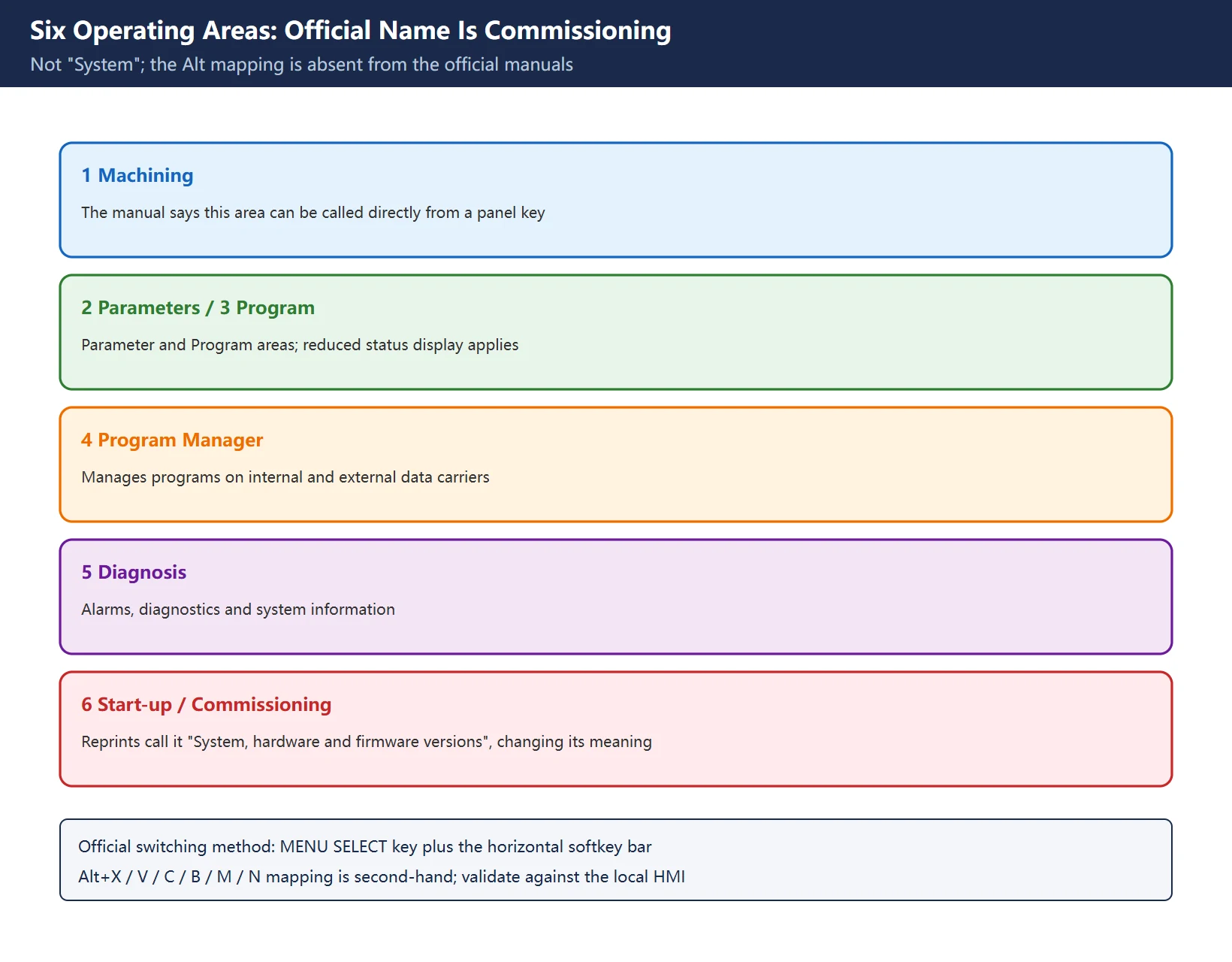
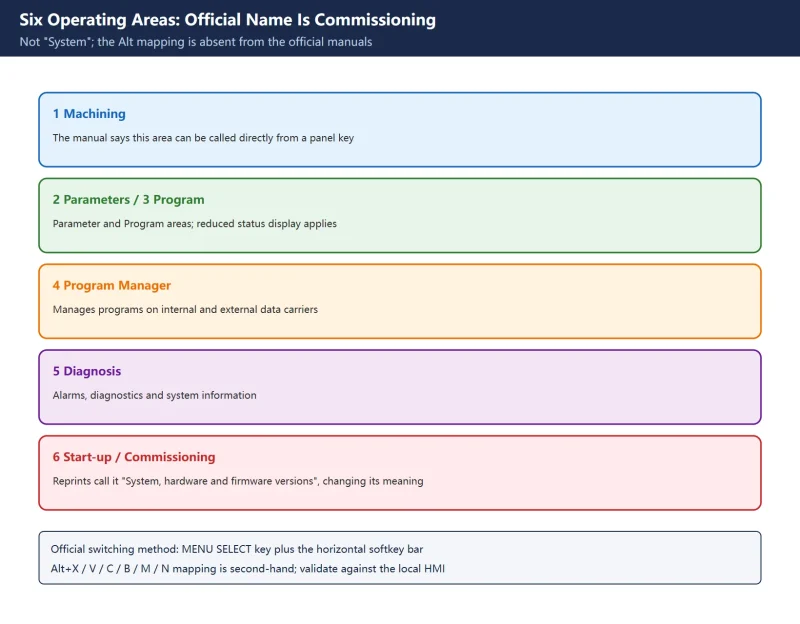
The official Chinese manual states in its operator interface section that the operating software is divided into six operating areas – Machining, Parameters, Program, Program Manager, Diagnosis and Start-up / Commissioning (some editions say Commissioning), alongside three operating modes and functions such as JOG, MDA, AUTO, TEACH IN, REF.POINT, REPOS and single block. The status-display section lists the five reduced-status areas as Parameters, Program, Program Manager, Diagnosis and Commissioning.
| # | Official six areas | Circulating Chinese list | Difference |
|---|---|---|---|
| 1 | Machining | Machining area | Agrees |
| 2 | Parameters | Parameter screen | Agrees |
| 3 | Program | Program editor | Agrees |
| 4 | Program Manager | Program manager | Agrees |
| 5 | Diagnosis | Diagnosis page | Agrees |
| 6 | Start-up / Commissioning | “System screen, hardware and firmware versions” | Name and meaning both changed |
| – | (No Alt letter mapping in the manual) | Alt+X / V / C / B / M / N mapped one by one | Second-hand; validate locally |
| – | Alt+H online help, Alt+S Asian character editor | Written as “switch Chinese input method” | Official function is opening the character editor |
Table 1. Six official operating areas versus the circulated list
The official description of how to switch areas is: press the MENU SELECT key and choose the area from the horizontal softkey bar; the “Machining” area can also be called directly from an operator panel key. No Alt+X style letter mapping is given. That mapping may correspond to a particular HMI version or a builder customization, but calling it “explicitly listed in the official manual” is inaccurate. The safe field procedure: open the “Operator panel fronts” section of the supplied manual, check it against the software version, then verify each key on the machine.
2. Editing and Commissioning Keys
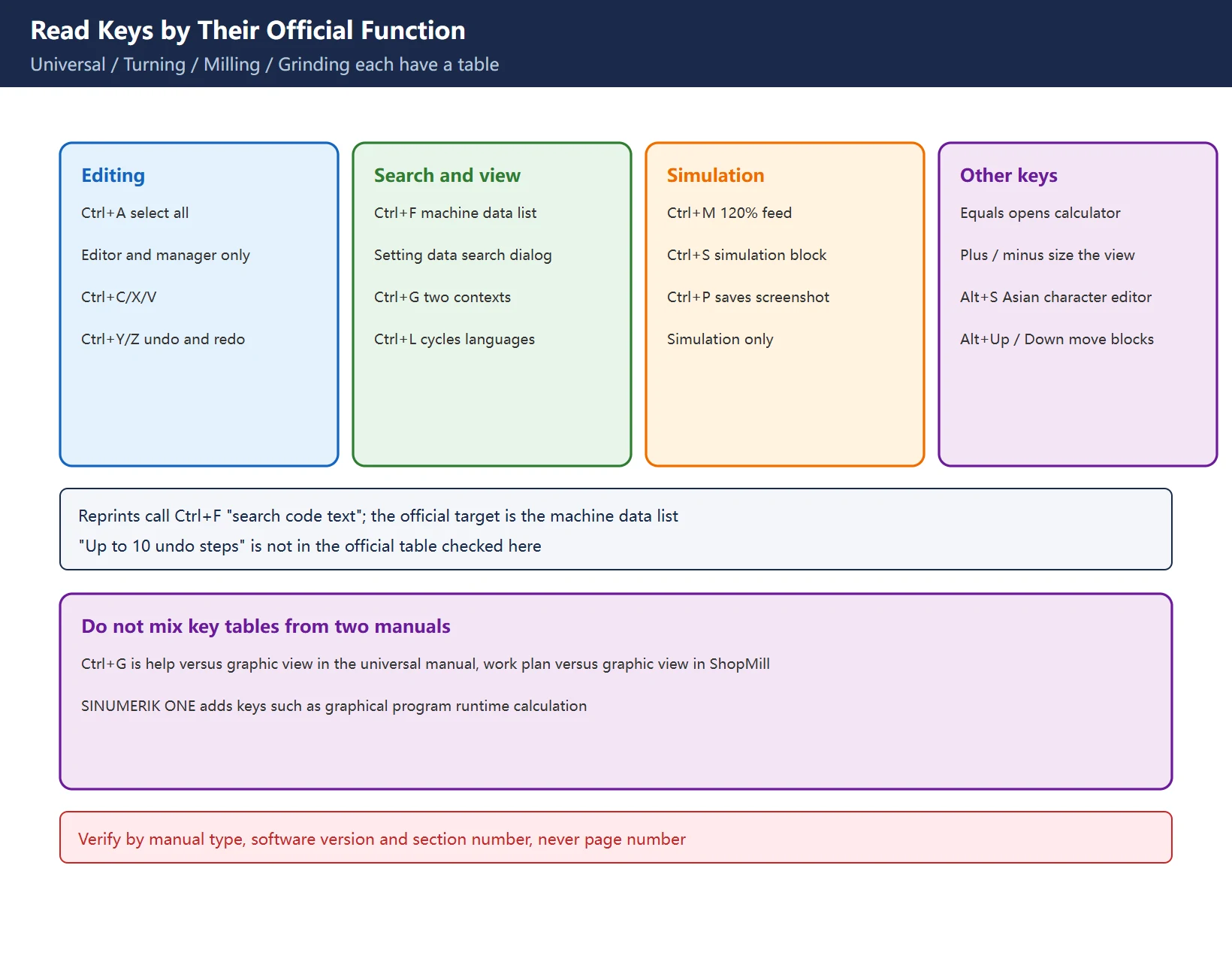
The table follows the “Operator panel fronts” section of the official Turning / Universal Operating Manual. The left column is the combination, the right column the official function description; compare it with the circulated list.
| Combination | Official function | Common simplification or error |
|---|---|---|
Ctrl+A | Selects all entries in the current window (program editor and program manager only) | “Selects all code” drops the two-screen restriction |
Ctrl+C / X / V | Copy / cut / paste selected text | Agrees |
Ctrl+Y / Ctrl+Z | Reactivate the last undone change / undo the last action (program editor only) | Lists add “up to 10 undo steps”, a figure the official table does not give |
Ctrl+F | Opens the search dialog in the machine data and setting data lists when loading and saving in the MDA editor, program manager and system data | Written as “search code text”; the target object is different |
Ctrl+G | Switches work plan and graphic view in the ShopMill / ShopTurn editor; switches help display and graphic view in parameter screens | Written as “simulation view switch”, losing the parameter screen half |
Ctrl+L | Scrolls the interface through all installed languages one after another (a second combination does the inverse) | Written as “one-key system language switch”, losing sequential and inverse behaviour |
Ctrl+P | Generates a screenshot of the current interface and saves it as a file | Agrees, but the official text gives no storage location |
Ctrl+S | Switches single block in or out during simulation | Agrees |
Ctrl+M | Selects the maximum feedrate of 120% during simulation | Agrees |
= | Opens the calculator in entry fields | Agrees; the official table also lists + / - for directories and graphic view sizing |
Alt+S | Opens the editor for entering Asian characters | Written as “switch Chinese input method” |
Alt+Up / Alt+Down | Moves the block start or block end up / down in the editor | Not listed in the circulated table |
Table 2. Editing and view keys: official descriptions versus circulated text
English, Traditional Chinese and Chinese editions differ in wording but agree on function. The real risk is mixing key tables from two manuals: Universal, Turning, Milling and Grinding each carry their own “Operator panel fronts” table with slightly different phrasing, and SINUMERIK ONE adds keys such as calculating and graphing program runtime. That is the same problem addressed in Fanuc Generation Cross-Reference – fix the manual type and version before discussing key assignments.
3. ARC versus ARD Version Split
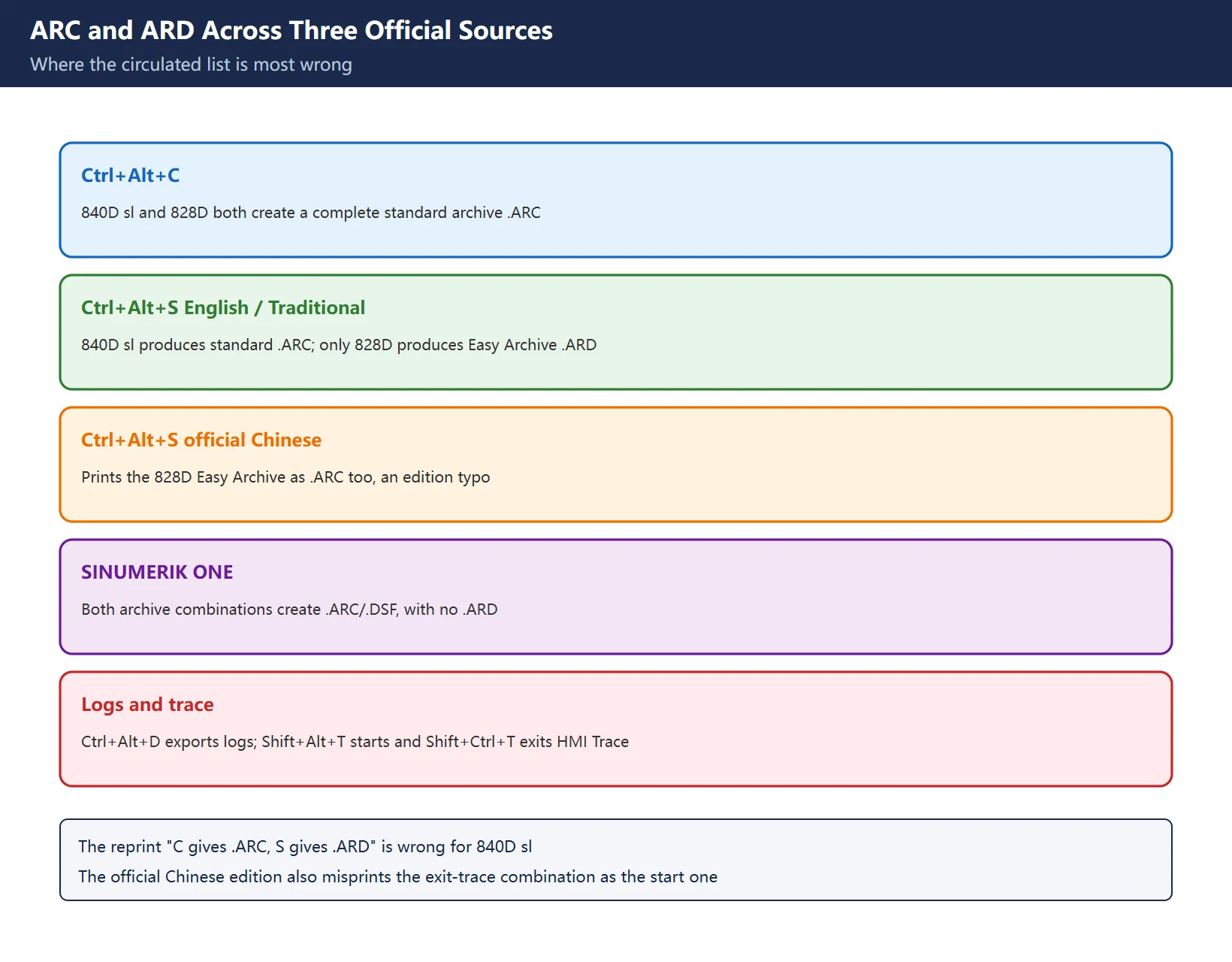
This is the most valuable section, and where the circulated list is most wrong. Three sets of official documentation side by side:
| Combination | 840D sl / 828D English and Traditional Chinese manuals | 840D sl / 828D official Chinese manuals | SINUMERIK ONE Turning manual |
|---|---|---|---|
Ctrl+Alt+C | 840D sl / 828D both create a complete standard archive .ARC | Also .ARC | Creates a complete standard archive .ARC/.DSF |
Ctrl+Alt+S | 840D sl creates a complete standard archive .ARC; 828D creates an Easy Archive .ARD | 840D sl .ARC; the 828D Easy Archive is also printed as .ARC | Also creates a complete standard archive .ARC/.DSF |
Ctrl+Alt+D | Backs up log files to USB; without USB, to the CF card manufacturer area | Same | Same |
Shift+Alt+D | Backs up log files to USB; without USB, to the CF card manufacturer area | Same | Same |
Shift+Alt+T | Starts “HMI Trace” | Same | Starts “HMI Trace” |
Shift+Ctrl+T | Exits “HMI Trace” | Chinese edition misprints it as Shift+Alt+T | Exits “HMI Trace” |
Table 3. Archive and log keys across three official documentation sets
Three points to retain:
- The circulated claim that
Ctrl+Alt+Salways produces an Easy Archive.ARDis wrong for 840D sl. The English Universal / Turning manuals and the Traditional Chinese Milling manual all state that on 840D sl this combination creates a complete standard archive .ARC, and only on 828D an Easy Archive .ARD. In other words, on 840D slCtrl+Alt+CandCtrl+Alt+Sproduce the same class of file; the difference is not the extension. - Even an official Siemens Chinese PDF contains a typo. The Chinese
840D sl/828D Grinding Operating Manualand the Chinese840D sl Grinding Operating Manualprint the 828D Easy Archive as.ARC, while the English and Traditional Chinese editions say.ARD. Cross-checking by language and edition is not pedantry, it is necessary. The same Chinese edition also misprints the “exit HMI Trace” combination asShift+Alt+T, identical to the start combination; English and Traditional Chinese giveShift+Ctrl+T. - A generation gap exists too: in the
SINUMERIK ONETurning manual both archive combinations create a complete standard archive.ARC/.DSF, with no.ARDat all. Applying an 840D sl / 828D era shortcut table to ONE produces wrong expectations.
The official manuals also attach two notes immediately after the archive keys, both missing from the circulated lists: “The complete backup via this key combination is only suitable for diagnostic purposes” and “Please observe the information provided by the machine manufacturer”. These matter to service engineers – an archive is not automatically a restorable full backup. For records and recovery order, see SINUMERIK 828D PLC Programming Tool: Install, Connect and Back Up and Exporting parameters for record.
4. Three Common Mistakes
| # | Mistake | Correct reading | Field consequence |
|---|---|---|---|
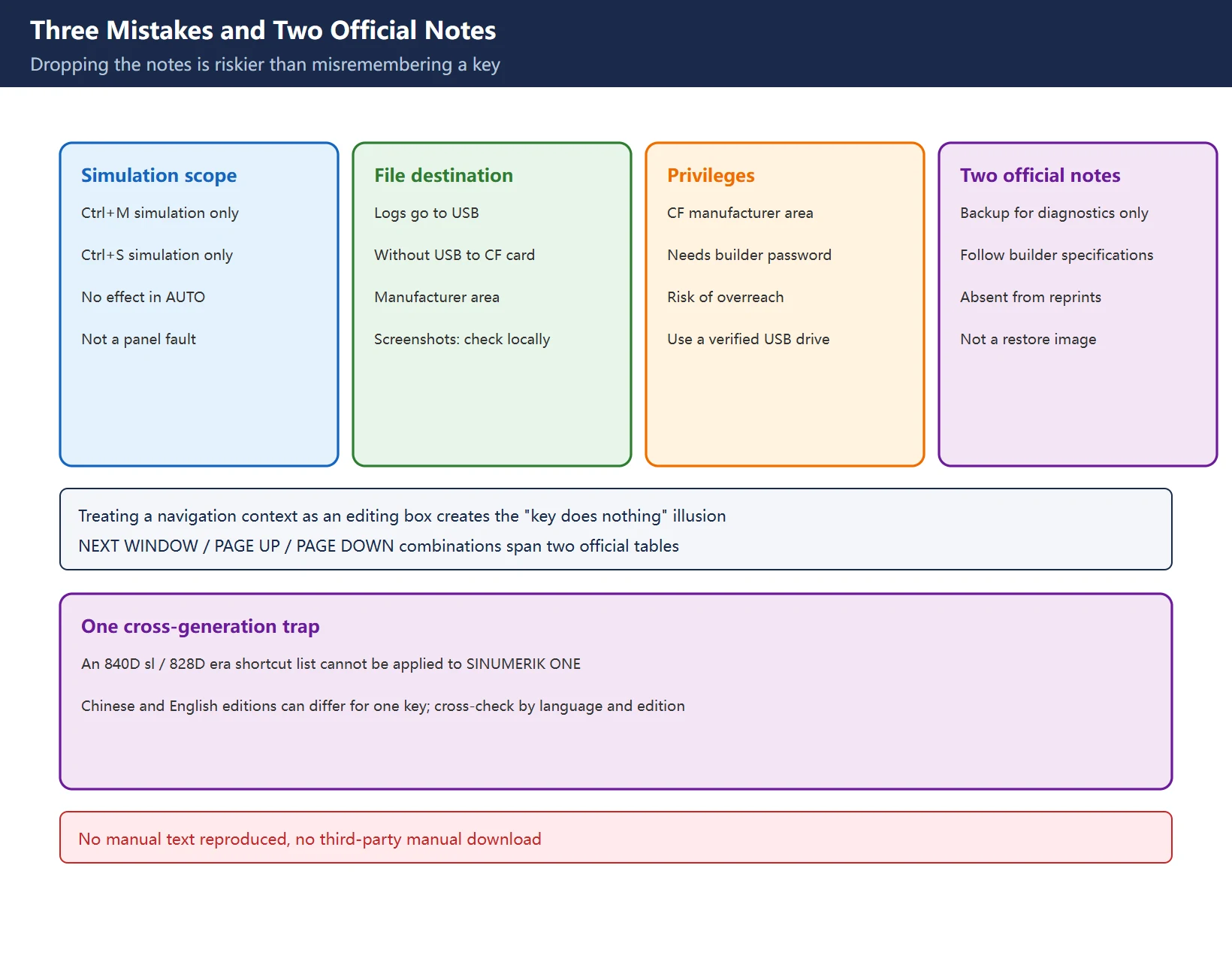
| 1 | Simulation keys also work while a program runs | Ctrl+M (120% maximum feed) and Ctrl+S (simulation single block) are both explicitly “during the simulation” | Pressing them in AUTO does nothing and gets misdiagnosed as a panel fault |
| 2 | Screenshots and logs always land on the HMI or USB | For logs the manual explicitly says USB, or the CF card manufacturer area without USB; for screenshots it says only “saved as file”, so check the local HMI version | Files cannot be found and archives are repeated needlessly |
| 3 | Exporting logs needs no special access | The CF card manufacturer area involves builder privileges and passwords; the manual also notes diagnostic-only backup and manufacturer instructions | Acting outside builder procedure or privileges |
Table 4. Three common mistakes and the correct reading
One more case that is “not exactly wrong but easily misjudged”: the circulated list describes NEXT WINDOW + Shift / Ctrl, PAGE UP + Ctrl and PAGE DOWN + Shift as “bulk cursor selection”. The official manual distributes these across two tables (“Operator panel fronts” and “Keys and key combinations”) and phrases them as “selects a contiguous selection”, “positions the cursor to the topmost / lowest line of a window”, distinguishing an editing box context from a navigation context. Treating a navigation context as an editing box context creates the illusion that the key does nothing.
5. Official Lookup Path: Manual Type, Software Version, Section Number
| To verify | Manual to use | Search key |
|---|---|---|
| General combinations | Universal Operating Manual | “Operator panel fronts / Keys of the operator panel front” section |
| ShopMill / ShopTurn editor keys | Milling / Turning Operating Manual | “Operator panel fronts” plus the working-step program section |
| Archive extensions and log destination | Universal / Turning / Milling manual matching your version | Ctrl+Alt+C, Ctrl+Alt+S entries |
| A suspected Chinese-edition typo | English or Traditional Chinese manual of the same edition | The same key entry |
| Keys that actually work here | Cover of the supplied manual | Manual number, edition date, software version |
| Whether an archive is restorable | Builder procedure and commissioning documentation | Backup / recovery section, not the shortcut table |
Table 5. Six verification targets and their official search keys
Searching by section number rather than page number is the most useful habit in this documentation system: page numbers shift across languages and editions, section numbers stay comparatively stable. Setting Data (SD) vs Machine Data (MD) on SINUMERIK 828D shows the same section-based navigation inside our site, and Fanuc Parameter Number Map by Range applies it to another brand. This page reproduces no manual text and provides no third-party download.
6. Site Index
Table 6. Seven further reading paths
Frequently Asked Questions
What are the common SINUMERIK 828D shortcut keys, and how do I switch the six operating areas?
The official Chinese manual lists six operating areas – Machining, Parameters, Program, Program Manager, Diagnosis and Start-up / Commissioning – switched by pressing MENU SELECT and choosing from the horizontal softkey bar, or by calling “Machining” directly from an operator panel key. The Alt+X / V / C / B / M / N mapping found online is not in the official manual, is second-hand, and renames the sixth area “System” contrary to the manual, so validate it against your local HMI version. For editing (Ctrl+A / C / X / V / Y / Z / F / G / L / P / S), simulation (Ctrl+M / S) and archiving (Ctrl+Alt+C / S / D) functions, compare each entry in Tables 2 and 3 with the supplied manual.
What is the difference between Ctrl+Alt+C and Ctrl+Alt+S, and do 828D and 840D sl produce the same file?
According to the official English and Traditional Chinese manuals, Ctrl+Alt+C creates a complete standard archive .ARC on both 840D sl and 828D; Ctrl+Alt+S creates a standard .ARC on 840D sl and an Easy Archive .ARD only on 828D. So the circulated “C gives .ARC, S gives .ARD” is wrong for 840D sl, where both combinations produce the same class of file. Two further cautions: the official Chinese grinding manual prints the 828D Easy Archive as .ARC (English and Traditional Chinese say .ARD), and the SINUMERIK ONE manual states .ARC/.DSF for both combinations. The manuals also note that the complete backup is only suitable for diagnostic purposes and that the machine manufacturer’s specifications must be observed, so an archive is not automatically a restorable full backup.
How do I quickly capture an alarm screen to USB on a 828D?
The official manual defines Ctrl+P as generating a screenshot of the current interface and saving it as a file, but does not state a storage location in the shortcut table; the circulating “saved to HMI or USB” is a field summary and should be checked against the local HMI version and builder settings. The explicit official wording concerns log export: Ctrl+Alt+D and Shift+Alt+D back up log files to a USB flash drive, and without a USB drive they are saved in the manufacturer area of the CF card, which involves builder privileges. Practical order: insert a confirmed-writable USB drive, capture with Ctrl+P, then export logs if needed. If files cannot be found, check the destination and privileges instead of repeating the archive. See SINUMERIK 828D PLC Programming Tool for related record-keeping.
Last updated: 2026-11-15
Where to go next
- FANUC Troubleshooting — the full guide library: alarms, diagnosis numbers, servo, spindle, PMC and electrical faults, organised by symptom.
- CNC Repair Tools — which instrument measures what: multimeters, clamp meters, insulation testers and oscilloscopes, with the specification that actually matters.
- Remote Technical Support — have the readings reviewed with you: alarm reverse lookup, PMC ladder analysis and servo tuning advice by call. Repair companies and integrators welcome.
Read the guide, get the right instrument, or walk the diagnosis through with someone — pick whichever you need.
The original Chinese version — same procedure, with the full field notes.



















暂无评论内容