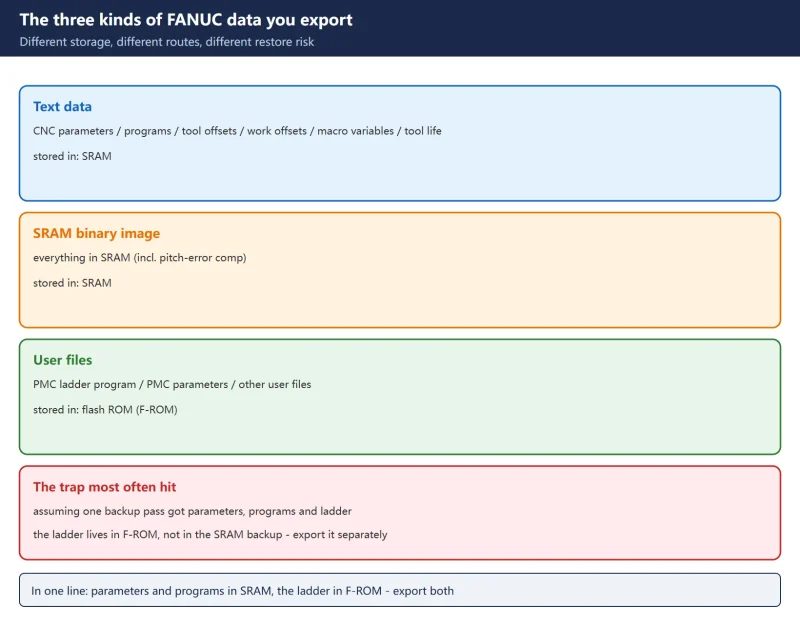



1. First, what you are exporting is three different kinds of data
On the shop floor “backup” tends to get lumped together, but the data lives in different places, is exported by different routes and carries different restore risks. Sort it out first:
| Type | Contents | Stored in | How to export |
|---|---|---|---|
| Text data | CNC parameters, part programs, tool offsets, work offsets, macro variables, tool life | SRAM | ALL I/O one-click backup / per-item PUNCH |
| SRAM binary image | everything in SRAM (incl. pitch-error comp data) | SRAM | BOOT screen SRAM BACKUP |
| User files | PMC ladder program, PMC parameters, other user-created files | flash ROM (F-ROM) | PMC screen I/O (DEVICE=M-CARD) + SYSTEM DATA SAVE |
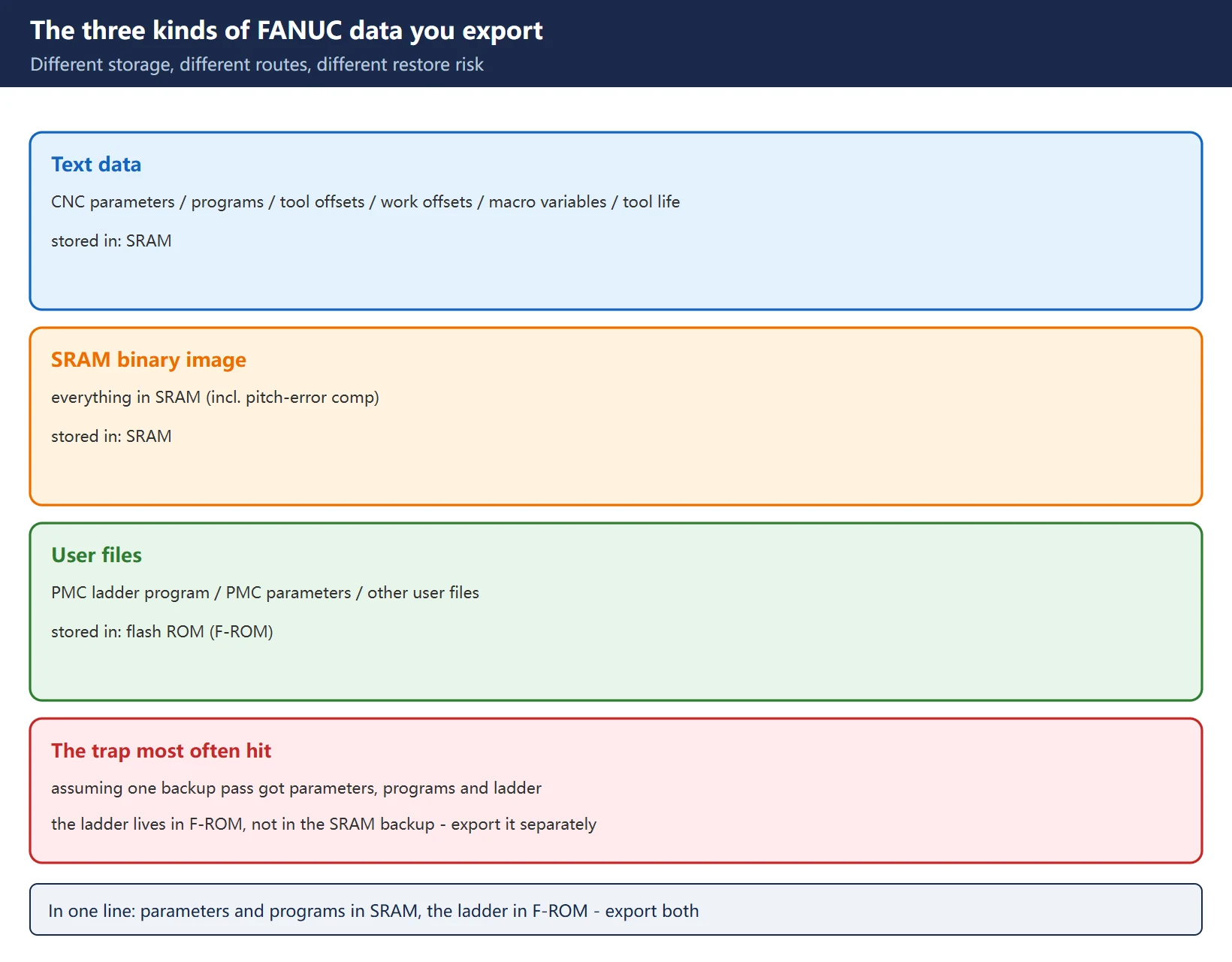
Remember it in one line: parameters and programs live in SRAM, the ladder lives in F-ROM — export them separately; one backup pass does not mean you have both.
Note: the key paths below are written for the FANUC 0i-D / 0i-F series. Different control models and different machine builders expose the PMC screens to different degrees (some builders lock out PMC edit/output permission) — go by what is actually on the screen in front of you.
2. Prerequisite: the I/O channel and two enable bits
Whichever route you take, first choose where the data will be written.
| Parameter | Setting | Purpose |
|---|---|---|
| 0020 | 4 = CF card (memory card); 17 = USB memory | selects the I/O channel, i.e. “where the data is written” |
| 0313#0 | 1 | NC data output function enabled (master switch of the one-click backup) |
| 0138#0 | 1 | adds the path number to text-file extensions on multi-path systems (harmless on single-path machines) |
Order of work: set the parameters in MDI mode, then switch to EDIT mode before executing the output.
You will find claims online that “the one-click backup does not need bit 0313#0”. In fact 0313#0 is exactly the enable bit for this function — leave it at 0 and the output option is not offered at all. The reason some people think it is unnecessary is usually that the builder set it before shipment, or someone set it earlier. Check the current value first, and record the original value after changing it.
3. Method one: one-click full backup (new on 0i-F / 0i-F Plus)
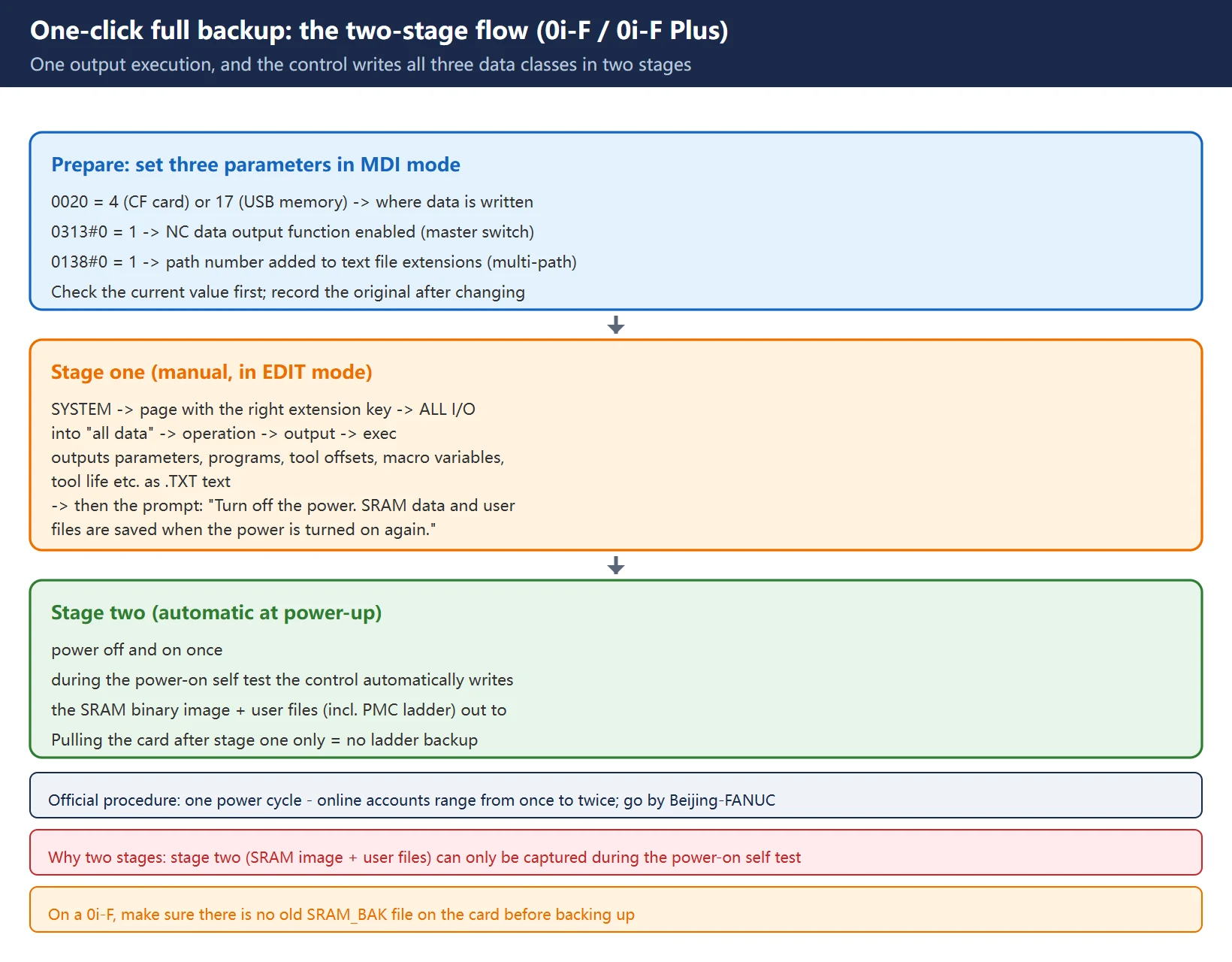
New on the 0i-F / 0i-F Plus and the easiest day to day: execute the output once and the control writes all three data classes to the CF card or USB stick in two stages.
Steps:
- Select MDI mode and set 0138#0 = 1, 0313#0 = 1, 0020 = 4 (CF card) or 17 (USB).
- Select EDIT mode.
- Press the SYSTEM function key -> page with the right extension key and find ALL I/O.
- Go into “all data” -> operation -> output -> exec.
- Wait for stage one (text data) to finish.
- The message line shows: “Turn off the power. SRAM data and user files are saved when the power is turned on again.”
- Power off and on once -> during start-up the control automatically writes the SRAM data and user files out to the storage device.
Why the power cycle is mandatory:
The control splits the backup into two stages:
| Stage | Trigger | Contents | Why |
|---|---|---|---|
| Stage one | manual (executed in EDIT) | parameters, programs, tool offsets, macro variables, tool life, etc., as .TXT text | readable while the NC is running normally; you can open it straight in Notepad |
| Stage two | automatic at power-up | SRAM binary image + user files (incl. PMC ladder) | can only be captured completely during the power-on self test, so one restart is needed for the automatic top-up |
On “how many times do I have to power off”: accounts online range from once to twice. Go by the official Beijing-FANUC procedure: one power cycle — text data output finishes -> prompt to turn the power off -> power on again -> the rest is output automatically.
4. Method two: SRAM backup and restore from the BOOT screen
This is the fastest and most reliable route. Its decisive advantage: BOOT is the boot program, it starts before the NC, needs no parameter support and is unaffected by alarms — so it still works when the machine will not come up.
Starting BOOT SYSTEM: while holding the two soft keys at the far right end at the bottom of the screen simultaneously, turn the power on (some documentation gives “hold RETURN + F10 then power on” — go by your own model).
Main menu: press [DOWN], move the cursor to “7. SRAM DATA UTILITY” -> press [SELECT].
Backup (CNC -> memory card):
- Move the cursor to “1. SRAM BACKUP (CNC->MEMORY CARD)”
- Press [SELECT], then [YES] to start the backup
- “SRAM BACKUP COMPLETE.” appears when finished; the file is named SRAM_BAK.001
- If it does not fit on one card, the prompt “SET MEMORY CARD NO.002” appears — insert a second card and SRAM_BAK.002 is created
Restore (memory card -> CNC):
- Move the cursor to “2. RESTORE SRAM (MEMORY CARD->CNC)”
- Press [SELECT], then [YES] to start the restore
- “RESTORE COMPLETE.” appears when finished
- Select END to leave, then power the machine off and on
Backup file names by series:
| Series | File name |
|---|---|
| 0i-B / 0i-C | by SRAM size: SRAM256A.FDB (256 KB), SRAM0_5A.FDB (0.5 MB), SRAM1_0A.FDB + SRAM1_0B.FDB (1 MB, in 512 KB pieces), SRAM2_0A–D.FDB (2 MB) |
| 0i-F | SRAM_BAK.001 (does not fit -> SRAM_BAK.002) |
Before backing up on a 0i-F, make sure there is no old SRAM_BAK file on the card.
A restore replaces the whole SRAM. Offsets, programs and PMC counters entered since the backup go back to their state on the backup date.
On machines with absolute encoders, if parameters were restored, bit 4 (APZ) of parameter 1815 must be set to 0 and the reference position re-established on every axis — otherwise the machine zero may shift and the stroke limits work wrongly.
A backup belongs to the machine with the same serial number. Another machine’s SRAM backup, even of a similar model, changes axis directions, stroke limits and servo settings to suit that machine, and carries a crash risk.
5. Method three: punching individual data items
Use this route when you only want one class of data. Paths:
| Data | Path |
|---|---|
| CNC parameters | SYSTEM -> PARAM -> (page forward to the required data block) -> OPRT -> (continue soft key) -> PUNCH -> EXEC |
| Pitch-error compensation | SYSTEM -> PITCH -> OPRT -> PUNCH -> EXEC |
| Tool offsets | OFFSET -> (move the cursor to the offset table) -> OPRT -> PUNCH -> EXEC |
| Work offsets | OFFSET -> (work offset page) -> OPRT -> PUNCH -> EXEC |
| PMC parameters | SYSTEM -> PMC -> PMCCNF -> KEEPRL / TIMER / COUNTR -> OPRT -> PUNCH -> EXEC |
Each press of EXEC punches out only the page currently displayed. If you don’t page forward, you capture only the first page.
Before requesting the next data block, wait for the screen prompt to return to a steady state — interrupting a punch in progress can produce truncated or corrupted records in the received file.
6. The PMC ladder: export it separately and write it to F-ROM
The ladder program belongs to the machine builder and is not part of the SRAM backup — it has to be exported on its own.
![图片[3]-How to Export / Print FANUC Parameter Tables and Ladder Programs: One-Click Backup, BOOT SRAM Backup and PMC Ladder to Card-CNCShare | 数控电气技术中心](https://www.cncshare.com/wp-content/uploads/2026/10/PE-en-03.webp)
After the ladder backup, set DEVICE back to F-ROM to write the ladder program into the system F-ROM — leaving it only on the card means it can still be lost if the FROM module is replaced or power fails abnormally.
Speed reference (decide whether to wait):
- PCMCIA / CF card: fast, an order of magnitude quicker than serial; the card can be read on a desktop PC through a USB reader.
- RS-232: the same ladder can take 10–20 minutes depending on ladder size — do not cancel.
Hardware limits (CF/PCMCIA cards):
| Item | Requirement |
|---|---|
| Slot | Type 1 PCMCIA slot (not Type 2 — the slot will not accept the thicker card) |
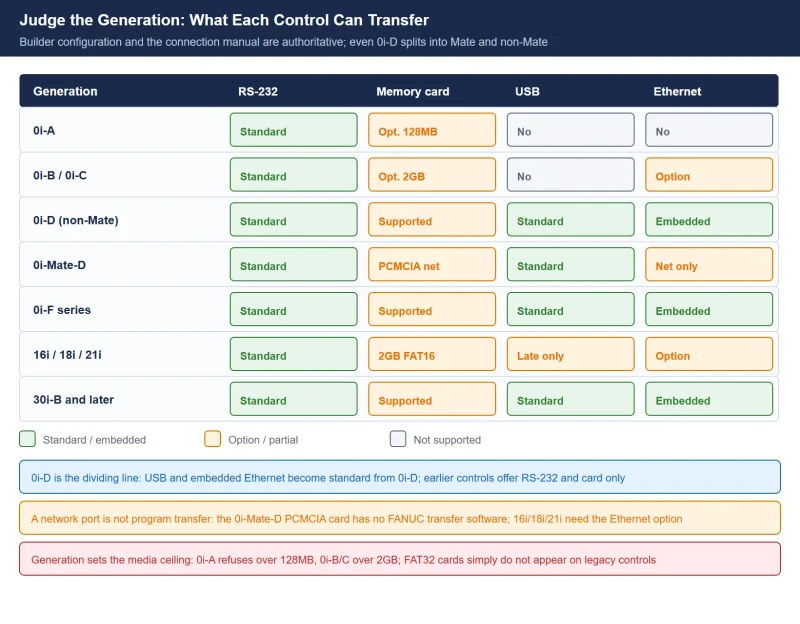
| Capacity | 2 GB or smaller CF / SD card (the original FAT16 implementation in i-series firmware may fail to enumerate larger media) |
| Usage | a dedicated card for backups — do not share it with everyday program transfers, the risk of accidental overwrite is too high |
7. BOOT error messages
| Message | Meaning and action |
|---|---|
| MEMORY CARD NOT EXIST | no card in the slot, or not fully seated; remove and reinsert |
| MEMORY CARD IS NOT AVAILABLE | card type not supported; use a card type recommended by FANUC |
| MEMORY CARD MOUNT ERROR | card cannot be accessed, the format may be damaged; format it from BOOT |
| MEMORY CARD PROTECTED | the write-protect switch is on; switch it off |
| MEMORY CARD FULL / CHANGE MEMORY CARD | the card is full; delete unneeded files or insert an empty card |
| MEMORY CARD BATTERY ALARM | the battery of an SRAM-type card is flat; replace the card battery |
| FILE SAVE ERROR | writing to the card failed; check that the card is sound and seated |
| MAX EXTENSION OVER | the extension of a same-named file passed 031; delete old backups from the card |
| ILLEGAL FORMAT FILE | the selected file does not belong to this control or is damaged; use the right machine's file |
| FLASH MEMORY NO SPACE | the flash ROM is full; delete unneeded user files |
8. Backup strategy and troubleshooting checklist
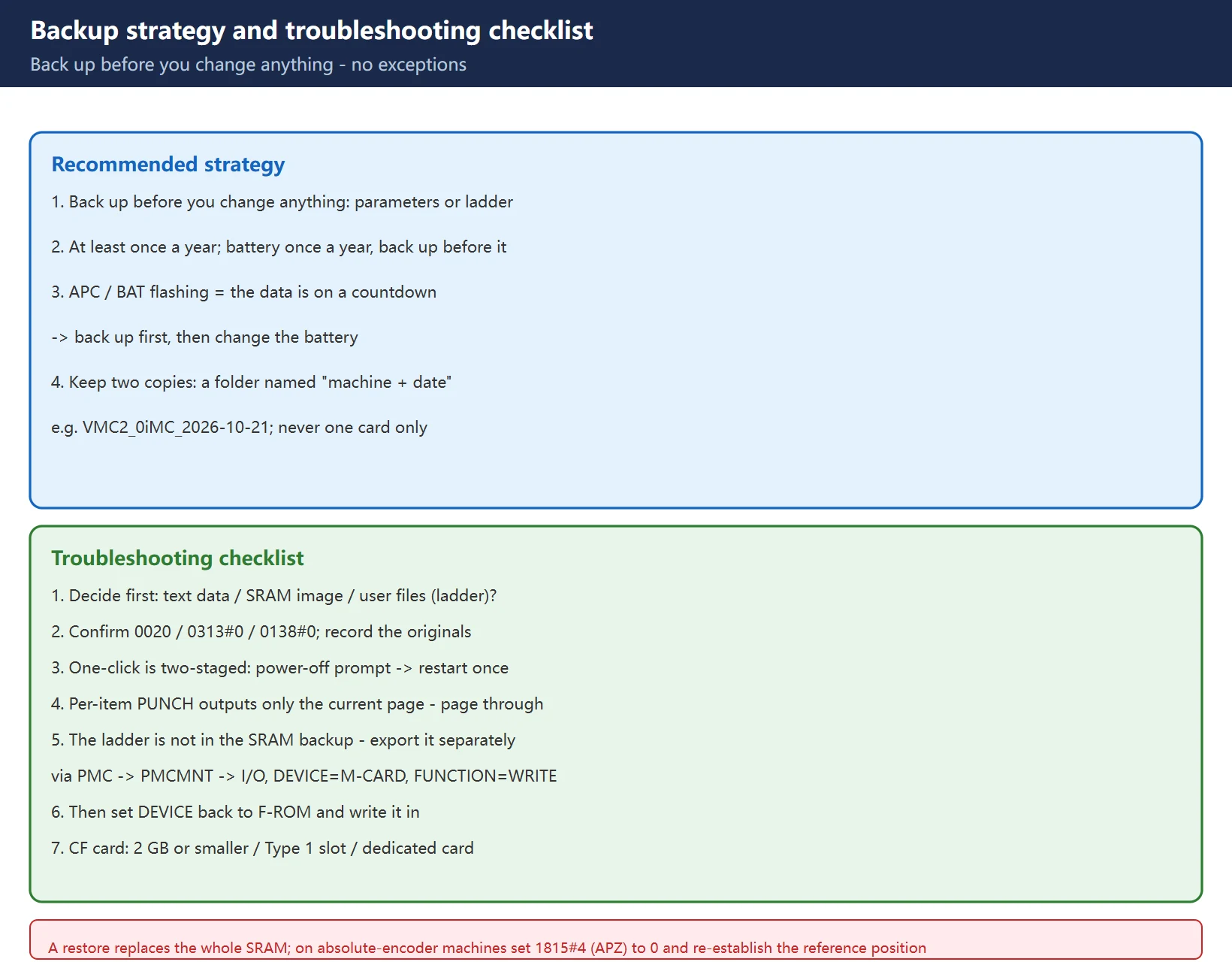
Recommended strategy:
- Back up before you change anything: before touching parameters or the ladder, take a full backup. This one has no exceptions.
- At least once a year: Beijing-FANUC recommends replacing the battery once a year, and you must back up before replacing it.
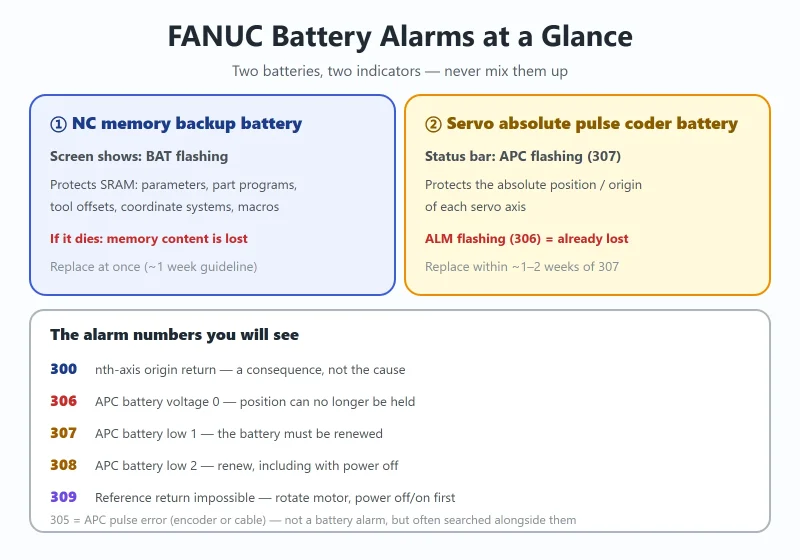
- Back up the moment a battery alarm appears: when APC (amplifier battery low) or BAT (CNC system battery low) flashes on the screen, the data is on a countdown — back up first, then change the battery.
- Keep two copies: after the backup, put the card in a PC and copy the file into a folder named “machine + date” (for example
VMC2_0iMC_2026-10-21). Never let a single card be the only copy. - Export them separately: text data + SRAM image + PMC ladder — you need all three.
Troubleshooting checklist:
- Decide first whether you need text data, an SRAM image or user files (the ladder).
- Before the one-click backup, confirm 0020 / 0313#0 / 0138#0 and record the original values.
- The one-click backup is two-staged: when the text data finishes you get the power-off prompt -> restart once -> the rest is written during power-up. Don’t pull the card after stage one.
- Per-item PUNCH outputs only the current page — page through and wait for the prompt to settle.
- The ladder is not in the SRAM backup — export it separately via PMC -> PMCMNT -> I/O with DEVICE=M-CARD and FUNCTION=WRITE.
- After exporting, set DEVICE back to F-ROM and write it in, or it stays only on the card.
- Use a 2 GB or smaller CF card, Type 1 PCMCIA slot, dedicated card.
- For error messages, check the table in section 7 first — especially
MEMORY CARD PROTECTED(write-protect switch) andMEMORY CARD FULL. - Think before restoring: it replaces the whole SRAM, so everything entered since the backup is lost.
- On absolute-encoder machines, after restoring parameters set 1815#4 (APZ) to 0 and re-establish the reference position on every axis.
Also: on the 0i-F, bit 1 (ABI) of parameter 10340 enables automatic SRAM backup; the control copies SRAM to flash ROM at set intervals, and 10342 selects how many backups are kept. When SRAM is corrupted, one of the dated backups is restored with BOOT -> SRAM DATA UTILITY -> “3. AUTO BKUP RESTORE”. This does not replace the memory-card backup — the card is the only copy you can take away from the machine.
FAQ
Why do I have to power-cycle once the one-click text output has finished?
Because the control splits the backup into two stages. Stage one is the text data it can read while the NC is running normally — parameters, programs, tool offsets, macro variables, tool life and so on, written out as .TXT you can open straight in Notepad. Stage two is the SRAM binary image plus user files (including the PMC ladder), and that can only be captured completely during the power-on self test, so one restart is needed for the automatic top-up. Pull the card after stage one only and you have not backed up the ladder at all. On “how many times”, accounts online range from once to twice — go by the official Beijing-FANUC procedure: one power cycle.
Where is the PMC ladder backed up, and why didn’t my SRAM backup include it?
The ladder belongs to the machine builder and is stored in flash ROM (F-ROM); it is not part of the SRAM backup, so it must be exported on its own. Go to SYSTEM -> PMC -> PMCMNT -> I/O, set DEVICE to M-CARD and FUNCTION to WRITE, set DATA KIND to LADDER (ladder only), then execute. Another step people miss: afterwards set DEVICE back to F-ROM and execute a write, otherwise the ladder lives only on the card and never gets written into the system.
What is the safest way to store exported files?
Two principles: name them, and keep two copies. After the backup, put the card in a PC and copy the file into a folder named “machine + date” — for example VMC2_0iMC_2026-10-21 — so months later you still know which machine and which day. Then never let a single CF card be the only copy; cards fail, get lost and get overwritten. And remember: when an APC / BAT battery alarm flashes, back up before changing the battery, with the battery replaced about once a year.
Last updated: 2026-10-28
Where to go next
- FANUC Troubleshooting — the full guide library: alarms, diagnosis numbers, servo, spindle, PMC and electrical faults, organised by symptom.
- CNC Repair Tools — which instrument measures what: multimeters, clamp meters, insulation testers and oscilloscopes, with the specification that actually matters.
- Remote Technical Support — have the readings reviewed with you: alarm reverse lookup, PMC ladder analysis and servo tuning advice by call. Repair companies and integrators welcome.
Read the guide, get the right instrument, or walk the diagnosis through with someone — pick whichever you need.
The original Chinese version — same procedure, with the full field notes.












暂无评论内容