


Loading a program into a FANUC control looks like the most basic operation in the shop, yet the same three failures show up every week: the transfer never starts, the program arrives as garbage, or it dies halfway through. The causes are remarkably consistent: the cable pinout is wrong, parameter 0020 points at the wrong channel, the two ends disagree on the serial frame, or the control does not accept the media format. This guide walks all five transfer paths — RS-232, memory card, USB, Ethernet and DNC — with the parameters, pinout, key sequences and a symptom-to-parameter fault table, all written against the FANUC parameter and connection manuals.
Related reading: the full backup procedure before you touch any parameter is in FANUC Data Backup and Recovery: ALL I/O and SRAM; macro variables and program transfer rules are in FANUC Macro B Programming Tutorial; the amplifier-replacement workflow shows another “back up before you swap” scenario at FANUC Servo Amplifier Replacement.
1. Judge the Generation: What Each Control Can Actually Transfer
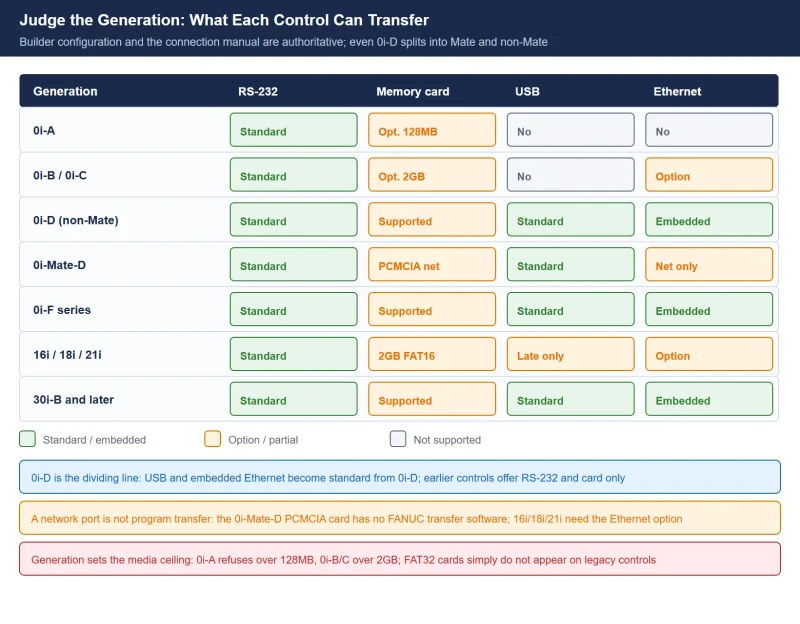
Before touching a cable, confirm two things: which control generation you have, and which interfaces the machine tool builder actually installed. FANUC transfer capability is not uniform across a series name — a 0i-D comes in Mate and non-Mate flavors, and every interface beyond RS-232 depends on builder options. The table below summarizes the common configurations:
Table 1 Program transfer capability by FANUC control generation (builder configuration is authoritative)
| Generation | RS-232 | Memory card (CF/PCMCIA) | USB | Ethernet |
|---|---|---|---|---|
| 0i-A | Standard | Option, max 128 MB, FAT16 no partition table | No | No |
| 0i-B / 0i-C | Standard | Option, max 2 GB, FAT16 single partition | No | Option (Fast Ethernet board) |
| 0i-D (0i-MD/0i-TD) | Standard | Supported | Standard | Embedded 100 Mbps standard |
| 0i-Mate-D | Standard | PCMCIA network card only (no FANUC transfer software) | Standard | Network card function only |
| 0i-F series | Standard | Supported | Standard | Embedded standard |
| 16i / 18i / 21i | Standard | Supported, 2 GB FAT16 | Late models only | Option; 21i-B has no embedded port |
| 30i-B and later | Standard | Supported | Standard | Embedded standard |
Three conclusions the field draws from this table:
- 0i-D is the dividing line. From 0i-D onward, USB and embedded Ethernet are standard; 0i-B/C and earlier effectively offer only RS-232 and memory card. On a 0i-MF, use USB or Ethernet and stop fighting the serial port.
- A network port does not mean program transfer works. The 0i-Mate-D PCMCIA network card explicitly does not support FANUC program-transfer software, and 16i/18i/21i need the Fast Ethernet board option. The practical test: if the FTP transfer screen does not exist in the menu, the option is not there.
- Generation sets the media ceiling. A modern large card on an old control is the classic mismatch: 0i-A refuses anything over 128 MB, 0i-B/C anything over 2 GB, and FAT32 cards simply do not appear on legacy controls.
2. Method One RS-232: Pinout, Parameters and Frame Settings
RS-232 is the only path present on every generation — and the one with the most parameters and the most “two ends disagree” failures. The rule is simple: configure the control first, then match the PC software to the control, instead of adjusting both.
Pinout: DB25 to DB9
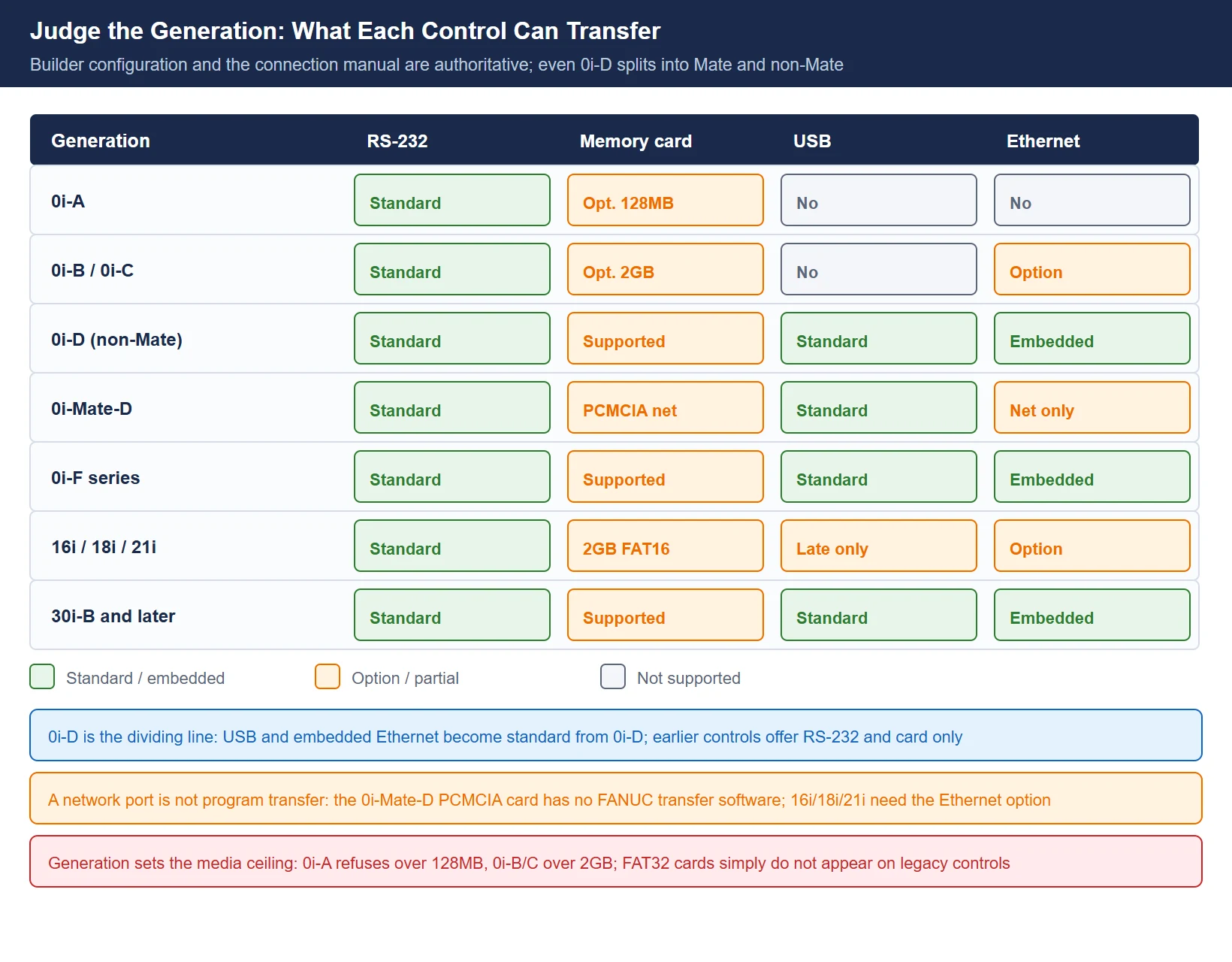
On the FANUC side (0i / 16i / 18i / 21i) the port is typically DB25 (some builders rewire it to DB9 or a pin header — always check the connection manual); the PC side is DB9. The core is three crossed wires plus ground:
Table 2 RS-232 wiring (PC DB9 to FANUC DB25)
| PC DB9 | Signal | FANUC DB25 | Note |
|---|---|---|---|
| 2 (RXD) | Data receive | 3 (TXD) | FANUC transmits, PC receives |
| 3 (TXD) | Data transmit | 2 (RXD) | PC transmits, FANUC receives |
| 5 (GND) | Signal ground | 7 (GND) | Common return, must be connected |
Handling the handshake lines: with software flow control (Xon/Xoff), jumper pin 4 (RTS) to pin 5 (CTS) inside the FANUC connector shell, and tie pins 6 (DSR), 8 (CD) and 20 (DTR) together — those jumpers never reach the PC side. With hardware flow control, cross RTS/CTS/DTR/DSR out to the PC as the connection manual specifies. DB9-to-DB9 in one line: 2-3 crossed, 5-5 straight, everything else open. Use shielded twisted pair with the shield grounded at one end only; the official limit is 15 m, and above 19200 baud keep the run under 8 m.
Parameters: 0020 selects the channel, 0101/0102/0103 set the frame
0020 (I/O CHANNEL) is the master switch: 0 or 1 = RS-232C serial port 1, 2 = serial port 2. The frame for that channel is then defined by three parameters (channel 1 uses 0101/0102/0103; channel 2 uses 0111/0112/0113 with identical rules):
Table 3 RS-232 parameter quick reference (channel 1 numbers; channel 2 = 0111/0112/0113)
| Parameter | Name | Values |
|---|---|---|
| 0020 | I/O channel | 0/1 = RS-232C port 1; 2 = port 2; 4 = memory card; 9 = embedded Ethernet; 17 = USB memory |
| 0101#0 | SB2 stop bits | 0 = 1 bit; 1 = 2 bits |
| 0101#3 | ASI input code | 0 = EIA/ISO auto-detect; 1 = ASCII (also set 0000#1 ISO = 1) |
| 0101#7 | NFD feed output | 0 = output; 1 = not output. Set 1 for anything other than a FANUC PPR |
| 0102 | I/O device number | 0 = RS-232C using DC1-DC4 control codes; 4 = RS-232C without control codes; 1/2/3 = cassette adapters and FA card devices; 5 = portable tape reader; 6 = FANUC PPR |
| 0103 | Baud rate code | 1=50, 2=100, 3=110, 4=150, 5=200, 6=300, 7=600, 8=1200, 9=2400, 10=4800, 11=9600, 12=19200 (bps) |
| 0100#5 | ND3 (DNC) | 0 = read one block; 1 = read until buffer full. Set 0 for large DNC programs with alarm 087 |
| 0100#3 | NCR (EOB output code) | 0 = LF CR CR; 1 = LF. Match the PC software line ending |
The traditional FANUC combination is 4800 baud, 7 data bits, even parity, 2 stop bits (EIA code); with ASCII (0101#3 = 1), use 8 data bits, no parity, 1 stop bit. Both ends must match item by item — 7E2 against 8N1 is the number-one cause of instant garbage. The SETTING screen I/O CHANNEL mirrors parameter 0020; during commissioning set TV CHECK to 0 so a parity failure cannot masquerade as a serial fault.
Key sequence
Input (PC to control): EDIT mode, PROG, OPRT, the ► extension key, READ, EXEC, then send from the PC software. Output (control to PC): same path with PUNCH, EXEC. After any transfer, open the program and verify the first and last lines plus the length — never trust the progress bar alone.
3. Method Two Memory Card (CF/PCMCIA): 0020=4 and Card Formatting
Older controls (0i-A/B/C, 16i/18i/21i) have no USB port, so the memory card is the main medium. Three points:
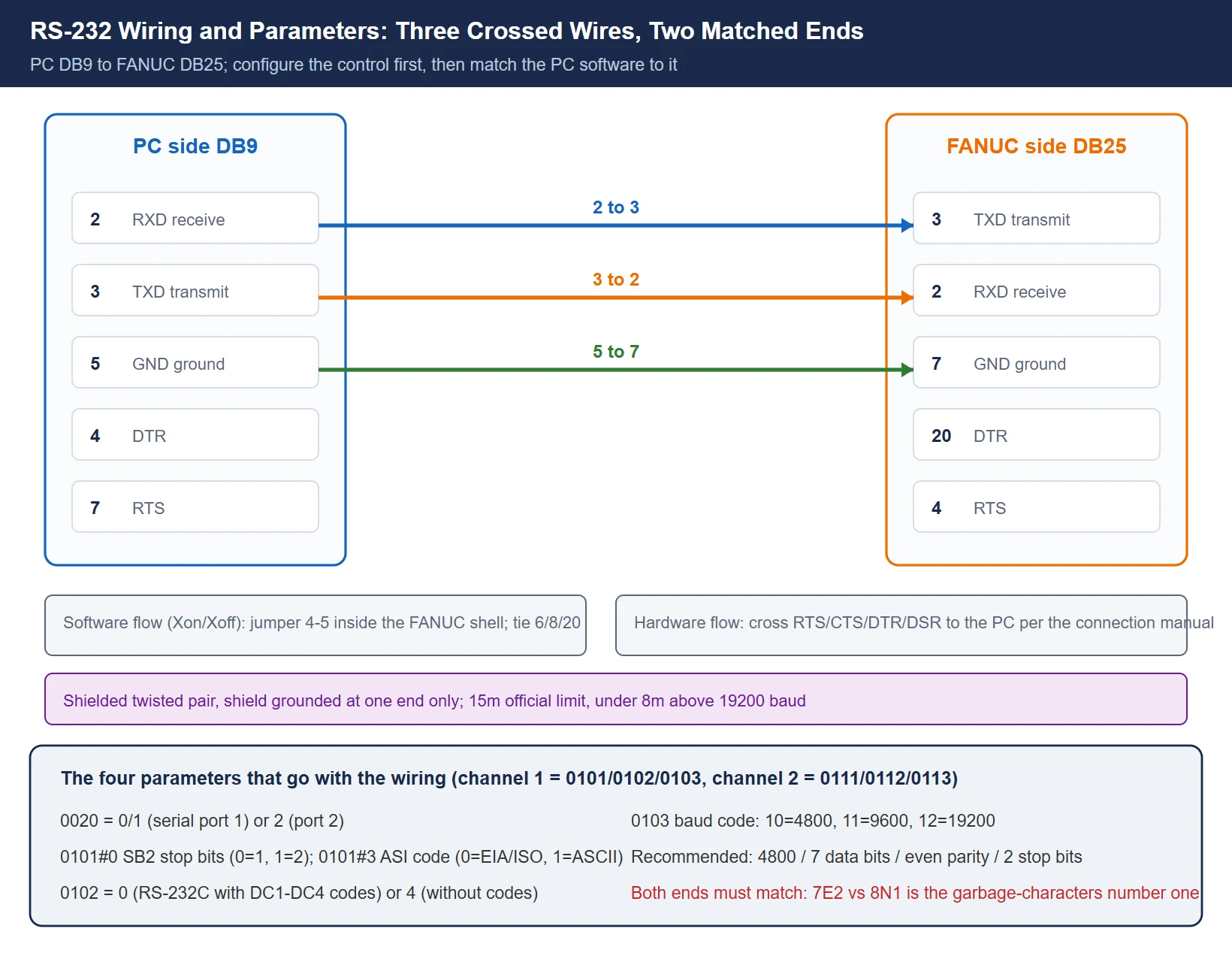
- 0020 = 4 (memory card interface, NC side; 7 is the touch-panel side — do not confuse them).
- Match the card format to the generation ceiling: 0i-A max 128 MB, FAT16 with no partition table; 0i-B/C and 16i/18i/21i max 2 GB FAT16 single partition; 30i up to 8 GB FAT16 or 32 GB FAT32; 0i-F up to 32 GB FAT32. Oversized, GPT-partitioned, exFAT or NTFS cards are simply not seen.
- Use 8.3 short filenames in the root directory. Long filenames are ignored as unsupported directory entries.
Key sequence: EDIT, PROG, the directory list, OPRT, ►, DEVICE, M-CARD. For input: F READ, type the file number, F SET, type the target O number, O SET, EXEC. For output: PUNCH, EXEC. To punch every program, enter O-9999 with F OUTPUT and the control generates one ALL-PROGRAM file. Never remove the card mid-transfer — a broken write on legacy flash corrupts the file at best and the SRAM allocation table at worst.
4. Method Three USB: 0020=17, Format Rules and the DEVICE CHANGE Trap
On 0i-D/MF and later, USB is the easiest path — and the one with the highest trap rate, concentrated in four points:
- 0020 = 17 (0i-MF front-panel USB; some older firmware uses 4). If 17 still reports no device, try 4 — the connection manual for your control decides.
- The drive must be FAT32, single partition, MBR. exFAT, NTFS and GPT are all rejected; 1-32 GB is the sane range (older controls less). When a drive is not recognized, reformat it on the PC rather than suspecting the cable.
- Program file format: a leading % line, immediately followed by the O number line, and a trailing %; name the file after the O number itself (e.g. O2024), no spaces or non-ASCII characters, extension optional; O0000 is not a legal program number — start at O0001; store as plain ASCII without a UTF-8 BOM — a BOM is the usual cause of “first line garbled or missing”.
- DEVICE CHANGE must return to CNC_MEM. This is the most frequent “the program transferred but cycle start says not found”: after reading from USB the control does not jump back to internal memory, and every later operation still targets the USB device. Press DEVICE CHANGE, select CNC_MEM, confirm the program is in the list, then start.
Key sequence: EDIT, PROG, directory list, DEVICE CHANGE (DEV CHG/DEVICE), select USB MEM, cursor to the file, F GET, F NAME for the file name, the O number for the destination, F SET, EXEC. Very large programs can run straight from the stick in DNC mode instead of being loaded into memory (Section 6).
5. Method Four Ethernet / FTP: IP, FOCAS2 Port and the FTP Transfer Screen
From 0i-D/MD/TD the embedded Ethernet port is standard; 0i-Mate offers only the PCMCIA network card (no FANUC transfer software), and 16i/18i/21i need the Fast Ethernet board option. Taking the 0i-D embedded port as the example:
- Channel: 0020 = 9 (embedded Ethernet).
- IP settings: SYSTEM, the [+] key, EMBED PORT (embedded port), COMMON — enter IP address, subnet mask and router address. The IP must share a subnet with the PC without conflicts; nine out of ten “cannot ping” cases are subnet or firewall, not a dead CNC. 16i/18i/21i use the ETHPRM path, require MDI mode, and support static IP only.
- Related parameters: 14880#0 (ETH) = 0 to enable Ethernet (set to 1 the menu itself disappears — the prime suspect when the embedded-port soft key is missing); 14880#6 (DHC) = 1 to disable DHCP for static IP.
- FOCAS2 port: embedded port, FOCAS2 — TCP port 8193, UDP 0, time interval 0. Third-party monitoring and DNC software uses this port. If PC-side telnet to 8193 works but ping does not, check the port and the option; if ping works but telnet fails, check the FOCAS2 settings.
- FTP transfer: embedded port, FTP transfer — host name (the PC’s IP), port number (matching the PC FTP software setting, e.g. 2121), user name, password and login directory (a folder on the PC, not the drive root). Up to three hosts can be stored. After setting, press restart then execute, and every change takes effect only after a power cycle. Then connect to the CNC from any PC FTP client; TCP acknowledgment and retransmission give byte-exact delivery, and failures return explicit FTP error codes instead of silent truncation.
- Emergency recovery: on 16i/18i/21i, if the IP is lost, hold the main-board push switch for 5 seconds and release when the 7-segment display shows “2” — embedded Ethernet resets to 192.168.1.1, port 8193.
6. Method Five DNC: Channel, ND3 and Handshake
DNC — drip-feeding a program that is never fully stored in CNC memory — exists for programs too large to fit (mold and 5-axis jobs) and forms the basis of centralized multi-machine management.
- Channel: 0020 still selects the physical channel (0/1 serial or 9 Ethernet); the DNC mode itself is switched by the builder’s PMC logic (a G127.5-class signal or a panel DNC switch). “Loads into memory fine but will not run DNC” points here first.
- ND3 (0100#5): 0 = read one block, execute, request the next; 1 = fill the buffer. When a large DNC job raises 087, set 0 — that is the official fix.
- Flow control and handshake: DNC is a one-way stream whose only back-pressure is DC3 (Xoff). When the input buffer fills, the control emits Xoff and expects the stream to stop within ten characters; character eleven triggers 087. The PC software must therefore use Xon/Xoff (software) flow control — hardware RTS/CTS alone cannot prevent 087.
- Cycle start handshake: after each block the PC sends the next only on the control’s cycle-start signal. A machine that “waits and does not move” is a handshake or software setting problem, not a program problem.
- When DNC is a poor fit: an unstable serial or network link (a mid-job disconnect is a mid-job stoppage), legacy software without flow control, or a machine whose serial path was never proven stable.
7. Fault Table: From Symptom to Parameter to Check
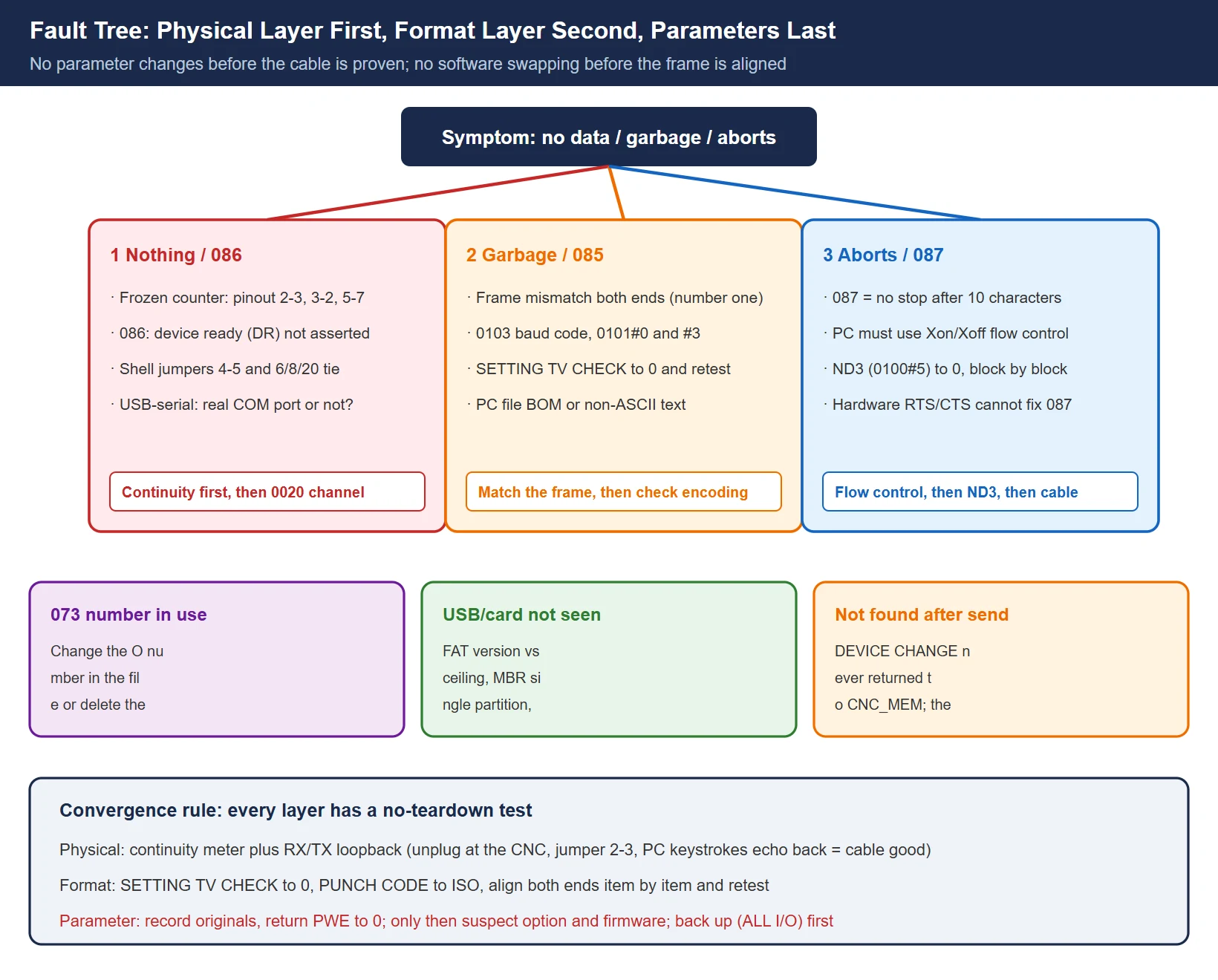
The field rule is physical layer first, format layer second, parameters last: do not touch parameters before the cable is proven, and do not swap software before the frame is aligned. Use this table by symptom:
Table 4 Transfer faults: symptom, cause and check
| Symptom | Alarm | Prime suspect | Checks and fix |
|---|---|---|---|
| Nothing arrives, counter frozen | None | Pinout or channel | Continuity on 2-3, 3-2, 5-7; 0020 matches the physical port; correct PC COM number (USB-serial driver really enumerating?) |
| Device ready signal dropped | 086 | Handshake wiring | DR not asserted: shell jumpers 4-5 and 6/8/20; PC side raises DTR |
| Garbage from the first block | None or 085 | Frame mismatch | Baud rate (0103 code), data bits, parity, stop bits (0101#0) matched both ends; 0101#3 ASI with 0000#1 ISO; BOM or non-ASCII in the PC file |
| Format or baud rate incorrect | 085 | Code or frame | 0101#0/#3, 0103 baud code; SETTING TV CHECK to 0 and retest; leading/trailing % and O line intact |
| Dies partway, position varies | 087 | Flow control not honored | Xon/Xoff on the PC side; ND3 (0100#5) to 0; retry with a known-good cable (intermittent contact stops at different points) |
| Stream will not stop | 087 | Same | 087 is officially “input not interrupted after 10 characters although read terminate was issued” |
| Program number already in use | 073 | O number collision | Change the O number in the file or delete the existing program; external filename and internal O number may differ |
| USB/card not recognized | No device | Media format | FAT version against the generation ceiling, MBR single partition, 8.3 names, 0020 = 17/4; retry with a small drive |
| Transferred but program not found | None | Active device | DEVICE CHANGE back to CNC_MEM before cycle start (the number-one USB trap) |
| First line missing or garbled | None | File header | Strip BOM and blank lines; % must be the first character; unify line endings |
8. Programs, Parameters, Offsets and Macro Variables: ALL IO vs Backup
Everyday “transferring a program” and “making a backup” are different jobs; the channel can be shared but the data scope is worlds apart:
- Single or batch programs: READ/PUNCH, F READ/F SET, ALL-PUNCH/ALL-READ (O-9999, producing the ALL-PROGRAM file). Operator-level functions.
- Parameters, offsets, macro variables: macro variables can be output as text via the macro PRINT/DPRNT instructions or carried with an ALL I/O backup; PMC parameters, ladder and SRAM are maintenance-level data — go through ALL I/O full backup or BOOT-level SRAM backup, do not shuttle them over the ordinary program channel.
- ALL I/O full backup: carries programs, parameters, offsets, PMC and SRAM in one pass — the required action before replacing a main board or clearing SRAM. Path and cautions: FANUC Data Backup and Recovery.
- One boundary worth repeating: a program sitting in CNC memory is not an independent backup — power loss, SRAM clearing or a wrong keypress erases it. A backup means a complete, re-readable copy on external media, verified by reading it back.
- Macro programs transfer by the same rules; variable area and retention rules are in FANUC Macro B Programming Tutorial — check which areas do not survive power-off before relying on them.
9. Compliance: Software and Cabling via Official or Public Channels Only
- Transfer software: FANUC’s own program transfer, remote diagnosis and screen-display functions require the corresponding options and official software; on the PC side any public terminal program or a DNC vendor’s trial version from its official site will do. This guide provides no cracks, keygens or third-party file-hosting links — those channels are the most common source of CNC malware and program tampering, and one altered character in a program is a crashed tool.
- Cabling: build to the Table 2 pinout; before trusting a store-bought null-modem cable, verify its internal jumpers (most “null modem” cables are not wired the way FANUC needs). For USB-serial adapters, prefer true serial-chip designs — aggressive virtual bridging is a suspected source of 087.
- Parameter discipline: record original values before changing 0020/0101/0103, and return PWE to 0 afterwards; back up before any bulk transfer (Section 8) so a bad transfer can be rolled back.
Further Reading
- FANUC Servo Amplifier Replacement: another “back up before you swap” field scenario
- FANUC Data Backup and Recovery: ALL I/O and SRAM: the pre-parameter-change safety net
- FANUC Macro B Programming Tutorial: macro variables and transfer rules
Frequently Asked Questions
How do I get a program from a FANUC control back to a PC, for each of the four paths?
The reverse direction mirrors the forward one. RS-232: EDIT, PROG, OPRT, ►, PUNCH, EXEC with the PC software set to receive. Memory card: 0020 = 4, then DEVICE, M-CARD, PUNCH — or O-9999 with F OUTPUT for a full ALL-PROGRAM export. USB: 0020 = 17, DEVICE CHANGE to USB MEM, F OUTPUT or PUNCH to write the file, then switch back to CNC_MEM. Ethernet: embedded port, FTP transfer, connect to the PC’s FTP software and use get to download. In every case, open the file on the PC, verify the first and last lines and the character count, and confirm the program is visible in the control’s program list.
A FANUC transfer produces garbage or stops halfway — which parameters are out of step?
Garbage is almost always the frame: baud rate (0103 code), data bits, parity and stop bits (0101#0) must match item by item on both ends, and the code setting (0101#3 ASI with 0000#1 ISO) must be consistent; a UTF-8 BOM or Chinese text in comments also garbles output. A mid-transfer stop is almost always flow control: enable Xon/Xoff on the PC side with 0102 = 0 (DC control codes), and for large DNC jobs set ND3 (0100#5) to 0 for block-by-block reading. Only after both are ruled out should you suspect the cable and contacts (intermittent contact shows up as a different stop position each run) or the USB-serial chipset. Record every parameter you touch, and set the SETTING screen TV CHECK to 0 while retesting.
Can a 0i control use a USB drive, and which transfer methods does it support at all?
It depends on the generation: from 0i-D onward (including 0i-MF) USB is standard with 0020 = 17; 0i-B/C and earlier have no USB port and use RS-232 or memory card. A 0i-Mate-D has USB, but its PCMCIA network card does not support FANUC transfer software, limiting the Ethernet route. For a specific machine, the connection manual and the actual menus decide: the FTP transfer screen under the embedded port means Ethernet works, and USB MEM appearing under DEVICE CHANGE means USB works. On new machines prefer USB or Ethernet; on old machines, pair the RS-232 parameters correctly — it is just as reliable once matched.
Last updated: 2026-10-25
Further reading (EN): FANUC SV0381/0384/0385/0386/0387 Servo Alarms: Poor Grounding and the Linear Scale (EXT) Alarm Family (when the alarm appears, read the “(EXT)” in the text and check the scale cable/SDU before swapping parts)
The original Chinese version — same procedure, with the full field notes.








暂无评论内容