


Servo tuning decides surface finish, accuracy and machine life — and when a machine vibrates, overshoots or leaves a poor finish, turning parameters by hand is slow and often wrong. FANUC SERVO GUIDE is FANUC’s official servo adjustment software: it captures the servo waveforms, analyses them, and computes the parameters. This guide covers what it does, which controls it supports, how to install and connect it, and the four workflows that solve most field problems — with the safety rules that keep a tuning session from becoming a crash.
Related reading: for deciding between repair and replacement when tuning is not enough, see FANUC Servo Amplifier: Repair or Replace; for the gain side of the story, see FANUC Inertia Ratio Calculation; for the standard gain parameters, see FANUC Servo Gain 2021/1825.
1. What SERVO GUIDE does
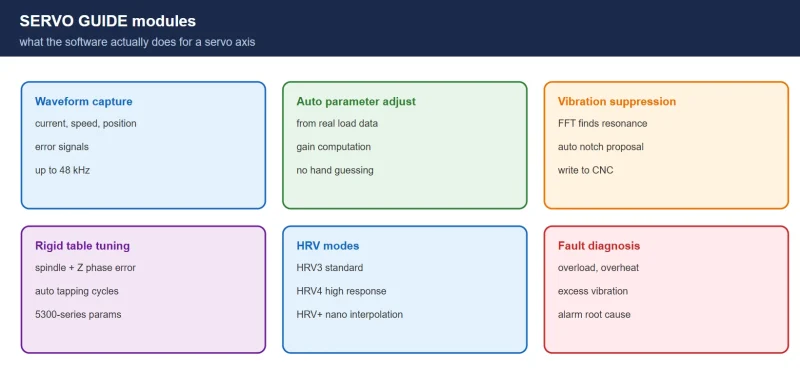
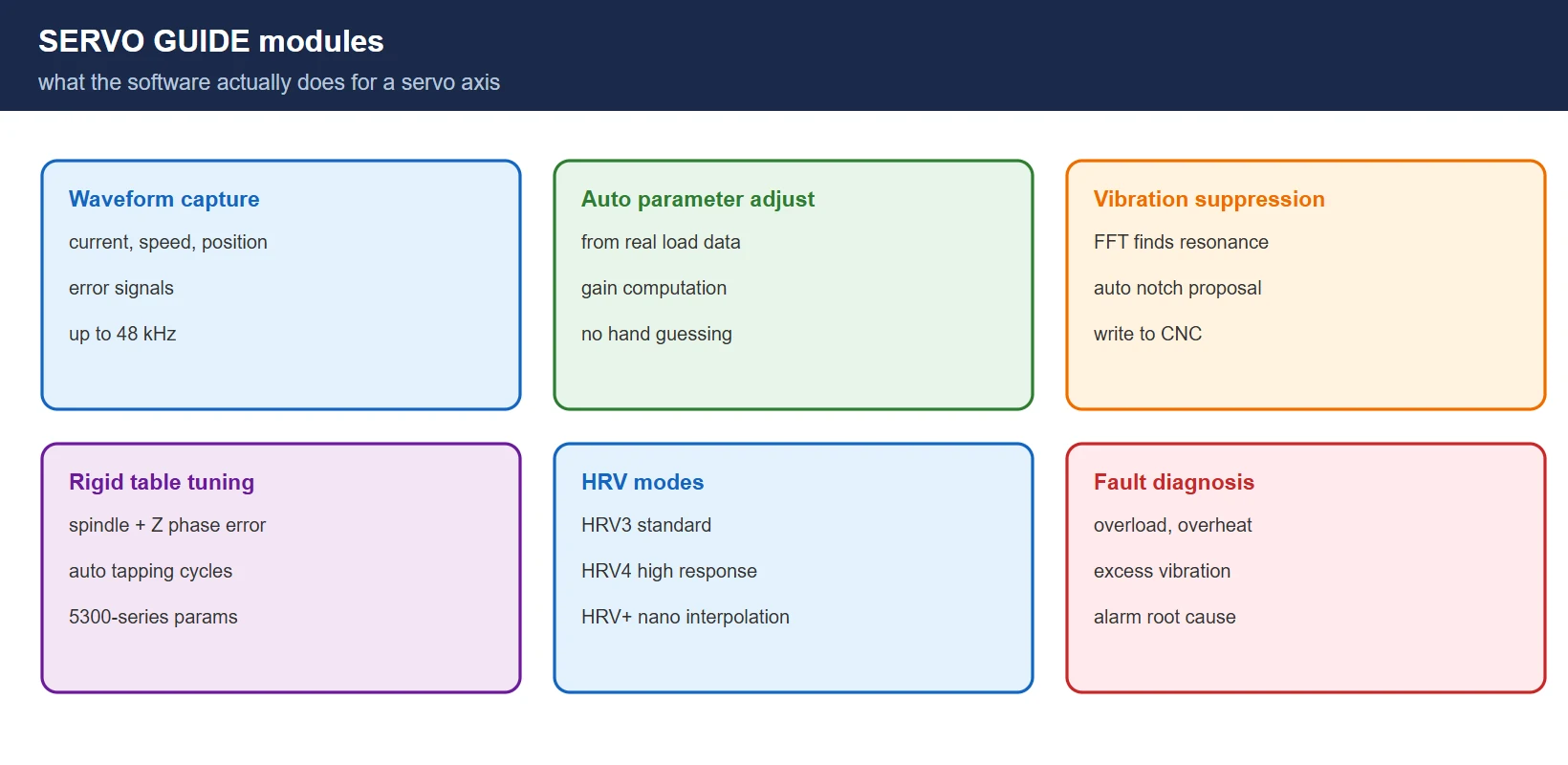
SERVO GUIDE is FANUC’s engineering software for servo axes. Its working modules:
- Waveform capture — record current, speed, position and error signals at up to 48 kHz
- Automatic parameter adjustment — compute gain parameters from the actual mechanical load
- Vibration suppression — FFT analysis finds the resonance, the software sets the notch filter
- Rigid table adjustment — optimise rigid tapping parameters for thread accuracy
- HRV control — switch HRV3 / HRV4 / HRV+ modes for high-accuracy, high-response cutting
- Fault diagnosis — analyse overload, overheat and excessive-vibration alarms
2. Supported systems
Table 1 — Control series and motor families covered
| Control series | Models | Motors |
|---|---|---|
| FANUC 0i-F / 0i-MF | Series 30i / 31i / 32i-MODEL B | αi / βi series |
| FANUC 30i / 31i / 32i | Series 30i / 31i / 32i-MODEL A/B | αi / βi series |
| FANUC 0i-D | 0i-D (partial functions) | αi / βi series |
⚠️ Newer SERVO GUIDE builds support HRV5+ control and the latest motor models; an old package may simply not recognise a new amplifier. Match the software to the control generation before you start.
3. Safety rules before any tuning
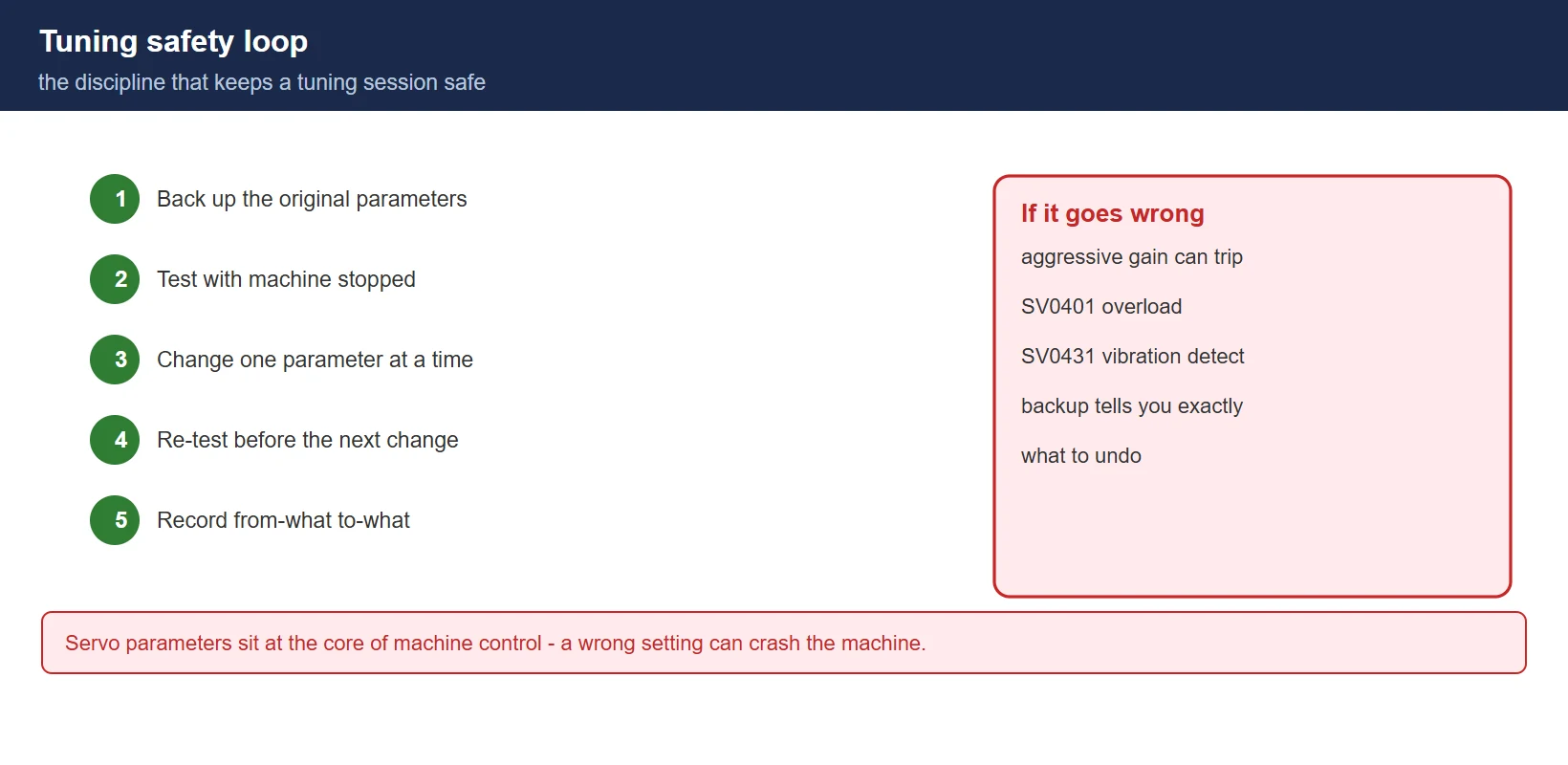
🚨 Servo parameters sit at the core of machine control. A wrong setting can crash the machine or damage a motor:
- Back up the original parameters first — every session, before the first change
- Test with the machine stopped or in a non-cutting state
- Change one thing at a time and re-test; do not stack three changes and hope
- Keep a written record of what was changed, from what to what
4. Installation and connection
4.1 Hardware and install
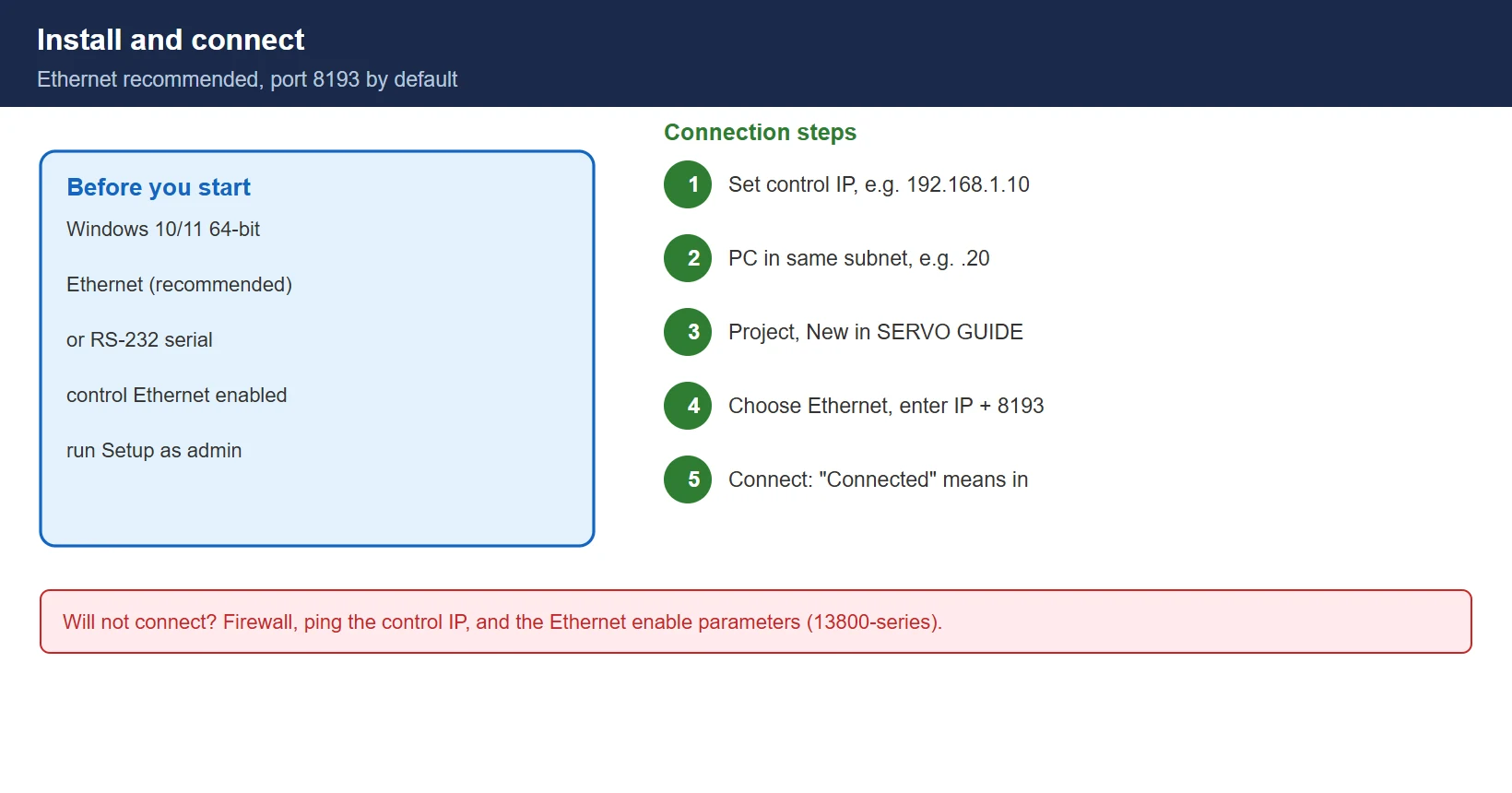
- PC: Windows 10/11, 64-bit
- Cable: Ethernet (recommended) or RS-232 serial
- Control: Ethernet or serial function enabled
Unpack the package and run Setup.exe as administrator, keep the default path, and reboot after install.
4.2 Connect
- Set the control’s Ethernet IP (for example 192.168.1.10) and put the PC in the same subnet (for example 192.168.1.20)
- In SERVO GUIDE: Project → New
- Choose the communication: Ethernet (recommended) or RS232
- Enter the control IP and port (default 8193)
- Click Connect — “Connected” means you are in
If it will not connect: check whether a firewall blocks the software, ping the control IP, and confirm the Ethernet function is enabled in the control parameters (the 13800-series).
5. The four field workflows
5.1 Waveform capture
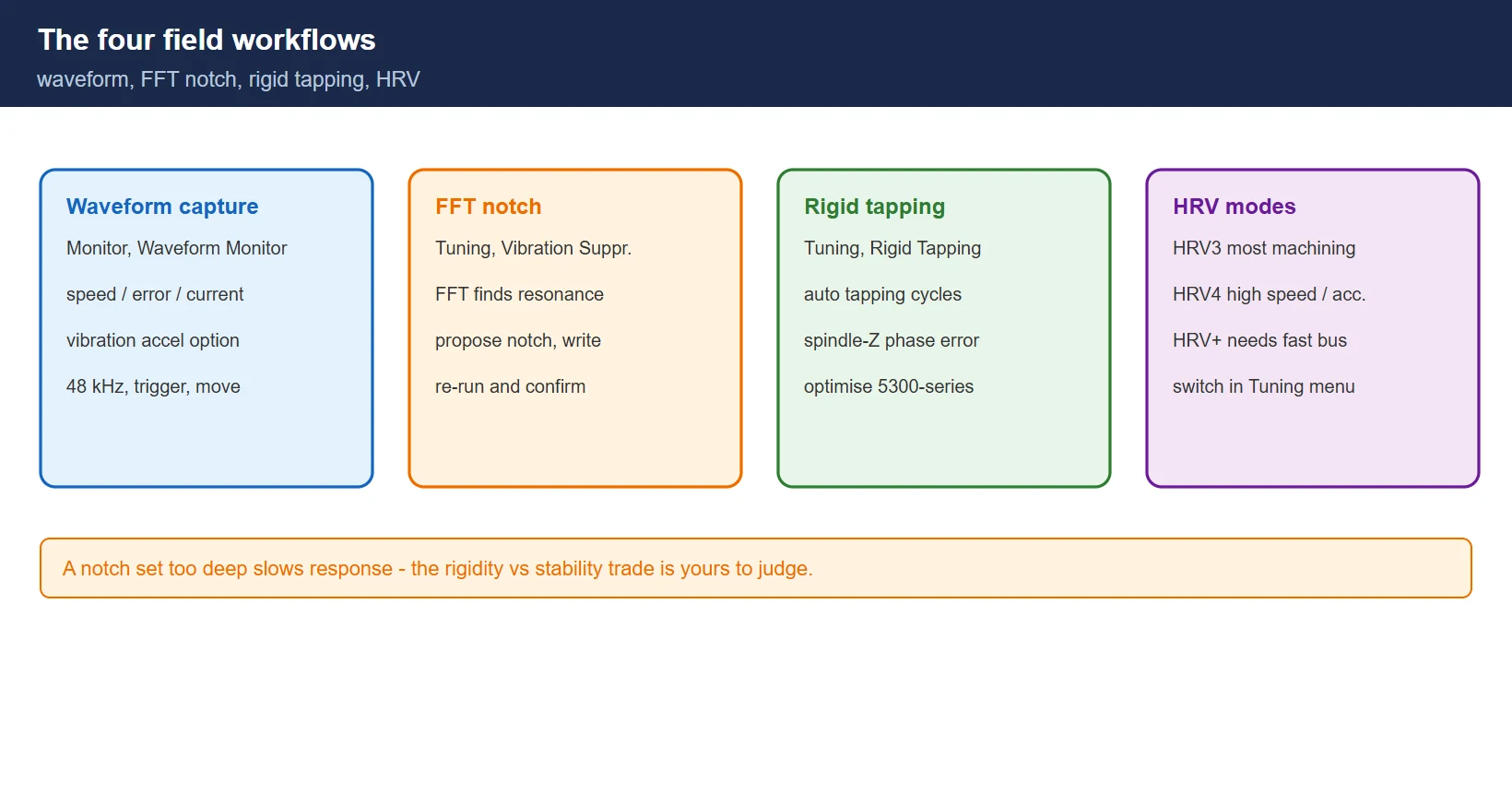
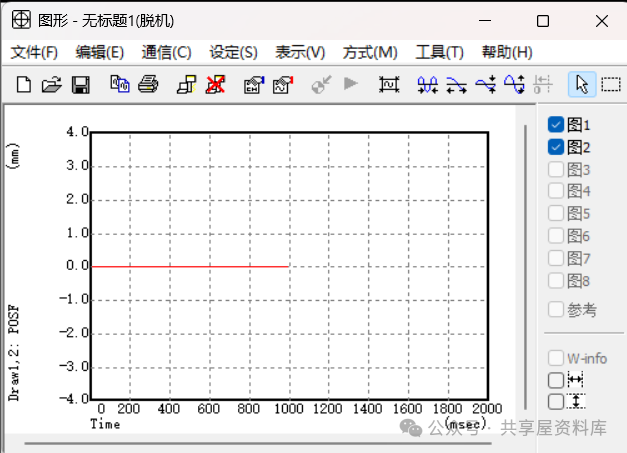
The daily diagnostic tool. Monitor → Waveform Monitor, pick the signals — motor speed, position error, motor current, vibration acceleration (needs the optional sensor) — set the sampling (48 kHz recommended) and trigger, move the axis, and read the capture for overshoot, oscillation or abnormal current.
5.2 FFT vibration suppression
For high-frequency squeal or vibration: Tuning → Vibration Suppression, run the FFT analysis to find the resonance frequency, let the software propose the notch filter (frequency, depth, width), Write to CNC, then re-run and confirm the vibration is gone.
⚠️ A notch set too deep slows the system response — the trade between rigidity and stability is yours to judge.
5.3 Rigid tapping adjustment
For thread accuracy: Tuning → Rigid Tapping, run the automatic adjustment cycle — the software drives several tapping cycles on spindle and Z axis, analyses the phase error between them and optimises the rigid table parameters (the 5300-series).
5.4 HRV modes
- HRV3 — standard high-accuracy mode; the right choice for most machining
- HRV4 — higher response for high-speed, high-accuracy work
- HRV+ — nano-level interpolation, needs the high-speed serial bus
Switch modes under Tuning → HRV Control according to what the job needs, not according to what sounds best.
Need the software, a license, or field troubleshooting help?
- WeChat group: add the site owner’s WeChat ID
136959805with the note “CNC” to join the engineers’ group (FANUC / SINUMERIK users). Best for mainland China & Taiwan. - Email: djb2924@163.com — software access, fault diagnosis, or business inquiries.
- 24/7 Knowledge Agent: CNC Knowledge Base Agent — instant answers on alarms, parameters, and programming.
Frequently Asked Questions
Is SERVO GUIDE free?
No. The official package needs a licence — often bundled with a maintenance contract. Trial and older builds circulate for learning use, but a production machine deserves the licensed, supported version from FANUC or your dealer.
Why can’t I connect to the control?
Almost always the network: PC and control not in the same subnet, the Ethernet function not enabled on the control (check the 13800-series parameters), or a firewall on the PC blocking the tool. Ping the control from the PC to separate network problems from software problems.
Can servo tuning cause alarms?
Yes. Aggressive settings — gain too high, for example — can trigger SV0401 (overload) or SV0431 (vibration detection). That is the reason for the backup-and-small-steps discipline: when an alarm appears, you know exactly what to undo.
Last updated: 2026-10-25
The original Chinese version — same procedure, with the full field notes.









暂无评论内容