


Moving part programs between a PC and a FANUC control used to mean a serial cable and a lot of patience. FANUC Program Transfer Tool V18 does it over ordinary Ethernet: pick the program on the PC, drag it to the control, done. This guide covers the controls it supports, the install, the Ethernet wiring and CNC-side parameters, and the drag-and-drop transfer itself — including the mistakes that make the connection fail on the first attempt.
Related reading: for the full map of transfer paths (RS-232, memory card, USB, DNC), see FANUC Program Transfer: RS-232, Memory Card, USB, Ethernet and DNC; for backing up the whole control afterwards, see FANUC Data Backup and Recovery; for the program side, see FANUC Macro B Programming.
1. What it is and which controls it covers
Program Transfer Tool is FANUC’s PC utility for moving part programs between a Windows PC and the control over Ethernet. The controls covered:
- Series 0i — 0i-B / 0i-C / 0i-D
- Series 16i / 18i / 21i — A and B generations
- Series 30i / 31i / 32i — Model A
- PMi — D and H
The control needs an Ethernet interface and the corresponding function option — a machine without the Ethernet board or option simply has nothing to talk to. On the PC side, package versions run from V8.0 up to V18.0, the current one; the install and the Ethernet settings are the same idea across versions.
2. Installation and registration
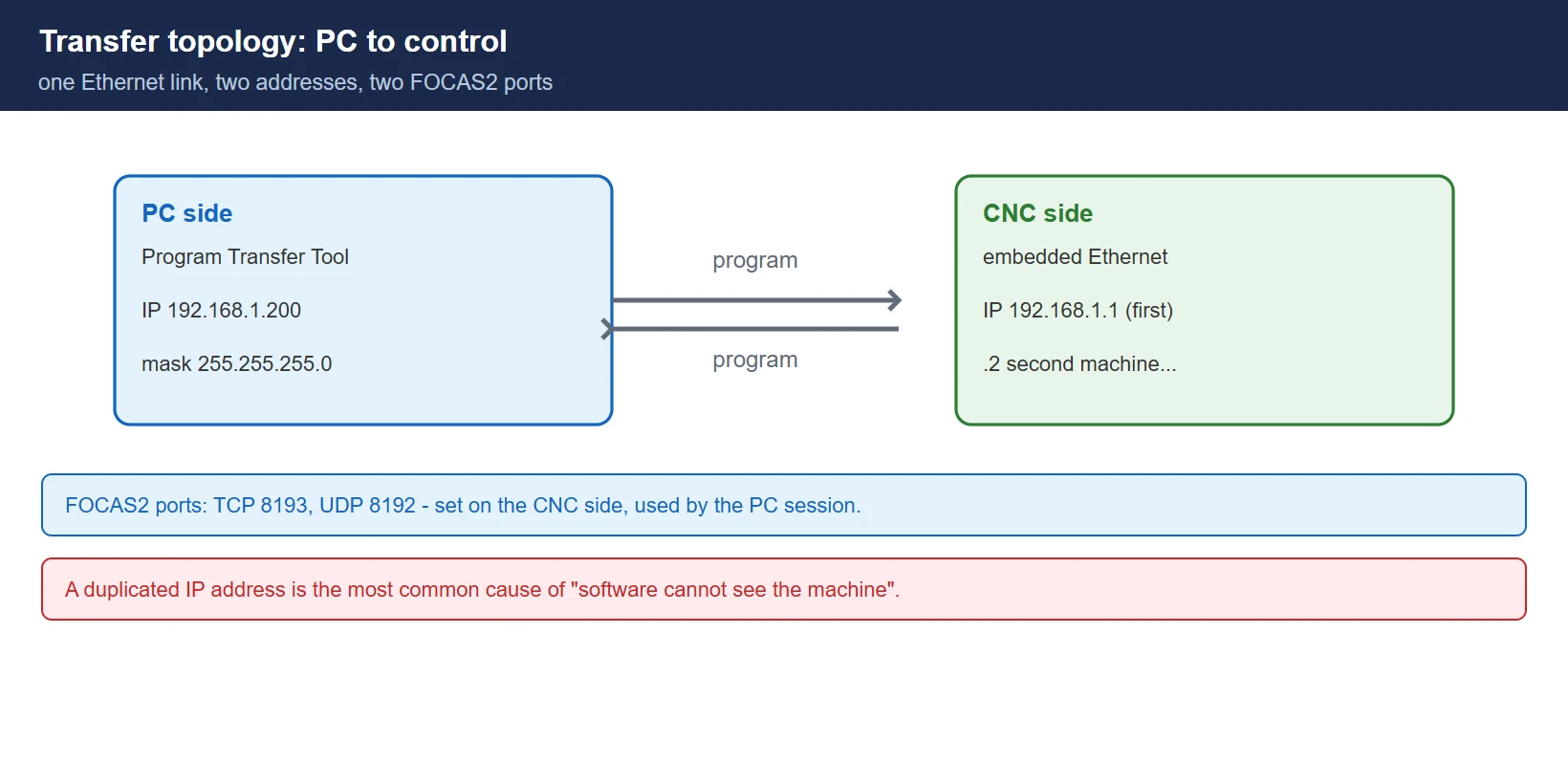
- Obtain the installer from FANUC or your machine’s dealer — the version that matches your control generation
- Unpack the archive, open the folder and run Setup
- Nothing special is needed during install — accept the defaults and click through to completion
- Activate the software following the instructions supplied with your licensed package; other versions install the same way
⚠️ Get the package through an official channel. An activation path copied from an unofficial download is both a licence problem and a malware risk on a PC that touches your network.
3. Ethernet wiring and IP planning
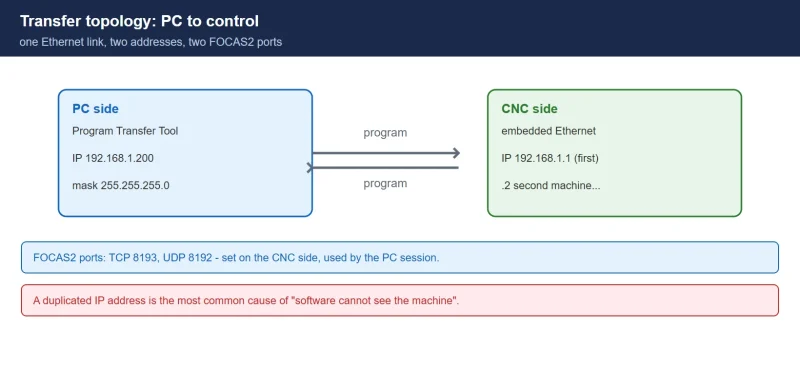
The transfer runs over the control’s embedded Ethernet port (or a Fast Ethernet board). Plan the addresses before you touch anything:
- PC side: 192.168.1.200 — any free last octet works as long as it does not collide with the control; subnet mask 255.255.255.0
- CNC side: 192.168.1.1 for the first machine, 192.168.1.2 for the second, and so on — a predictable plan makes a multi-machine shop manageable
⚠️ A duplicated address is the most common cause of “the software cannot see the machine”. Write the plan down and stick one address per machine.
4. CNC-side settings
On the control:
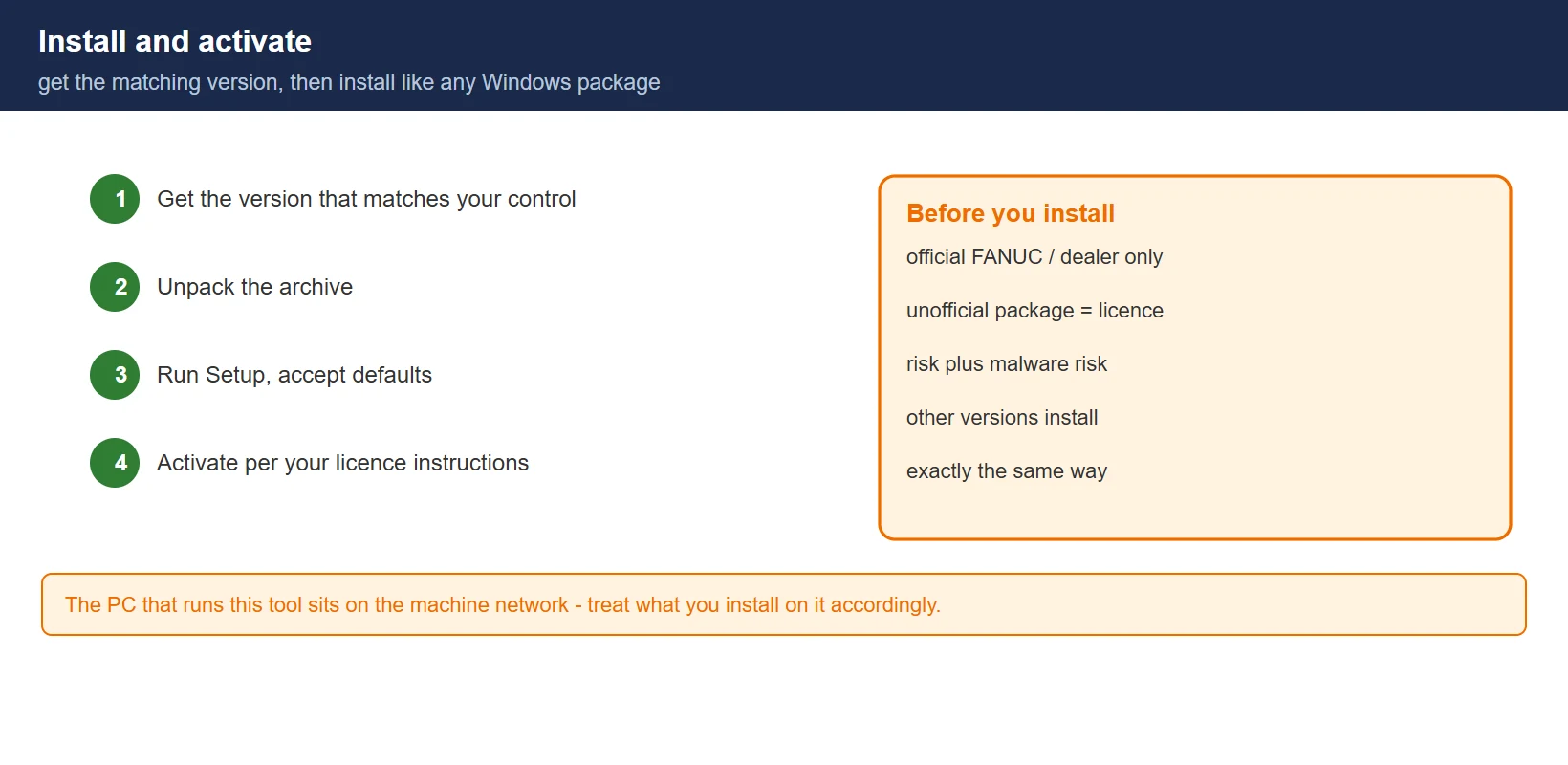
- Press SYSTEM, then the extend key several times until the Ethernet softkey area appears
- Enter the common Ethernet parameter screen
- Press OPERATE (操作) → EMB/PCC (内嵌/PC) → select the built-in Ethernet board → RESTART (再启动) → EXECUTE (执行)
- Back on common, set the control’s IP address per your plan
- Enter FOCAS2 and set the ports and interval: TCP 8193, UDP 8192, interval typically 10 seconds
Those two port numbers are what the PC software talks to — if they are wrong or blocked, nothing connects, no matter what the wiring looks like.
5. PC-side session setup and transfer
5.1 Session settings
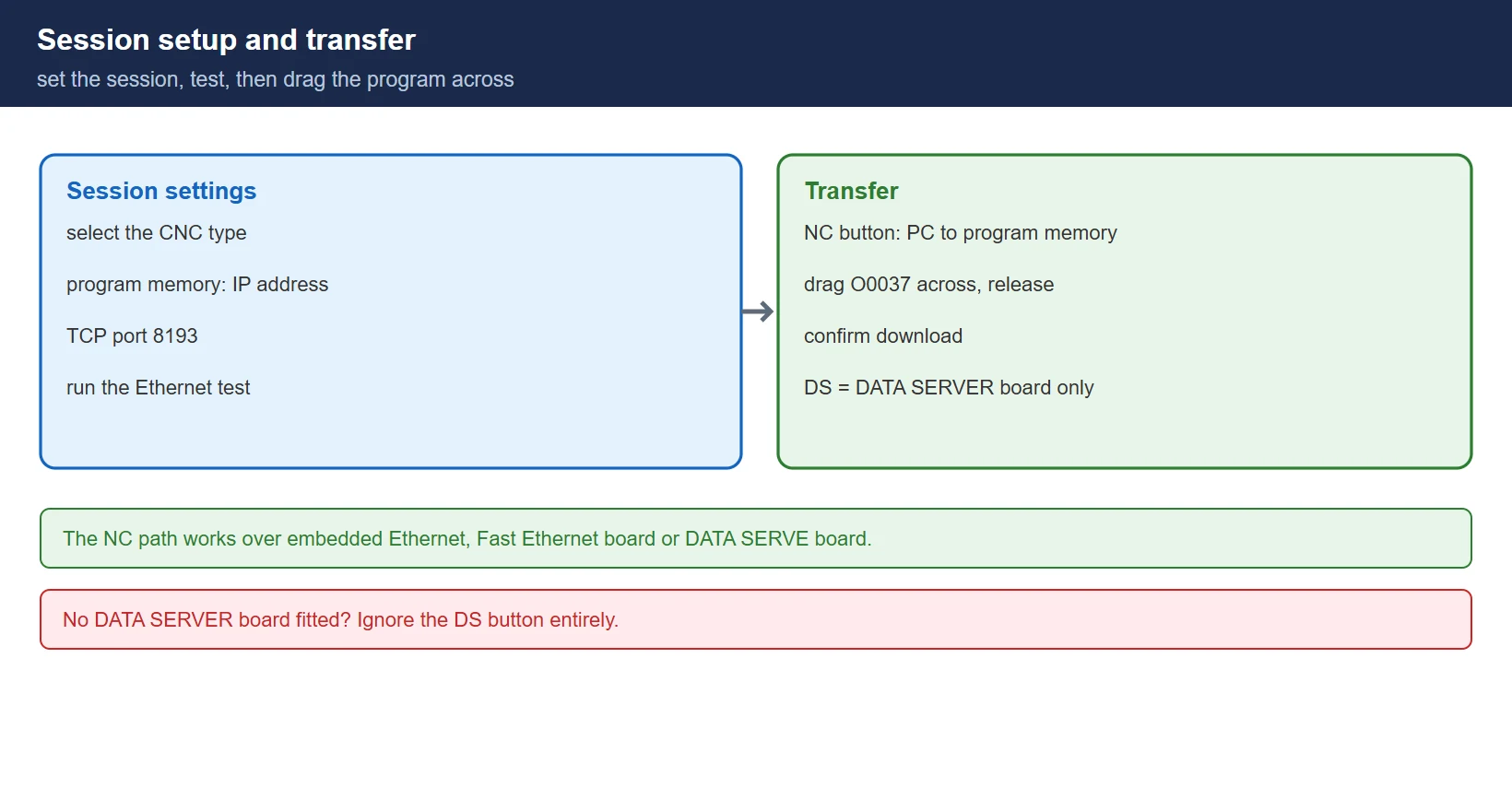
In the Program Transfer Tool, open Session Setting, select the connected CNC type, and in the program memory section enter the control’s IP address and TCP port — the same address and 8193 you set on the CNC side.
5.2 Test, then transfer
Run the Ethernet test from the program menu. Once it passes, choose program transfer and the transfer window opens. The NC button handles transfer between the PC and the control’s program memory — this works over the embedded Ethernet, the Fast Ethernet board or a DATA SERVE board. Pick the machine from the machine list, then drag a program (say O0037) from the PC side into the program memory box and release; confirm the download and the program appears in the control’s program memory.
5.3 The DS button
DS opens the DATA SERVER transfer screen — that path only exists on controls fitted with a DATA SERVER board. Drag from the PC box into the data server box, confirm, and the program (RD.NC) lands in the data server. No board, no DS function.
Need the software, a license, or field troubleshooting help?
- WeChat group: add the site owner’s WeChat ID
136959805with the note “CNC” to join the engineers’ group (FANUC / SINUMERIK users). Best for mainland China & Taiwan. - Email: djb2924@163.com — software access, fault diagnosis, or business inquiries.
- 24/7 Knowledge Agent: CNC Knowledge Base Agent — instant answers on alarms, parameters, and programming.
Frequently Asked Questions
Which controls and tool versions does this cover?
0i-B/C/D, 16i/18i/21i-A/B, 30i/31i/32i-A and PMi-D/H, on controls with the Ethernet interface and option. The PC package runs V8.0 through V18.0; if your control is very old or very new, confirm the matching package version with FANUC or your dealer.
The software cannot see the machine — what do I check?
In order: the PC and control IP addresses are in the same subnet and not duplicated; the CNC-side Ethernet board is selected with restart/execute done; FOCAS2 ports are TCP 8193 / UDP 8192; a ping from the PC to the control IP answers; and no firewall on the PC blocks the tool.
What is the DS button for?
DATA SERVER transfer — a different destination from the program memory, available only on controls with a DATA SERVER board. If your control does not have that board, ignore DS and use the NC path.
Last updated: 2026-10-25
The original Chinese version — same procedure, with the full field notes.











暂无评论内容