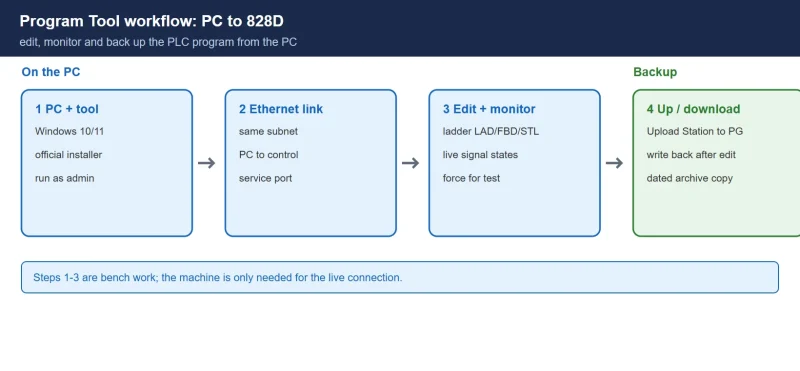



When a SINUMERIK 828D machine stops and the fault sits in the PLC, guessing is not an option — you need to open the actual ladder, watch the signals live and prove the fix. The SINUMERIK 828D PLC Programming Tool is Siemens’ software for exactly that: editing, monitoring, uploading and downloading the 828D PLC program from a Windows PC. This guide covers what it does, which controls it covers, where to get it legitimately, and how to keep your PLC program backed up.
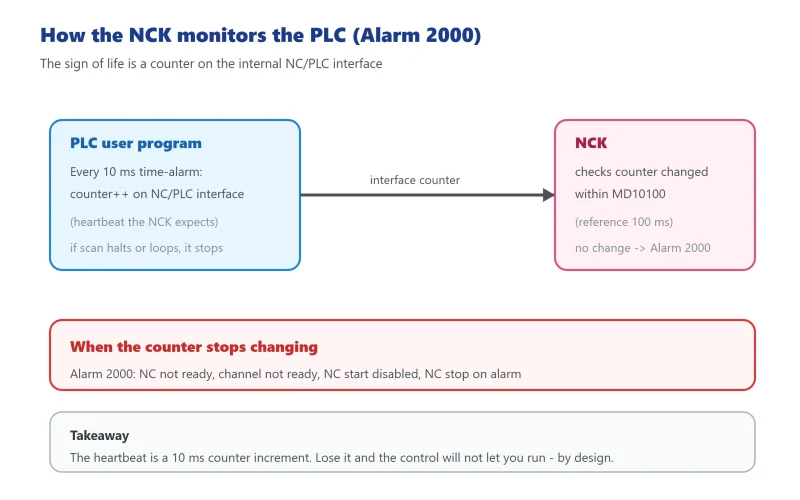
Related reading: for the machine-side alarm bits the PLC drives, see SINUMERIK 828D User Alarm Bits DB1600; for the PLC sign-of-life alarm 2000/2001, see SINUMERIK 828D Alarm 2000/2001; for offline programming practice without the machine, see SinuTrain for SINUMERIK Operate.
1. What the PLC Programming Tool does
The 828D PLC Programming Tool is the engineering software for the integrated S7 PLC inside the SINUMERIK 828D. For maintenance and commissioning engineers it replaces “read the printout” with live access:
- Ladder editing — write and modify the PMC-style control logic in ladder diagram (LAD), function block diagram (FBD) and statement list (STL)
- Online monitoring — watch signal states and variable values in real time while the machine runs
- Variable tables — create and edit PLC variable tables (VAT) with symbolic addresses
- Upload / download — read the program out of the control and write it back, the basis of every backup
- Fault diagnosis — read PLC alarm information and system status when the machine faults
- Cross-reference — find every place an address is used across the whole program
✅ The point for a maintenance technician: with the tool connected you can force a suspect signal, watch the ladder respond, and confirm a diagnosis in minutes instead of guessing from symptoms.
2. Supported systems and versions
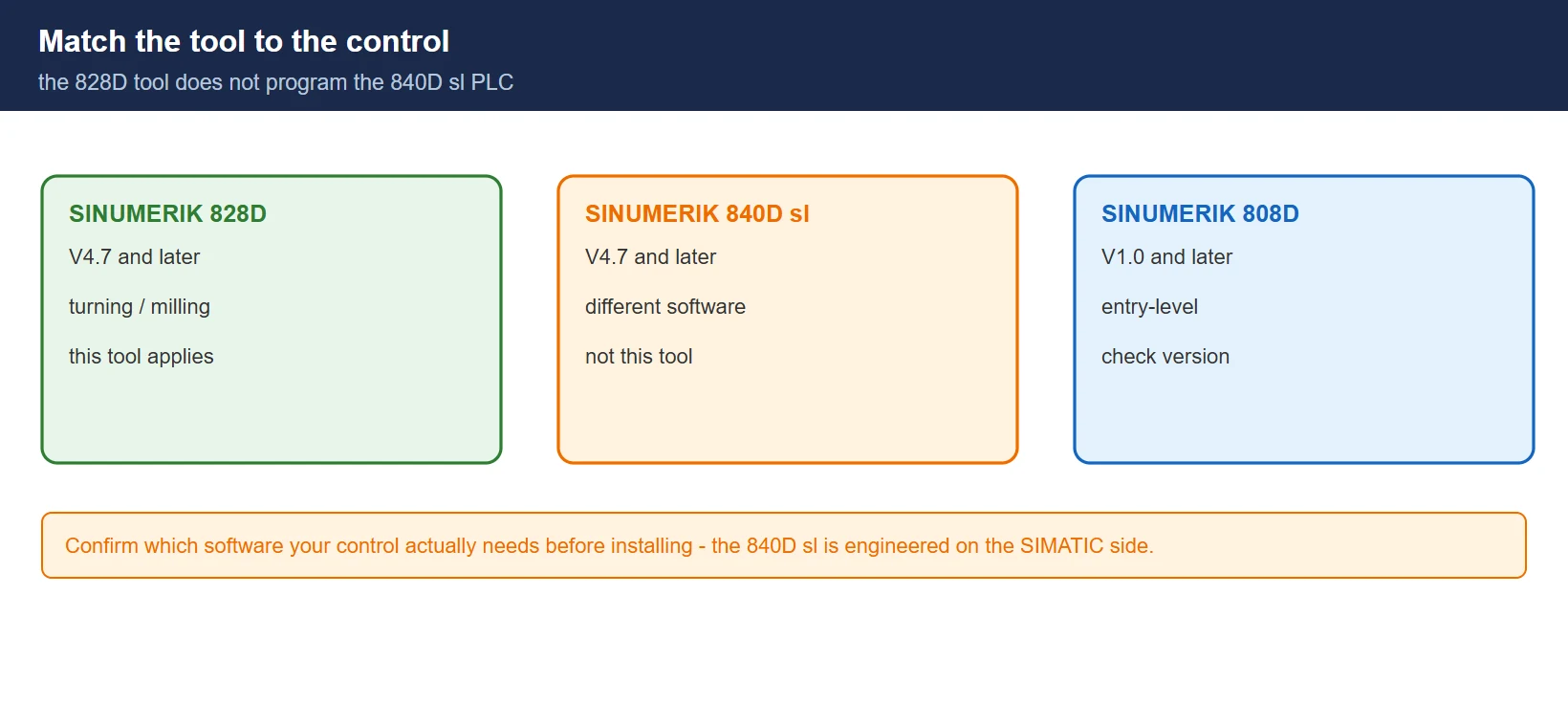
Table 1 — Control generations and the software versions that cover them
| Control | Software version | Typical machines |
|---|---|---|
| SINUMERIK 828D | V4.7 and later | turning and milling machining centres |
| SINUMERIK 840D sl | V4.7 and later | high-end CNC machines |
| SINUMERIK 808D | V1.0 and later | entry-level controls |
⚠️ The 828D and the 840D sl are not programmed with the same software — this guide covers the 828D tool. For an 840D sl the PLC is engineered with the SIMATIC side of the toolchain, so confirm which software your control actually needs before you install anything.
3. Where to get the software
Only official channels, in this order:
- Siemens Industry Online Support — support.industry.siemens.com, then the download centre; search for the 828D PLC programming software
- Your local Siemens website — the service and support section carries the same packages for your region
- The authorised dealer who supplied the machine — they can provide the licensed installer that matches your control’s software version
⚠️ Two warnings worth repeating:
- Cracked copies circulating on the internet are a classic malware vector — scan anything you install and treat unofficial packages as guilty until proven clean
- Commercial use needs a properly licensed installation; for learning, use the trial or a simulation environment instead of a pirated build
Licensing terms and availability differ by region and by control software version — confirm what your machine is entitled to through your Siemens contact or maintenance contract before you start.
4. Installation and connection
4.1 Install on the PC
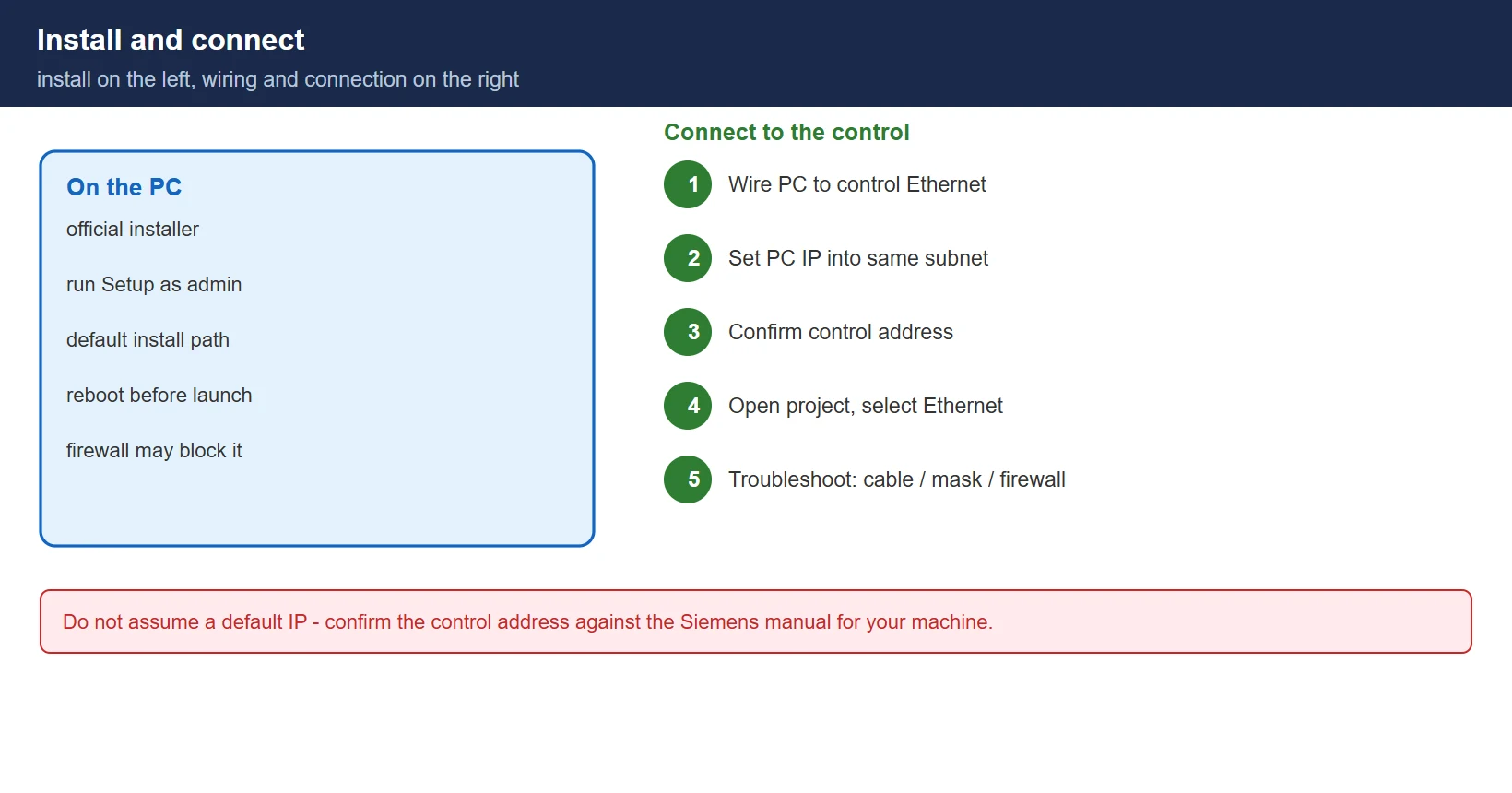
- Get the installer through one of the official channels above
- Unpack the archive and run the setup as administrator
- Keep the default install path unless you have a specific reason to change it
- Finish and reboot the PC before first launch
4.2 Connect to the control
- Wire the PC to the control’s Ethernet service port or the plant network — a direct cable is fine for bench work
- Set the PC’s IP address into the same subnet as the control; the address plan depends on your network, so confirm the control’s own address against the Siemens manual rather than assuming a default
- Start the tool, open your project, and select the Ethernet connection
- If the connection fails, check cable, subnet mask, and whether a firewall on the PC is blocking the engineering software
5. Programming, upload and backup
5.1 Edit and monitor
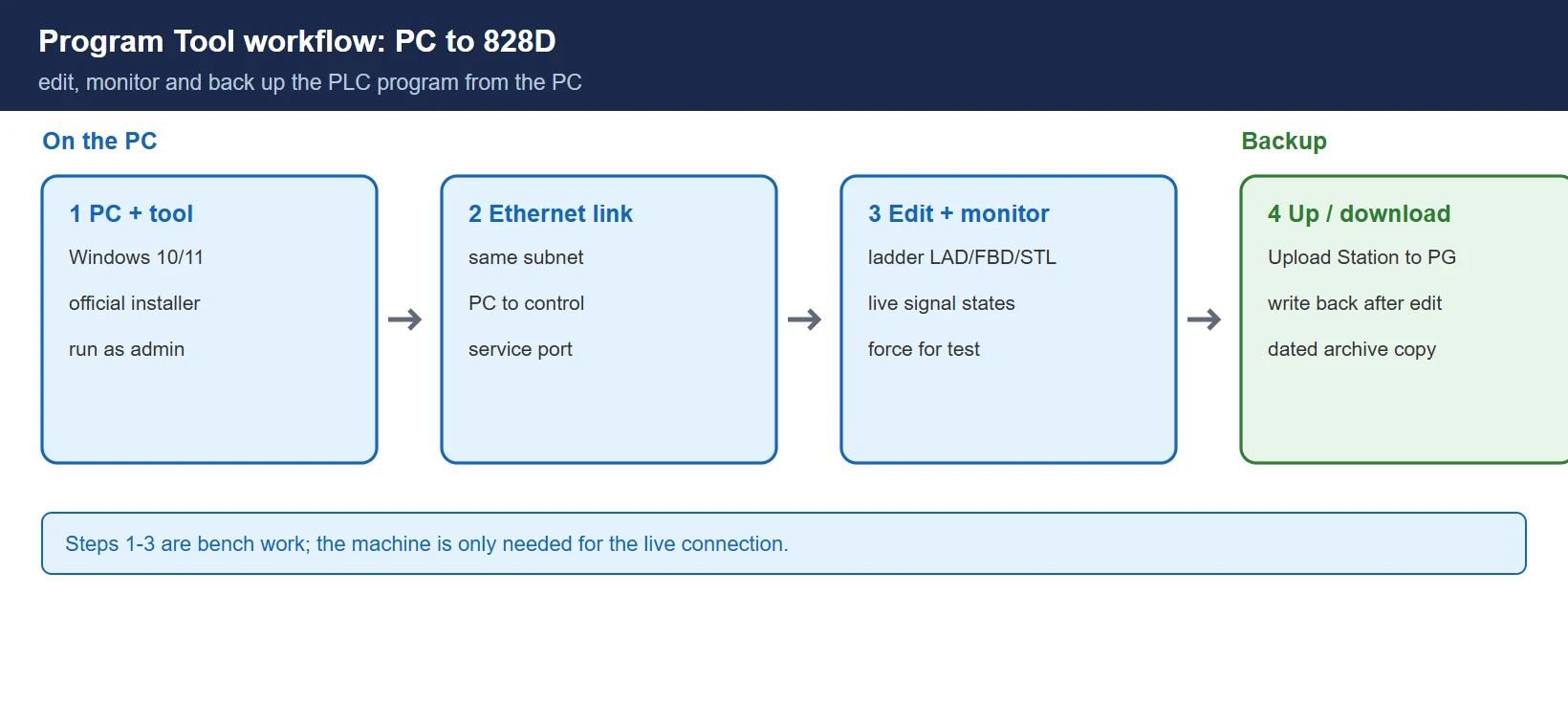
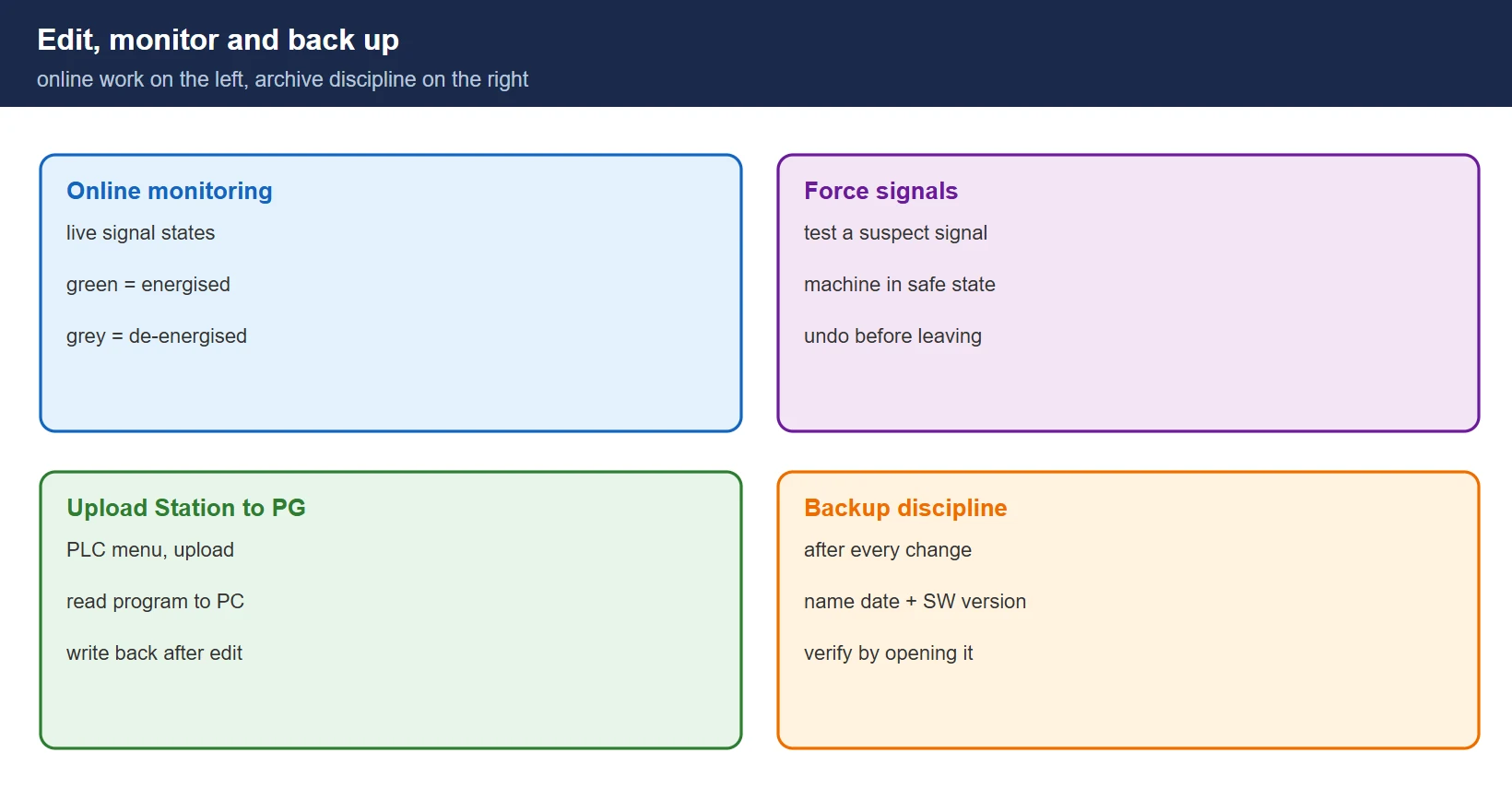
Open the project, go online, and the ladder shows live signal states — green for energised, grey for de-energised. You can force signals for testing, but only do it with the machine in a safe state: a forced signal moves real outputs.
5.2 Upload and download
With the control connected, PLC → Upload Station to PG reads the program out of the control to the PC; the reverse path writes it back. Treat the upload as read-only evidence — keep a pristine copy before any edit.
5.3 Backup discipline
- Back up the PLC program after every commissioning session and every accepted change
- Keep the backup with the machine file, named with date and control software version
- Before a repair, upload the current program first — “it was working yesterday” is not a backup
💡 Pair the backup with an archive of the NC and drive data too; a PLC program without its machine data only tells half the story.
Need the software, a license, or field troubleshooting help?
- WeChat group: add the site owner’s WeChat ID
136959805with the note “CNC” to join the engineers’ group (FANUC / SINUMERIK users). Best for mainland China & Taiwan. - Email: djb2924@163.com — software access, fault diagnosis, or business inquiries.
- 24/7 Knowledge Agent: CNC Knowledge Base Agent — instant answers on alarms, parameters, and programming.
Frequently Asked Questions
Is the 828D PLC Programming Tool free?
No — treat it as commercial software. It is obtained through Siemens or an authorised partner, and what you are entitled to depends on your region, your control’s software version and any maintenance contract. For learning, use a trial or a simulation environment; do not install unofficial copies on a machine you care about.
Can I practise 828D PLC programming without real hardware?
Partly. S7-style logic practice is possible with S7-PLCSIM, and SinuTrain gives you the SINUMERIK Operate side on a PC — see SinuTrain for SINUMERIK Operate. But do not assume a generic PLC simulation proves every 828D-specific function; the control’s own behaviour can only be verified on the control or a full simulation of it.
How do I back up the 828D PLC program?
Connect the tool to the control, then use PLC → Upload Station to PG, choose a storage path and save. Do it on a schedule, not after the failure — and verify the archive by opening it, because an unreadable backup is not a backup.
Last updated: 2026-10-25
The original Chinese version — same procedure, with the full field notes.








暂无评论内容