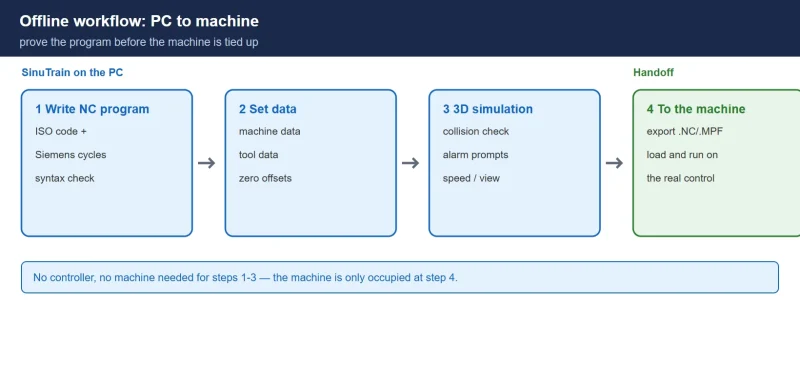



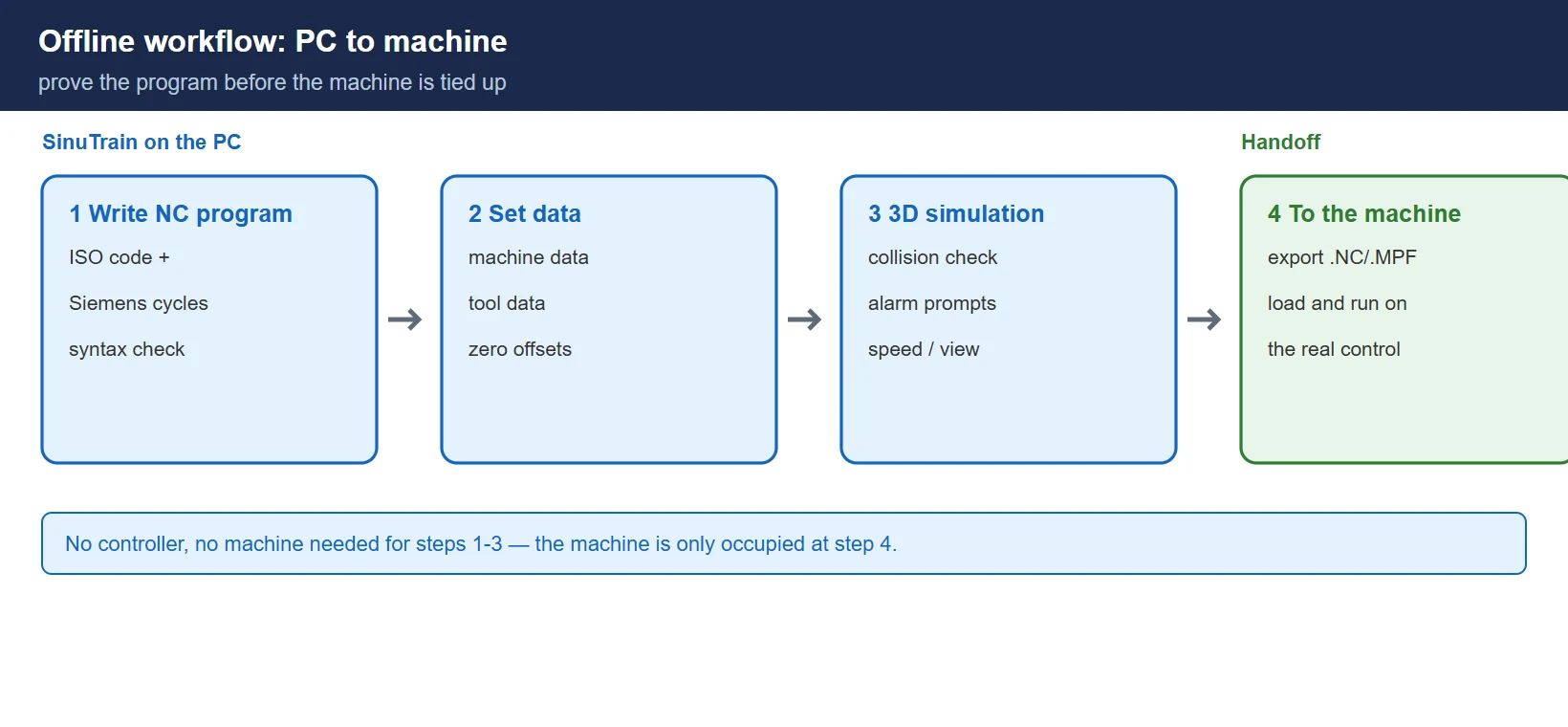
When a Siemens SINUMERIK control is down and you still need to write, prove out or hand over a CNC program, you do not have to wait for the machine. SinuTrain for SINUMERIK Operate is Siemens’ official PC-side training and simulation package: it runs the real SINUMERIK Operate user interface on a Windows PC so you can edit programs, set up machine data and simulate the machining cycle — with no controller and no machine connected. For commissioning and maintenance engineers this turns “tie up the machine to test a program” into offline work you can do at the bench.
This guide covers what SinuTrain actually does, which control generations it matches, how to install it on Windows 10/11, and how to use it for programming, simulation and alarm diagnosis — written for electrical and CNC maintenance technicians, not for a classroom.
Related reading: for the machine-side alarm configuration SinuTrain mirrors, see SINUMERIK 828D User Alarm Bits DB1600; for keeping your parameters and data safe, see SINUMERIK 828D NCK Battery Alarm 2100/2101/2102; the machine-level measuring-system tuning is in SINUMERIK 828D Semi-Closed Loop Conversion.
1. What SinuTrain does
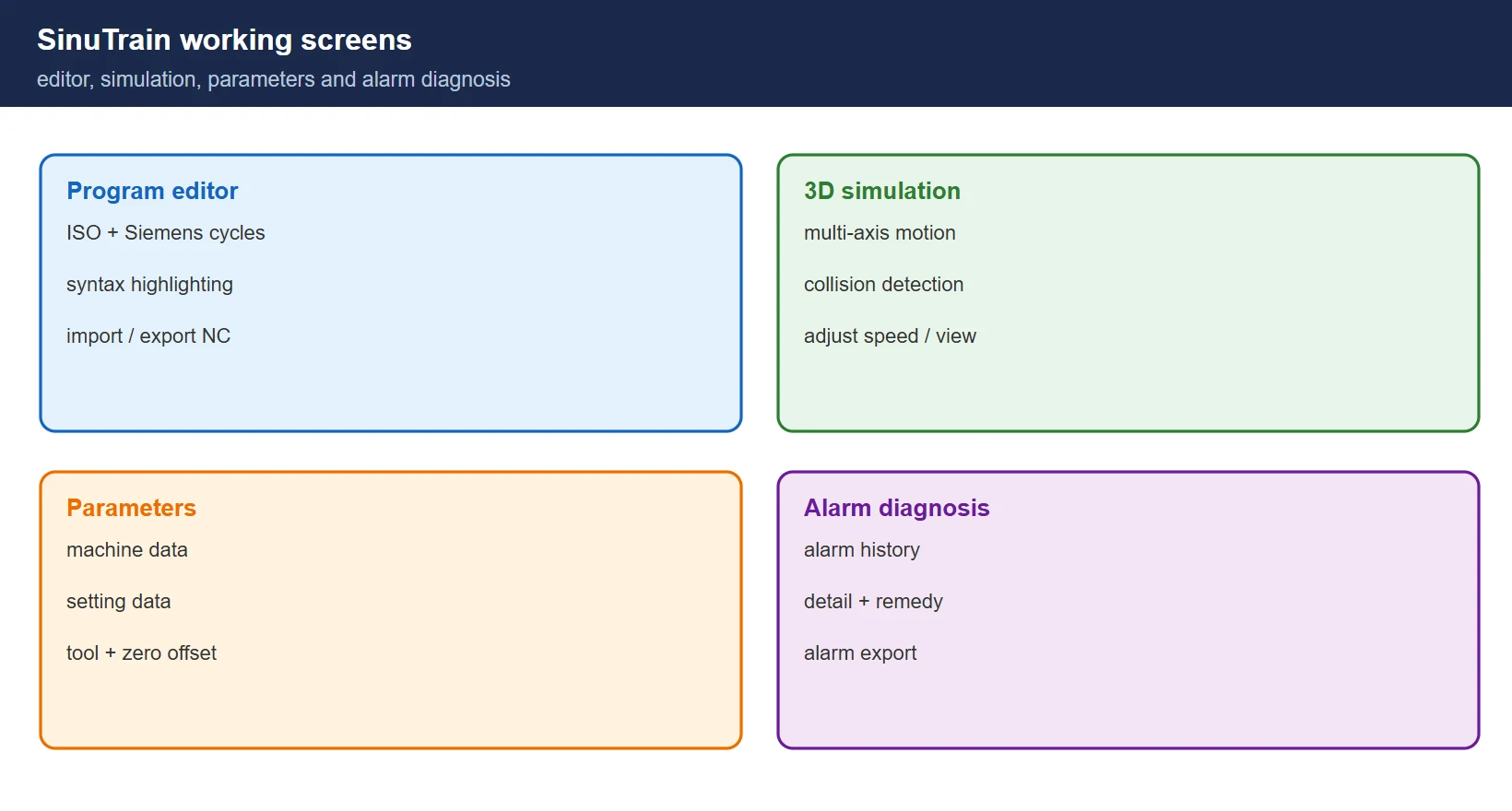
SinuTrain is Siemens’ simulation software for the SINUMERIK family. It reproduces the Operate HMI on a PC, so the screens, softkeys and workflows match what the operator sees on the real control. Its four core uses:
Table 1 — SinuTrain core functions and where each one is used
| Function | What it does | Typical use |
|---|---|---|
| NC program editing | Write and test part programs on the PC | offline programming, program proving |
| Parameter setup | Configure machine data, tool data and zero offsets | commissioning prep, data backup |
| Simulation run | Reproduce the machining process and catch errors | program verification, collision check |
| Alarm diagnosis | Read alarm messages and system status | troubleshooting, remote support |
✅ The core benefit: you can prove a program and rehearse a setup without occupying the machine, which cuts commissioning risk and can shorten on-site setup time substantially.
2. Supported systems and version match
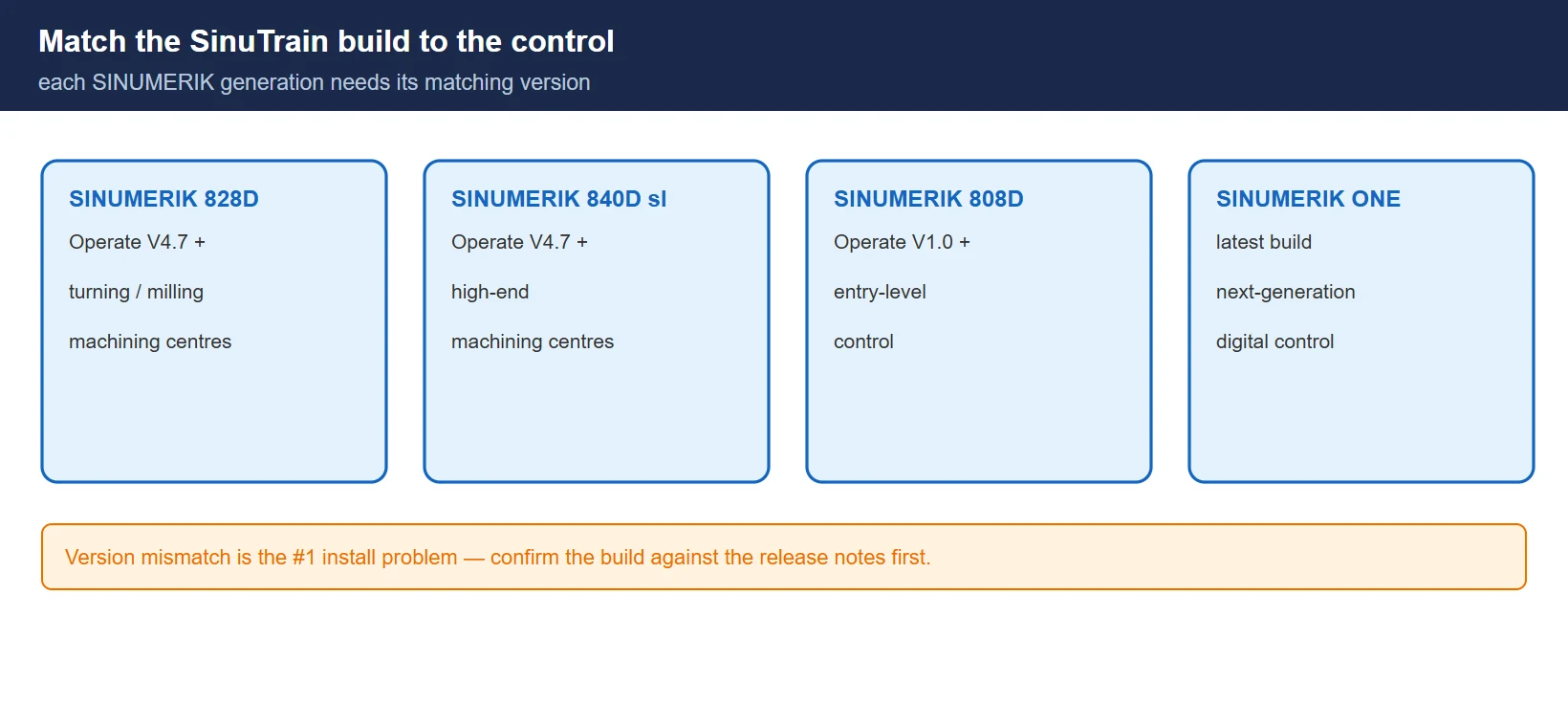
SinuTrain is not one-size-fits-all: each SINUMERIK generation runs on a matching SinuTrain build, so the PC software version has to line up with the control you are training for.
Table 2 — Control generation and the SinuTrain version that matches it
| Control | Operate version | Typical machines |
|---|---|---|
| SINUMERIK 828D | V4.7 and later | turning and milling machining centres |
| SINUMERIK 840D sl | V4.7 and later | high-end machining centres |
| SINUMERIK 808D | V1.0 and later | entry-level controls |
| SINUMERIK ONE | latest build | next-generation digital control |
⚠️ Match the SinuTrain build to the control’s software version. When in doubt, confirm compatibility in the software’s release notes before you install.
3. Installation: system requirements and steps
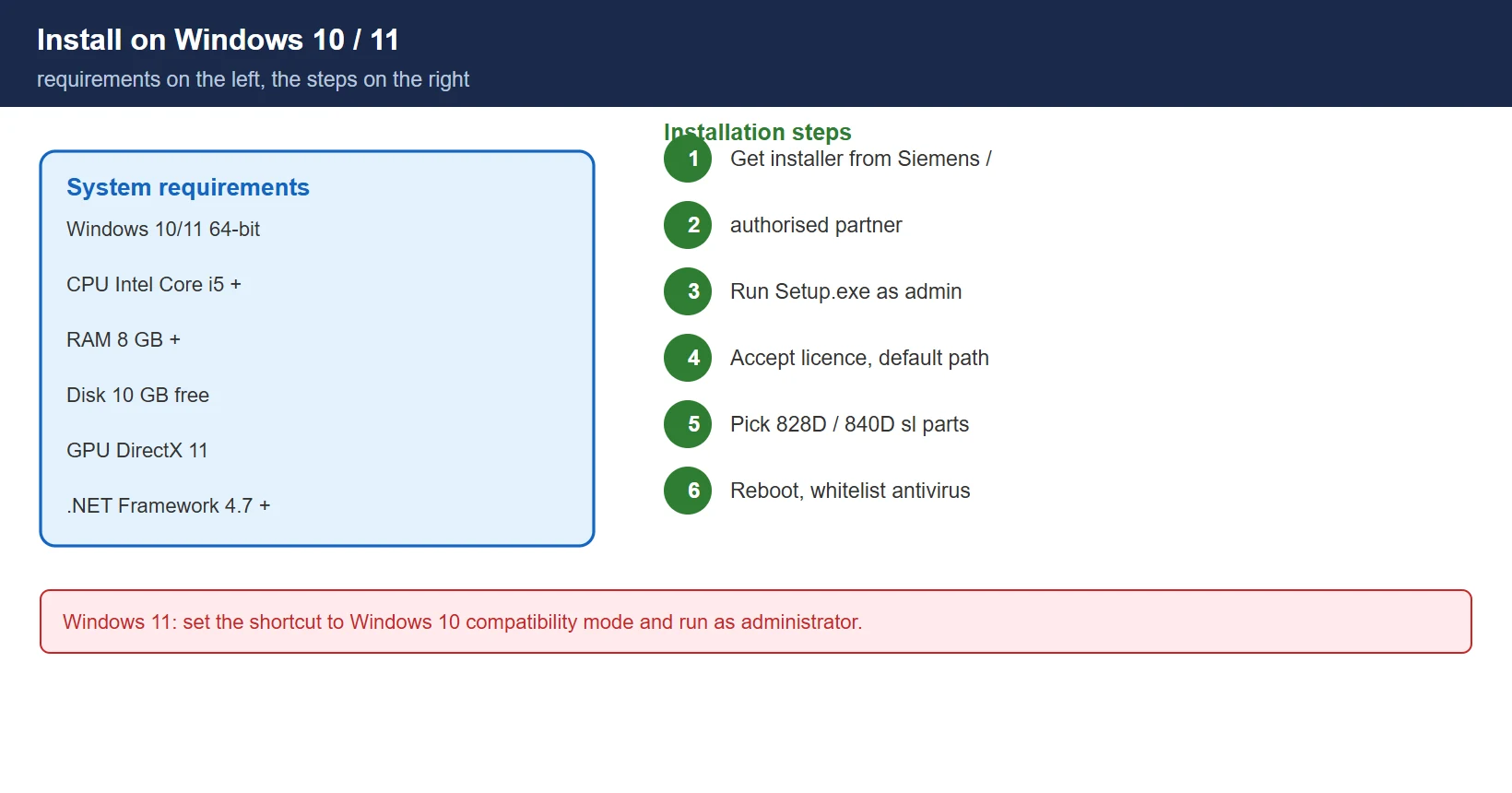
3.1 System requirements
- OS: Windows 10/11, 64-bit (recommended)
- CPU: Intel Core i5 or better
- RAM: 8 GB or more
- Disk: 10 GB free
- Graphics: DirectX 11 capable
- Runtime: .NET Framework 4.7 or later
3.2 Installation steps
- Obtain the SinuTrain for SINUMERIK Operate installer — from Siemens or an authorised Siemens partner.
- Unpack the archive and run Setup.exe as administrator.
- Accept the licence, keep the default install path unless you have a reason to change it.
- Select the control components to install (828D and/or 840D sl).
- Finish, then reboot the PC.
- On first launch, if your antivirus flags the installer or runtime, whitelist it (some heuristic scanners raise a false positive).
⚠️ On some Windows 11 systems SinuTrain needs compatibility mode: right-click the shortcut → Properties → Compatibility → “Run in Windows 10 mode”, and run as administrator.
4. Programming and simulation workflow
4.1 Create a project
Open SinuTrain → File → New Project → choose the control (828D or 840D sl) → set a project name and path → confirm. The project holds the machine data, tool table and programs you will train on.
4.2 Program editing
- Supports ISO dialect code and Siemens cycles
- Syntax highlighting with real-time error hints
- Block fold/unfold for long programs
- Import and export of NC program files
4.3 Simulation
- 3D graphical view of the machining process
- Multi-axis simultaneous simulation
- Collision detection with alarm prompts
- Adjustable simulation speed and viewpoint
4.4 Parameter configuration
- Machine data (Machine Data)
- Setting data (Setting Data)
- Tool data (Tool Data)
- Zero offsets (Zero Offset)
4.5 Alarm diagnosis
- Alarm history
- Alarm detail view
- Suggested remedies
- Alarm export
5. Field scenarios
Scenario 1 — Prove a new program before it reaches the machine
Before uploading, run the program in SinuTrain first to catch syntax errors and collision risk while it costs nothing.
Scenario 2 — Remote fault diagnosis
When a customer’s machine alarms, ask them to export the parameters and program; reproduce the fault in SinuTrain, pin down the cause, then travel with the fix already known instead of diagnosing on site.
Scenario 3 — Training without occupying the machine
New engineers learn Operate programming and operation on the PC, so no machine time is tied up and nothing can be damaged.
Scenario 4 — Parameter backup and restore
Back up machine data to the PC regularly; after a system fault you can restore quickly and cut downtime.
💡 Tip: pair this with the 828D semi-closed conversion and user alarm DB1600 articles to move between “simulate it on the PC” and “fix it on the machine” on the same control.
6. Companion Siemens tools
Table 3 — Siemens software that works alongside SinuTrain
| Tool | Purpose | Where it pairs with SinuTrain |
|---|---|---|
| SinuTrain | CNC programming and simulation | program proving, offline commissioning |
| Start-Up Tool | drive and axis commissioning | parameter config, drive tuning |
| PLCSIM | S7 PLC simulation | testing the machine's PLC program |
| TIA Portal | automation engineering | PLC + HMI integrated development |
Frequently Asked Questions
Is SinuTrain free?
No. SinuTrain for SINUMERIK Operate is obtained through Siemens or an authorised Siemens partner, and some builds require a licence. Treat it as commercial software and source it through an authorised channel rather than an unofficial copy.
Will SinuTrain run on Windows 11?
Yes. On Windows 11 set the shortcut to Windows 10 compatibility mode and run it as administrator; the system requirements are otherwise the same as Windows 10 (64-bit, 8 GB RAM, 10 GB disk, DirectX 11, .NET 4.7 or later).
Can I export programs from SinuTrain and load them on the real machine?
Yes. You can export NC program files (for example .NC / .MPF) from the simulation project and transfer them to the control to run on the machine — this is exactly the offline-to-machine handoff SinuTrain is meant for. Remember that the simulation proves the program logic and motion, but the machine’s own drives and hardware still need their own setup and tuning.
Last updated: 2026-10-26
The original Chinese version — same procedure, with the full field notes.











暂无评论内容