


Choose the method first: three backups, one table
FANUC data backup is explained badly online because three methods coexist and their use cases are completely different: one-click full backup, BOOT-screen SRAM backup, and itemized backup. Many people follow one article, think “done,” then discover at motherboard replacement that the critical data was never captured.
The real question is not “which method is best” but “given my situation, which can I use, and which must I use“:
| Method | What it covers | Applicable models | Power-off required? | Parameter changes? | Restore time | When to use it |
|---|---|---|---|---|---|---|
| ① ALL I/O one-click full backup | Text data (parameters / programs / tool offsets / macro variables) + SRAM data + user files (PMC ladder, etc.) | Added on 0i-F / 0i-F Plus; not on older models | Yes (text output prompts shutdown, re-power auto-completes output) | Yes (0020 / 0313#0 / 0138#0) | Medium | Routine scheduled backup, before long shutdowns |
| ② BOOT-screen SRAM backup | Everything in SRAM (parameters, tool offsets, macro variables, coordinate systems, pitch comp) | Nearly all series (0i/16i/18i/21i/30i, etc.) | Yes (entering BOOT requires re-power) | No (BOOT runs before NC) | Fast | Before motherboard swap, when system won't boot |
| ③ Itemized backup (serial / Ethernet / PCMCIA) | Only the items you select (usually just parameters, programs) | All series, including very old models | No | Yes (0020 channel) | Slow | Old-model routine; transferring just one parameter set |
One-line conclusion:
- Use ① for routine (0i-F and above): take text, SRAM, and user files all at once; restore gives you both readable text and a full image.
- Do ② again before any motherboard swap. ①’s text is great, but a board swap needs “the whole SRAM moved as-is” — that is ②’s job.
- When the system won’t boot, only ② works. ① depends on NC starting normally; with a black screen or system alarm you can’t get in. BOOT is the bootloader, it runs before NC, unaffected by any alarm.
The three methods are neither mutually exclusive nor equivalent. The most robust field practice: run ① normally, then add a ② before any board-swap / battery-change / major-overhaul node, storing the two archives separately. One backup only = no backup.
Where the data lives: SRAM / FROM / user files, and what you lose
Knowing “what data lives where” is the prerequisite for choosing a backup method. Different storage, different retention, different consequences when lost.
| Data type | Stored in | Provided by | If lost | Must back up? |
|---|---|---|---|---|
| CNC parameters | SRAM | Machine builder | Machine won't move | ✅ Yes |
| PMC parameters | SRAM | Machine builder | All action logic broken | ✅ Yes |
| Pitch error compensation | SRAM | Machine builder | Accuracy degrades, no alarm | ✅ Yes |
| Macro programs / macro variables | SRAM | Machine builder | Tool-change macros etc. fail | ✅ Yes |
| Machining programs | SRAM | End user | Programs gone, re-load is enough | As needed |
| Tool offsets / coordinate systems | SRAM | End user | Re-touch all tools | ✅ Recommended |
| PMC ladder program | FROM (Flash) | Machine builder | All actions lost, cannot be rebuilt on site | ✅ Yes |
| Macro-exec / C-exec programs | FROM (Flash) | Machine builder | Special functions fail | Back up if present |
| System software (from FANUC) | FROM (Flash) | FANUC | System crash | ❌ No, and never delete |
Two common misunderstandings:
First, the ladder lives in FROM, not SRAM. Many assume a dead battery only loses parameters and the ladder is safe — reversed: the ladder is indeed in FROM and survives power loss, but precisely for that reason it is not captured by an “SRAM backup.” You must transfer it separately (LADDER III, or the user-files part of ①). This also explains why some people finish a BOOT backup, restore it, and the machine still won’t move — parameters came back, ladder didn’t.
Second, don’t touch FROM system files. System files are supplied by FANUC; no backup needed. Conversely, deleting them by mistake can trigger a system alarm even if you copy them back. In the BOOT menu, options like SYSTEM DATA DELETE — if you don’t understand it, don’t press it.
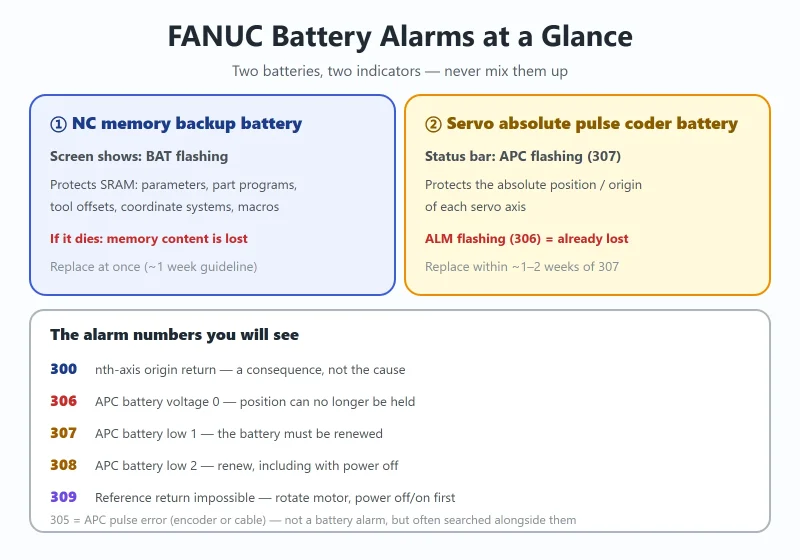
On batteries: SRAM is held by battery. When the screen shows APC (amplifier battery low) or BAT (CNC system battery low) flashing, the data is “counting down” — back up first, then change the battery. Beijing-FANUC recommends replacing the battery once a year. The exact battery-swap procedure differs by model (powered swap vs powered-down swap); follow the machine builder’s manual, but “back up before swapping” has no exceptions.
Method 1: ALL I/O one-click full backup (0i-F / 0i-F Plus)
This is the function added on 0i-F / 0i-F Plus, and the easiest for routine use: with NC running normally, one output writes three classes of data (text data / SRAM data / user files) to a CF card or USB drive.
Key parameters: 0020 / 0313#0 / 0138#0
First go to MDI and set three parameters:
| Parameter | Setting | Function |
|---|---|---|
| 0020 | 4 = CF card (memory card)<br>17 = USB storage | Selects the I/O channel — “where the data is written” |
| 0313#0 | 1 | NC data output function enabled (master switch for one-click backup) |
| 0138#0 | 1 | On multi-path systems, appends the path number to text-file extensions (harmless on single-path machines) |
Some say “one-click backup needs no 0313#0 setting.” In reality: 0313#0 is this function’s enable bit; without it set to 1 the output option doesn’t exist. People think it’s unnecessary because the builder pre-set it, or someone set it before. Check the current value first; record the original before changing.
After setting parameters, switch to EDIT mode and run the output:
- Press
SYSTEM→ right extend key to page over → find ALL I/O (所有 I/O); - Enter All Data (全部数据) →
OPRT(操作) →OUTPUT(输出) →EXEC(执行); - Wait for the first stage (text data) to finish.
Key point: why a power cycle is mandatory
After the first stage, the message bar prompts:
Turn off the power. When power is turned back on, SRAM data and user files will be saved.
The system splits the backup into two stages:
- Stage 1 (manually triggered): text data NC can read while running normally — parameters, programs, tool offsets, macro variables, tool-life, etc., written as
.TXTyou can open in Notepad; - Stage 2 (auto on power-up): the SRAM binary image and user files (including the PMC ladder). This part can only be captured completely during the power-on self-test, so one restart is required to auto-complete the output.
On “how many power cycles,” online claims range from one to two. Per Beijing-FANUC’s official flow, it is one power cycle: text output done → prompt to shut off → re-power → auto Stage 2. The “two” folklore comes from: counting “off + on” as two; or some firmware asking for one more restart after Stage 2 before fully exiting backup state.
So don’t count cycles, watch the screen: do what it says until no more prompt. But this next rule is absolute —
🚨 Never, ever pull the CF card / USB during the whole process. Pull it after Stage 1 and you get a text-only backup with no SRAM and no ladder — and it looks just like a complete backup “with files.” The day it matters, it’s already too late.
Verify success: what counts as actually backed up
Always verify after backup. Not “are there files on the card,” but are all three classes present:
| Class | Common file names | Verification points |
|---|---|---|
| Text data | CNC-PARA.TXT, ALL-PROG.TXT, TOOLOFST.TXT, MACRO.TXT, PITCH.TXT, SYS-CONF.TXT, MAINTEMC.TXT, etc. | Count matches, every file size non-zero |
| SRAM data | SRAM_BAK.001 / RAM_BAK.001 / SRAM1_0A.FDB (varies by firmware) | Must exist, size matches this machine's SRAM capacity (hundreds of KB ~ several MB) |
| User files (PMC) | PMC1_PRM.TXT, PMC1.000, PMC1_LAD.001, etc. | Must exist |
Don’t memorize file names. Different models and firmware generate different names and counts — memorizing names and mismatching is wasted effort. What matters is three things: ① any 0-byte files; ② SRAM-class files present; ③ PMC-class files present. All three pass and the backup counts.
One more step many miss: change 0020 back to its original channel value, or next time you try serial program transfer, all data goes to the card.
Method 2: BOOT-screen SRAM backup (the only option when the system won’t boot)
BOOT (SYSTEM MONITOR) is the bootloader, running before NC starts. This gives two decisive advantages: no parameter support needed (ignores 0013, 0020, everything), unaffected by any alarm. So when the system is frozen or stuck on a system alarm and you can’t reach the NC screen, this is the only way left to salvage the data.
How to enter BOOT
- Hold the two rightmost soft keys at the bottom of the screen simultaneously while powering on.
- On models with 12 soft keys, instead hold the MDI panel number keys 6 and 7 (again, “the two rightmost”).
- Keep holding until the SYSTEM MONITOR MAIN MENU appears, then release.
Menu path and operation
On the main menu press [DOWN] to move the cursor to 7. SRAM DATA UTILITY, press [SELECT]:
1. SRAM BACKUP   ( CNC      -> MEMORY CARD )    → backup
2. SRAM RESTORE  ( MEMORY CARD -> CNC       )    → restore
3. AUTO BKUP RESTORE ( FROM -> CNC          )    → auto backup restore
4. END
Backup: cursor to 1. SRAM BACKUP → [SELECT] → [YES] → prompt SRAM BACKUP COMPLETE.
Restore: cursor to 2. SRAM RESTORE → [SELECT] → [YES] → prompt SRAM RESTORE COMPLETE.
The file name SRAM_BAK.001
The backup file is always named SRAM_BAK.001. It is the whole SRAM binary image, not text — can’t open it, can’t edit it — which is its essential difference from the .TXT pile in ①:
.TXTtext: viewable, editable, recoverable item by item, good for daily troubleshooting and single-parameter recovery;SRAM_BAK.001: only whole-block recovery, no picking. Restore overwrites the entire SRAM back — parameters, tool offsets, coordinate systems, macro variables all return together.
So this is the “last insurance,” not a daily tool: you can’t dig out a single parameter to compare.
Two additions: ① if a same-named file exists on the card it asks
OVER WRITE OK?— confirm before[YES]; ② the main menu also has 8. MEMORY CARD FORMAT, which formats the card on the machine side — the most reliable fix for “card not recognized,” see pitfalls below.
Method 3: Itemized backup (serial / Ethernet / old-model PCMCIA)
Old models without one-click backup, or when you just want to pull one parameter set out, use this. It is manual, item-by-item, slow, but widest coverage.
- Serial RS-232C: point 0020 at the serial channel (commonly 0, per model); baud rate and comm parameters set in the SETTING (I/O) screen; transfer via software. Slow — old models often 4800/9600 — for emergencies only.
- Ethernet / FTP: most 0i-D and later have a built-in Ethernet port; after IP setup, go FTP or FOCAS — suitable for high volume and frequent back-and-forth, and the only realistic way to manage many machines in bulk.
- PCMCIA on old models: 16i / 18i / 21i, 0i-B / 0i-C use PCMCIA slots, usually “CF card + PCMCIA adapter.” Card selection has hard thresholds, see next section.
The biggest risk in itemized backup is “missing an item.” Parameters sent, pitch comp forgotten; tool offsets sent, macro variables forgotten. So itemized backup needs your own checklist — tick each item as you send. That is also why it is far more tedious than ①.
By the way: the PMC ladder is a “user file” — transfer it separately via LADDER III, see FANUC PMC Project From Scratch: The 6-Stage Flow From Backup to Download to Verification and FANUC PMC Program: Edit on PC and Send Back to NC (FAPT LADDER 3 Full Steps).
Restore: three methods + 3 checks you must do after
Restore maps one-to-one to backup, three routes:
- ALL I/O restore: same screen, select input (输入), read text data back; the SRAM part also auto-completes on re-power.
- BOOT SRAM restore:
7. SRAM DATA UTILITY→2. SRAM RESTORE, promptSRAM RESTORE COMPLETE.= whole-block overwrite done. - Itemized restore: read each item back; make sure I/O channel (0020) points at the medium’s channel.
After restore, check these three item by item — missing any can cause a major incident:
| Check | What to look at | Why |
|---|---|---|
| Coordinate systems | Work coordinate systems (G54–G59), tool length/radius offsets match original values | On incomplete restore, coordinate systems are often the first “silent loss” — machine moves, program runs, but the machining position is off |
| Software limits | Stored stroke limit parameters (positive/negative limit per axis) | Lost limits don't alarm — until one day you overtravel into a hard stop |
| Pitch error compensation | Compensation data still present, points match | Lost comp, machine still moves but accuracy quietly degrades — no alarm, hard to notice, often only caught when parts go out of tolerance |
One more often forgotten: after restore, first dry-run a section in single-block, dry-run, lowest override to confirm coordinate direction, tool-offset numbers, and limits are correct before entering automatic machining. The restore itself isn’t dangerous; what’s dangerous is “thinking the restore was complete.”
If after restore the screen shows APC or origin-lost alarms, the reference-point data didn’t come back with it — see FANUC No-Alarm Fault Diagnosis: How to Use DGN000, DGN003, DGN005.
Common pitfalls: three of the most expensive lessons
Pitfall 1: CF card — bigger is not better; too big and it won’t be recognized
This is the most expensive pitfall. Old-model card interfaces only recognize up to a certain capacity, beyond which they don’t recognize it, and no amount of formatting helps — the card shows MEMORY CARD ERROR or simply doesn’t appear.
| Model series | Common capacity limit | File system | Note |
|---|---|---|---|
| 0i-A | ~128 MB | FAT16 | Very picky |
| 0i-B / 0i-C | 2 GB | FAT16 (single partition) | Most common tier |
| 16i / 18i / 21i | 2 GB | FAT16 | Same as above |
| 30i / 31i / 32i | 8 GB (FAT16) / larger (FAT32) | FAT16 / FAT32 | Depends on firmware |
| 0i-F / 0i-F Plus | Significantly relaxed (some say up to 32 GB, FAT32) | FAT32 | Still test first |
The table above is field experience; varies greatly by model/firmware. Before purchasing, follow the maximum capacity stated in the machine manual’s “Memory Card Interface” section.
Practical advice (more useful than memorizing numbers):
- Buy small, not large: for old machines pick 128 MB – 512 MB industrial-grade SanDisk / Lexar for the highest recognition rate. 2 GB is the most universal “safe ceiling.”
- Don’t buy high-speed cards: Class 10, UDMA and similar high-speed cards can intermittently fail on old CF interfaces due to timing mismatch. “Faster is better” is reversed here.
- Industrial > consumer: in workshop heat, oil, and vibration, industrial cards (SLC/enterprise MLC, wide temp, ECC and power-loss protection) are far more stable. Camera consumer cards fail here noticeably more often.
Pitfall 2: never lose power or pull the card during backup
SRAM backup is an image read/write of the whole storage area. Power loss or pulling the card mid-way: at best that backup is void, at worst it corrupts the card’s file allocation table, destroying even the old backups already on the card. So:
- Confirm stable machine power before backup; don’t do it when the workshop’s large equipment is frequently starting/stopping;
- Don’t touch the card until the screen explicitly says complete;
- Keep at least two physical media (two cards or two USB drives) for old backups, stored separately.
Pitfall 3: format the media on the CNC if possible
Formatting a card to FAT32 on a PC and plugging it into an old machine — nine times out of ten it won’t recognize it. The reason isn’t only the file system, but also cluster size, partition table, active-partition flag — parameters the PC auto-sets to “Windows habits.”
Easiest approach: the BOOT main menu’s 8. MEMORY CARD FORMAT, formatting on the machine side, produces exactly the file system this machine will eat. If you must do it on a PC, at least ensure FAT16, a single primary partition, and confirm the cluster size matches the model’s requirement.
Backup frequency: when you must do it
| Node | Recommended action | Reason |
|---|---|---|
| Routine | One ① (ALL I/O full backup) every 3–6 months; label archive with date and machine number | Parameters get changed casually; over time you lose track of what changed |
| Before long holidays / extended shutdown | Do a ① before shutdown | Beijing-FANUC explicitly recommends backup before holiday shutdowns |
| Major overhaul / part replacement | Do ① + ② each once | A board swap needs the whole SRAM image; ①'s text isn't enough |
| Before battery change | Must do a full backup first | Battery is SRAM's only retention source; battery change is the highest-risk moment for data |
| Before / after parameter changes | Save one before, one after | The only “regret medicine,” and the only basis to judge whether a change caused a fault |
| Before motherboard swap | ① + ② + ladder transferred separately (LADDER III) | Ladder is in FROM; without separate transfer it's lost, and cannot be rebuilt on site |
Last honest word: the value of backup only shows “on the day something goes wrong.” And that day you won’t have time to relearn the procedure — so while the machine is still running fine, run ① and ② once each, confirm the files on the card are complete and correctly sized. An unverified backup is not a backup.
Related reading: FANUC PMC Project From Scratch: The 6-Stage Flow From Backup to Download to Verification · FANUC PMC Program: Edit on PC and Send Back to NC (FAPT LADDER 3 Full Steps) · FANUC No-Alarm Fault Diagnosis: How to Use DGN000, DGN003, DGN005
Frequently Asked Questions
Q: How do I back up FANUC data, and what CF card capacity should I choose?
A: On 0i-F / 0i-F Plus, ALL I/O one-click full backup is easiest (set 0020=4 or 17, 0313#0=1, 0138#0=1; output in EDIT mode; power-cycle per prompt) — one run takes text data, SRAM data, and user files. On old models or when the system won’t boot, use the BOOT screen 7. SRAM DATA UTILITY → 1. SRAM BACKUP to make SRAM_BAK.001. CF capacity is not the bigger the better: 0i-B/0i-C and 16i/18i/21i cap at 2 GB (FAT16); old machines do best with 128 MB–512 MB industrial-grade SanDisk / Lexar, and avoid Class 10 / UDMA high-speed cards.
Q: The system won’t boot because of an alarm — can I still back up the data?
A: Yes, this is exactly what BOOT-screen backup is for. BOOT is the bootloader that runs before NC, needs no parameter support, and is unaffected by alarms. Hold the two rightmost soft keys (or keys 6 and 7 on 12-soft-key models) while powering on, enter 7. SRAM DATA UTILITY → 1. SRAM BACKUP → [YES], and “SRAM BACKUP COMPLETE.” confirms it. Note it covers only SRAM (parameters, tool offsets, macro variables, coordinate systems, pitch comp) and not the FROM ladder, which must be transferred separately via LADDER III.
Q: How many power cycles does ALL I/O full backup need, and why?
A: Per Beijing-FANUC’s official flow it is one power cycle: Stage 1 (manually triggered, NC running) outputs text data as .TXT, then on re-power the system auto-completes Stage 2 (SRAM data and user files) during self-test. The “two cycles” claim counts off+on as two, or some firmware asks for one more restart. Don’t count — follow the screen until no more prompt — but never pull the CF card or USB mid-process, or you get a backup with no SRAM and no ladder that still looks complete.
Q: After restoring a backup, must I re-establish the reference point?
A: It depends on what was restored: whole-block SRAM restore (BOOT SRAM RESTORE, or a full backup containing SRAM) usually needs no re-reference; text-only restore (itemized CNC-PARA.TXT etc.) does; and if the origin was already lost to a dead battery (APC / BAT alarm, or 1815#4 APZ bit 0), even backing up is too late and re-referencing is mandatory. After any restore, verify coordinate systems, software limits, and pitch error compensation item by item, since they often fail silently without alarming.











暂无评论内容