


Sister article: Mitsubishi MT Works2 / MR Configurator2: download path, modules and servo parameters; related: Mitsubishi M80 Ladder Logic into the CNC, Mitsubishi M80 Data Backup & Restore, CNC Alarm Number Formats by Brand, HEIDENHAIN iTNC 530 Manuals and Official Entry Points.
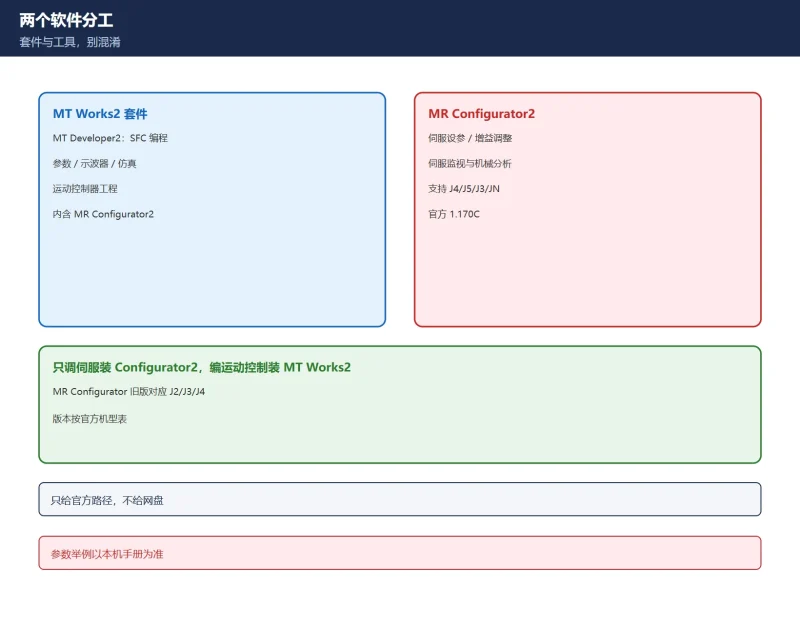
21.1 First, separate the two tools: the most common confusion
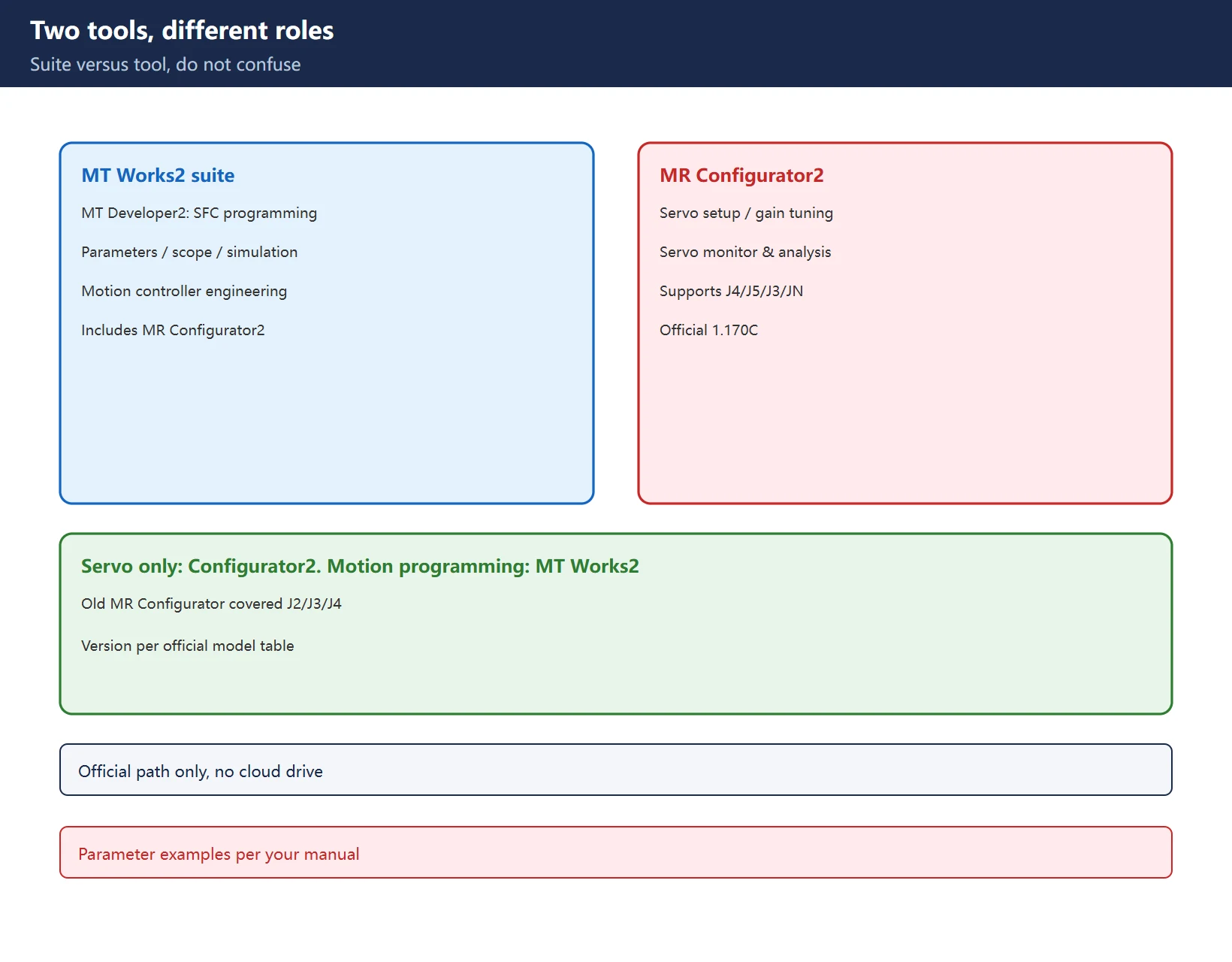
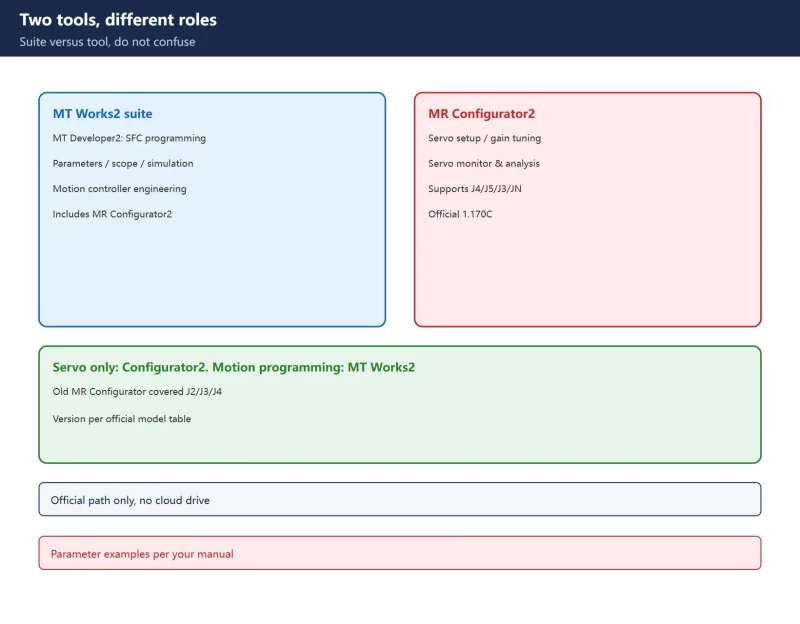
- MT Works2 is a suite containing two tools:
– MT Developer2: SFC programming, parameters, digital oscilloscope and simulation for motion controllers;
– MR Configurator2: servo parameter setting, gain tuning and servo monitoring.
- MR Configurator (no “2”, the older tool) belongs to the J2/J3/J4 era; MR Configurator2 covers the newer MR-J4 / MR-J5 / J3 / JN / JET / JE (official version 1.170C list).
Pick-a-version conclusion: for servo tuning get MR Configurator2; if you also program a motion controller, install the MT Works2 suite (which includes MR Configurator2).
Table 1 Division of labour between the two tools (version mapping per the official table)
21.2 Official download path (official only, no cloud drive)
- Mitsubishi Electric FA → Download → Software (
mitsubishielectric.com/fa/download/software/); - Search MR Configurator2 or MT Works2, pick the language version;
- Note the licence premise: the official page states that after purchasing MELSOFT iQ Works / GX Works3 / GX Works2 / MT Works2, etc., you can download and use it; a Trial version entry also exists;
- What you download is typically an update package (e.g.
sw1dnd-mrc2-ec_170c.zip) – follow the official page on whether a base install is needed.
Compliance boundary: this site provides no cloud-drive links and no bundled files – only official entry points, consistent with our standing rule.
Table 2 Official download path essentials (entry addresses per the live official site)
21.3 ★ Version-correction: which tool for MR-J5
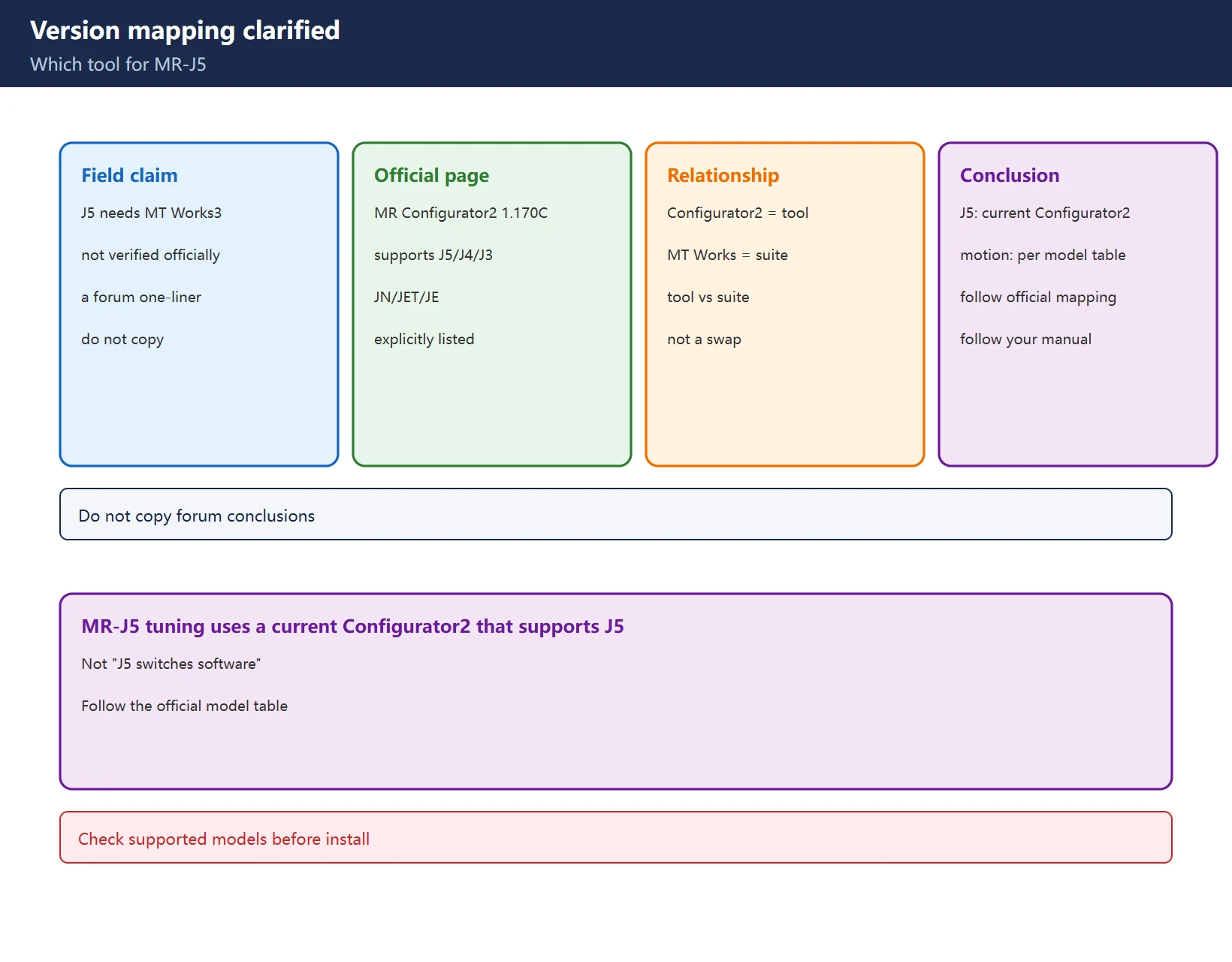
A field claim says “MR-J5 needs MT Works3” – this round could not verify that claim on Mitsubishi’s official MR Configurator2 product page. The official page explicitly lists MR Configurator2 (1.170C) supporting MR-J5 / MR-J4 / MR-J3 / MR-JN / MR-JET / MR-JE, i.e. MR-J5 servo tuning uses the current MR Configurator2.
Distinction:
- MR Configurator2 = servo amplifier setup / tuning / monitoring tool (the subject here);
- MT Works2 / MT Works3 = motion controller (Motion CPU) engineering suites that include MR Configurator2 as a component;
- The relationship is tool versus suite, not “J5 switches to a different tuning tool”.
Conclusion: for MR-J5 tuning install a current MR Configurator2 that supports J5; for a motion-controller machine, pick the MT Works suite version from the official model mapping. Follow the official model table and your manual, not a one-line forum claim.
21.4 What MR Configurator2 can do
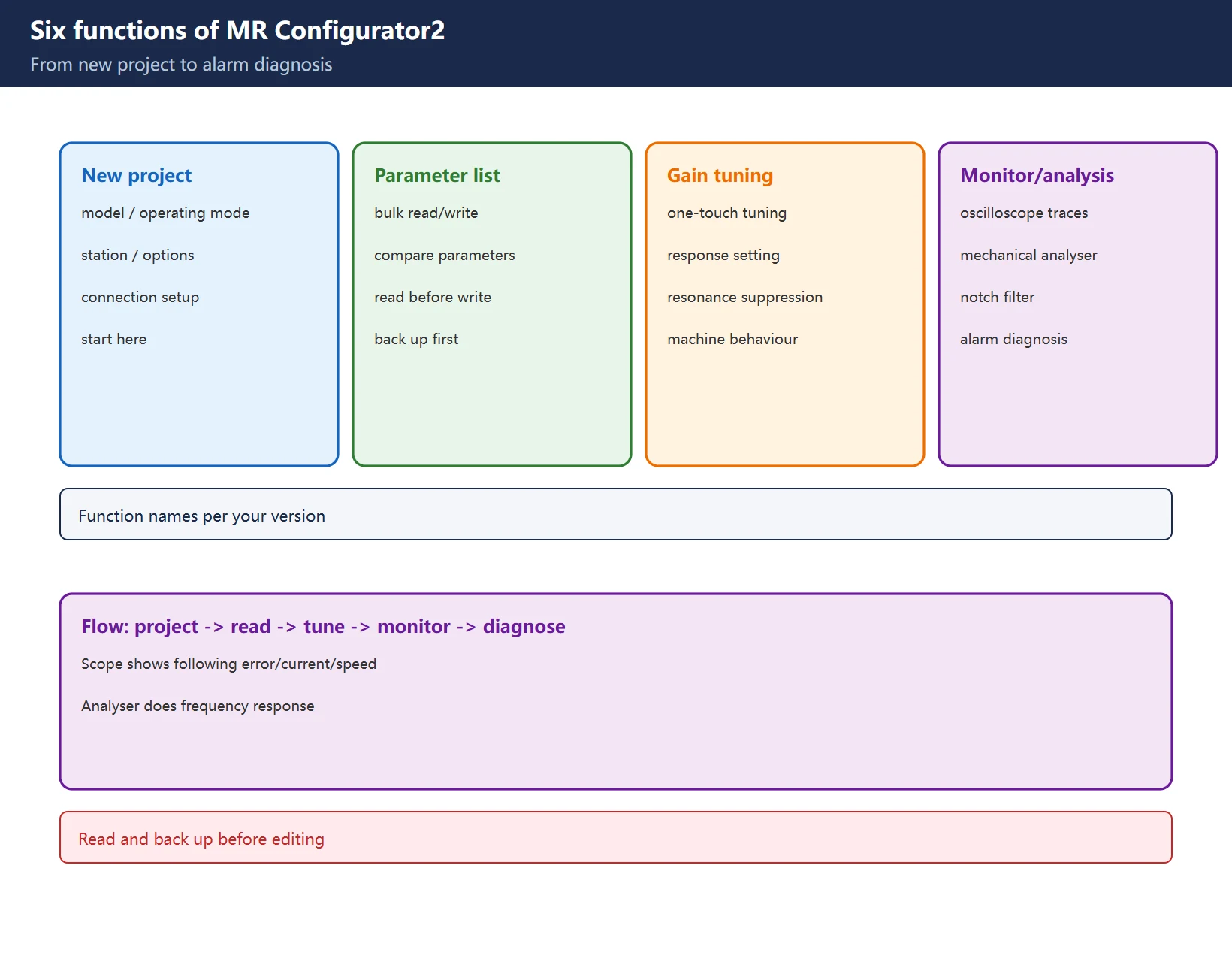
Table 3 Six MR Configurator2 functions (names per your version)
| Step | Function | Purpose |
|---|---|---|
| 1 | New project | Select model / operating mode / station / option unit / connection |
| 2 | Parameter list | Bulk read / write / compare amplifier parameters |
| 3 | Gain tuning | One-touch tuning, response setting, machine resonance suppression |
| 4 | Servo monitor (oscilloscope) | Waveform sampling: following error, current, speed |
| 5 | Mechanical analyser | Frequency-response analysis, notch filter (similar to servo-guide tools) |
| 6 | Alarm diagnosis | Read amplifier alarms, history and diagnostic signals |
21.5 Connection flow: USB / RS-422 and common pitfalls
- Connect to the PC: USB or RS-422; warning: on MR-J3 the USB and RS-422 are different interfaces and their protocols are not interchangeable;
- Install the USB driver: driver version must match the Windows version (one of the three pitfalls);
- Select the station number: match the amplifier’s setting in the project;
- Communication test: confirm the amplifier can be read;
- Read online parameters: read before changing, and back up the originals.
Common causes of “cannot read parameters”: wrong station number, driver not installed, wrong interface selected, or version incompatibility (21.6).
21.6 Parameter quick view (examples, subject to your manual)
| Parameter | Meaning (example) | Note |
|---|---|---|
PA01 | Operating mode (e.g. 1000 = standard position control) | Changes usually need a restart |
PA02 | Regenerative option setting | Per installed option |
PA05 | Command input pulses per revolution | Match the host pulse setting |
PA06 / PA07 | Electronic gear numerator / denominator | Sets pulse-to-displacement ratio |
PA13 | Command pulse input form | Must match the wiring method |
PA14 | Rotation direction | Check here first if direction is wrong |
Warning: parameter numbers and meanings differ by series (J3/J4/J5); the above are common examples – follow the manual for your series and back up before editing.
Table 4 Servo parameter quick view (example values, per your manual)
21.7 Three download / installation pitfalls
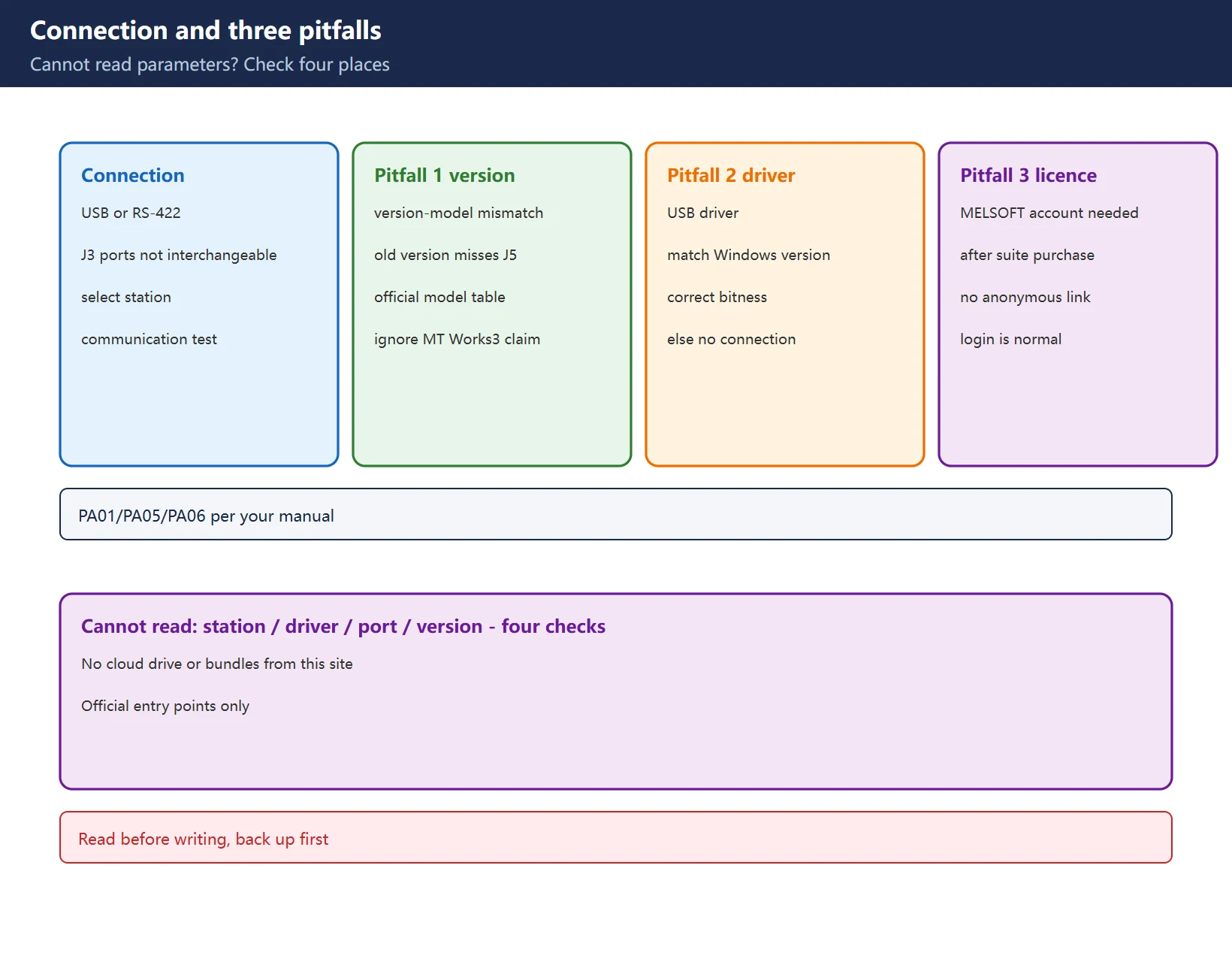
- Version-model mismatch: an old MR Configurator2 that does not recognise J5, or the false belief that J5 needs MT Works3 – pick the version from the official model table;
- Windows version and USB driver: a driver mismatch with the OS version/bitness means it will not install or connect;
- MELSOFT account / licence required: official packages are mostly login-download (available after purchasing iQ Works / MT Works2, etc.), not anonymous direct links – “please log in” is a normal official gate, not a broken site.
21.8 Related articles on this site
- Mitsubishi M80 Ladder Logic into the CNC;
- Mitsubishi M80 Data Backup & Restore – MPARA is a password, not a file;
- CNC Alarm Number Formats by Brand – FANUC vs SINUMERIK vs Mitsubishi vs HEIDENHAIN;
- HEIDENHAIN iTNC 530 Manuals – an example of how this site treats official entry points.
Frequently Asked Questions
What is the difference between MT Works2 and MR Configurator2, and which version should I download?
MT Works2 is a motion-controller engineering suite containing MT Developer2 (SFC programming) and MR Configurator2 (servo setup/tuning/monitoring). For servo tuning only, install MR Configurator2; for motion-controller programming as well, install the MT Works2 suite. Pick the version from the official model mapping table.
How do I connect MR Configurator2 to an MR-J4 amplifier, and why can’t I read parameters?
Connect by USB or RS-422, install the matching USB driver, set the project station number to match the amplifier, run a communication test, then read online parameters. Failure to read usually means a wrong station number, missing driver, wrong interface (MR-J3 USB and RS-422 protocols are not interchangeable) or version incompatibility; back up parameters before changing them.
Which tuning software version does MR-J5 use?
This round could not verify the claim that “MR-J5 uses MT Works3” on Mitsubishi’s official pages; official MR Configurator2 (1.170C) explicitly supports MR-J5/J4/J3/JN/JET/JE. For MR-J5 tuning use a current MR Configurator2 that supports J5; for a motion-controller solution pick the MT Works suite version from the official mapping and your manual.
Last updated: 2026-11-19
Where to go next
- FANUC Troubleshooting — the full guide library: alarms, diagnosis numbers, servo, spindle, PMC and electrical faults, organised by symptom.
- CNC Repair Tools — which instrument measures what: multimeters, clamp meters, insulation testers and oscilloscopes, with the specification that actually matters.
- Remote Technical Support — have the readings reviewed with you: alarm reverse lookup, PMC ladder analysis and servo tuning advice by call. Repair companies and integrators welcome.
- Buying & Ownership Decisions — refurbished vs new, used-machine checks, software licensing and manuals: spend with the field facts in hand.
Read the guide, get the right instrument, or walk the diagnosis through with someone — pick whichever you need.


















暂无评论内容