


一、First, what the “ladder” actually is: the PLC lives inside the CNC
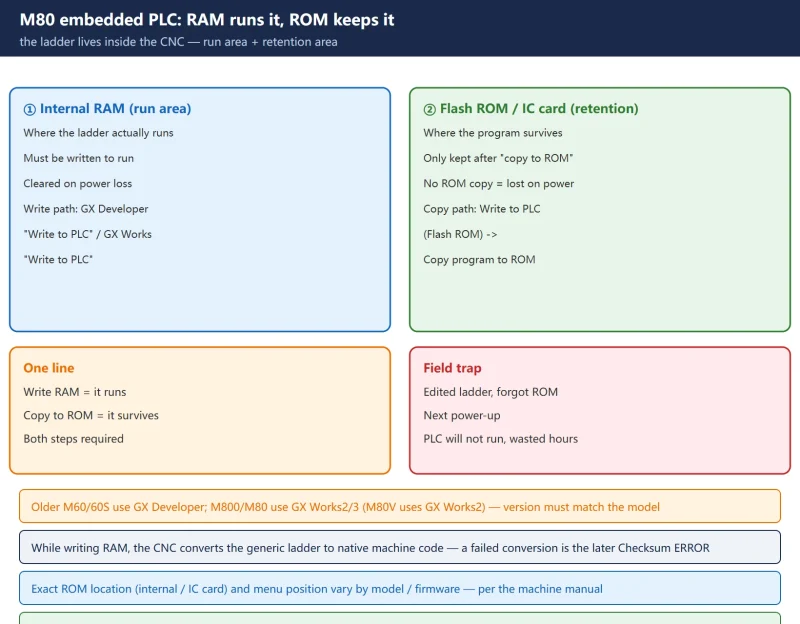
The Mitsubishi M80 / M800 is a CNC, but it carries an embedded PLC (sequence program / ladder) that drives the machine-side IO, tool changer, handwheel, external-axis enable and so on. This ladder is not written to an external PLC box — it is written into the CNC’s own memory: usually an “internal RAM” as the run area and a “Flash ROM / IC card” as the power-loss-retention area.
So writing the ladder has two steps: write it to RAM so it runs, then “copy to ROM” to make it permanent. If you only write RAM and skip the ROM copy, one power cycle wipes the ladder — the PLC will not run on the next boot and the machine sits dead.
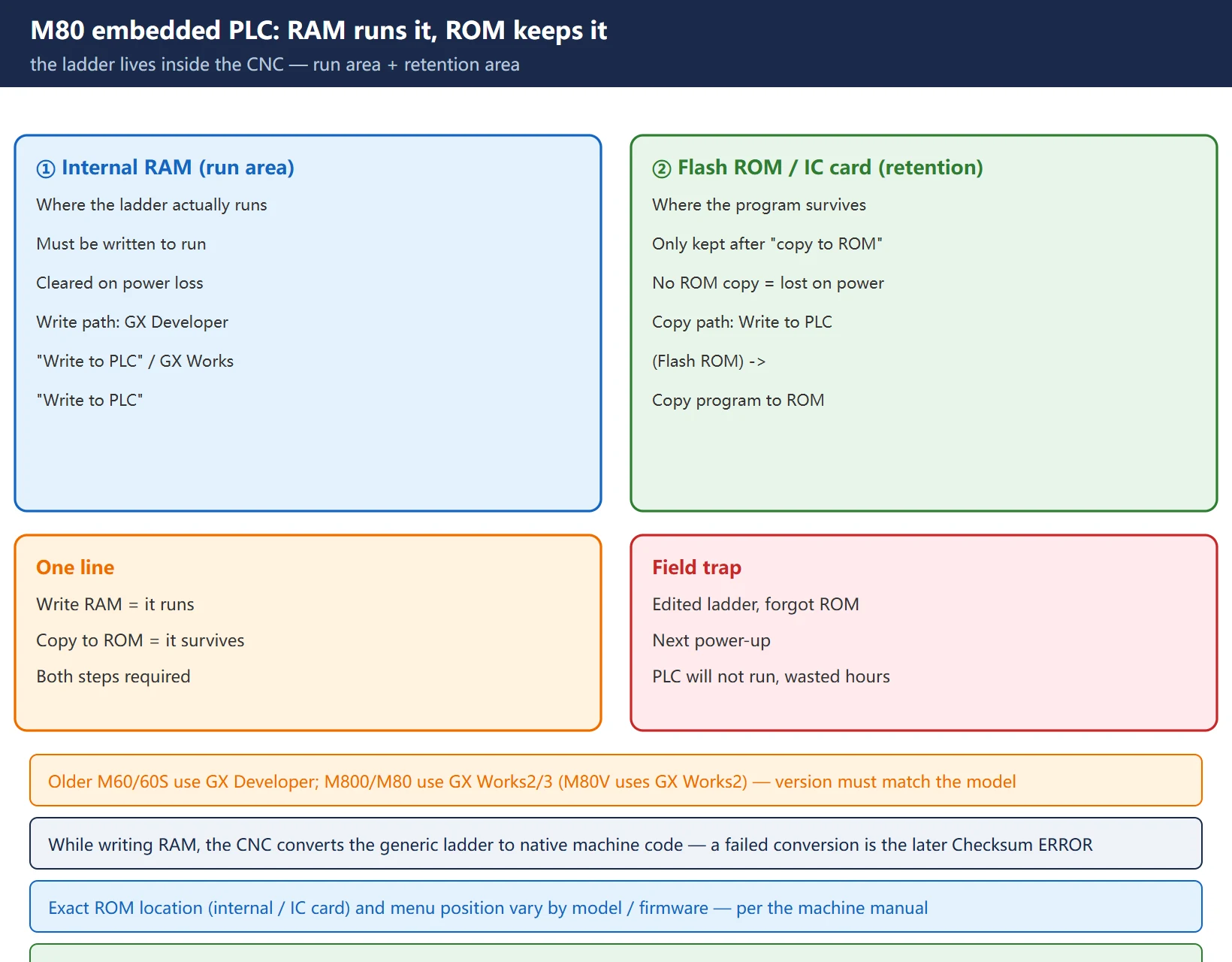
Tool version up front: people say “GX Developer”, but the older M60 / 60S series mainly uses GX Developer; the M800 / M80 series normally uses GX Works2 / GX Works3 (M80V uses GX Works2). The tool version must match the model and firmware, or the handshake / conversion fails. Both flows are given below; trust the machine manual.
二、Write flow: getting the ladder from GX Developer / GX Works into the CNC
M60 / 60S series (GX Developer)
- In GX Developer:
[Online]→[Write to PLC](write into the CNC). - In the “File selection” tab, pick the ladder file and click
[Execute]. - Note: in “Target memory” only “internal RAM” is valid; do not set the other tabs (device data / program / program common / by-program).
M800 / M80 series (GX Works2 / GX Works3)
- In GX Works2/3:
[Online]→[Write to PLC], select the PLC program / parameters, and execute to write into the CNC’s internal RAM. - During the write, the CNC converts the generic ladder into its own native ladder machine code — this conversion step is exactly where the Checksum ERROR below comes from.
三、Why you must “copy to ROM” — RAM alone is lost on power loss
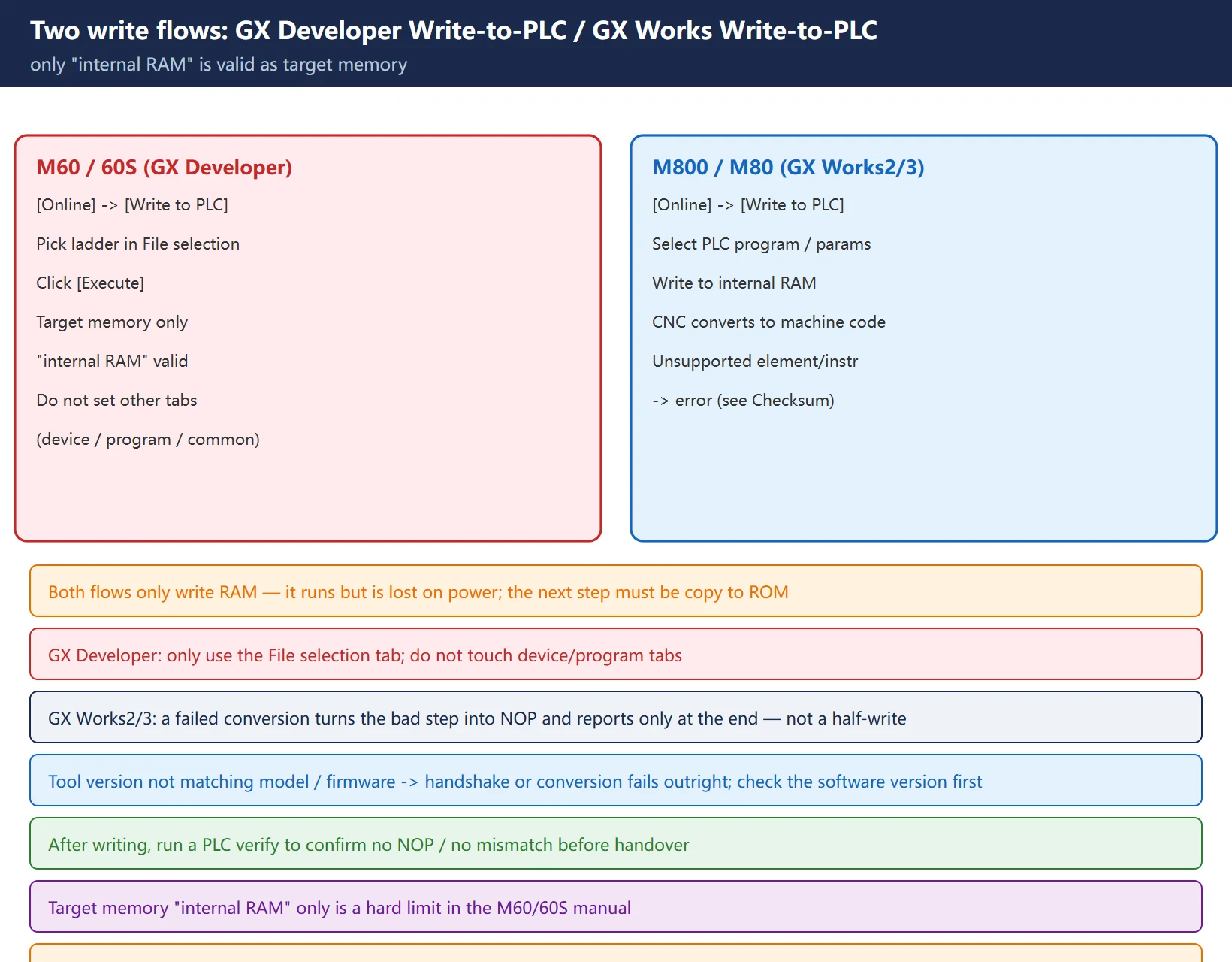
Writing to RAM only makes the PLC run for this power-up. To survive a power cycle, you must copy the RAM program into ROM.
The M80 manual’s “copy to ROM” path (GX Developer side):
[Online]→[Write to PLC (Flash ROM)]→[Copy program memory data into ROM]- Note: for “Target”, only “IC Card (ROM)” is valid (per the machine manual / diagnosis).
- Click
[Execute]→[Yes], and a warning appears — once you click OK, the old PLC program in the CNC’s ROM is overwritten / deleted. Confirm before you run it.
M800 / M80 in GX Works2/3 has the equivalent “write to ROM / copy program memory data to ROM” operation — same meaning: make the run area permanent in the retention area.
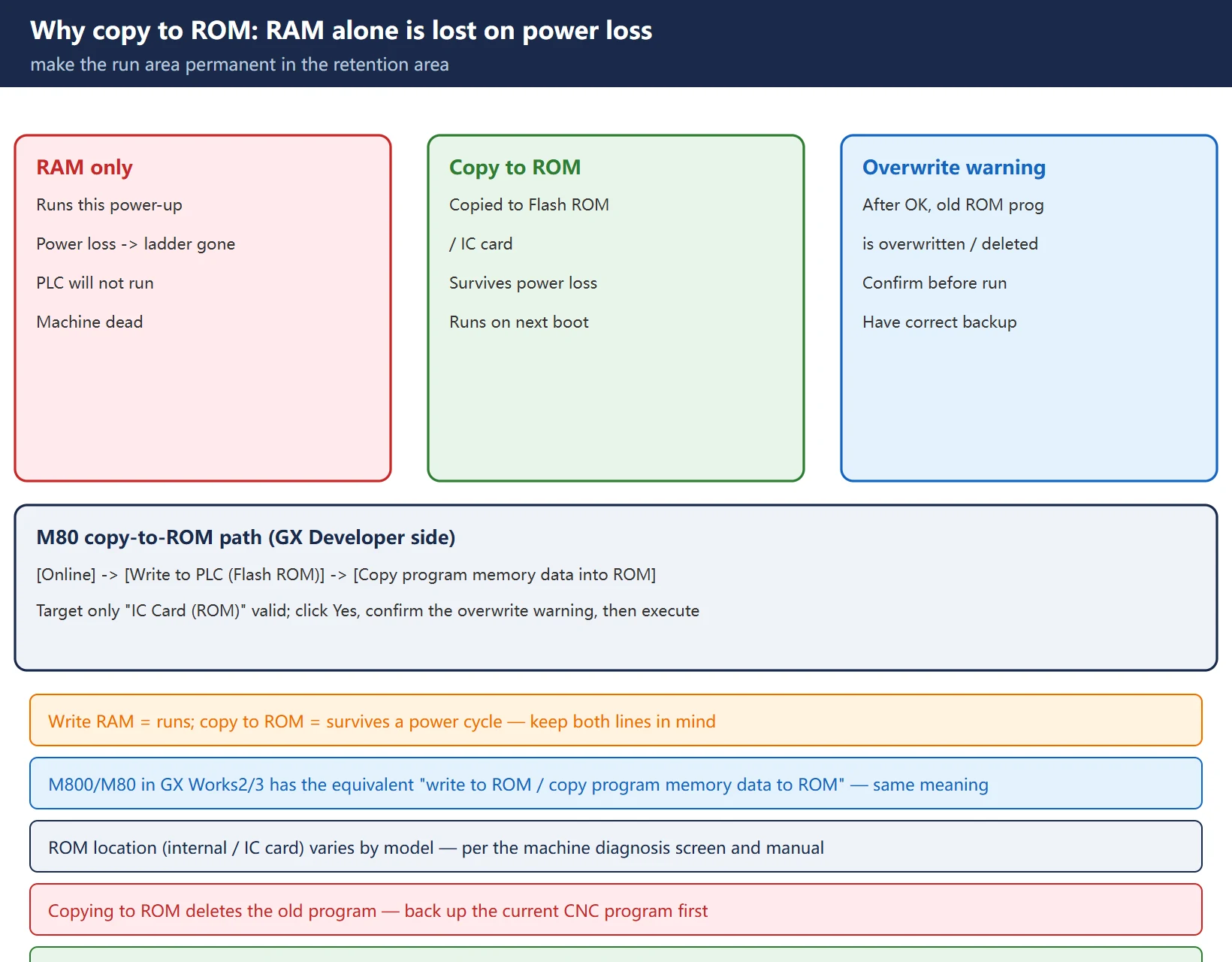
One line to remember: write RAM = it runs; copy to ROM = it survives a power cycle. After editing the ladder on site, people forget the final ROM copy, then next power-up the PLC will not run and they chase ghosts for hours.
四、What Checksum ERROR is: a conversion error turns bad steps into NOP
The most typical Checksum ERROR comes from a conversion error, not bad memory:
- Symptom: after GX Developer writes the ladder to the CNC, a dialog “the program before correction differs from the registered program” appears; open that errored file in the “File selection” tab and the title bar shows
WARNING : Checksum ERROR!! . - Root cause: your ladder used an element or instruction format not supported by M60/60S/M80. While the CNC converts it to native machine code, it turns the bad step into a NOP code, finishes forwarding, then reports at the end.
- Danger: if you run the PLC in that state, the CNC side errors out and will not run.
- 🚨 Never “read” the errored ladder file back into GX Developer — it may contain unexpected data and writing it again causes illegal operation, making things worse.
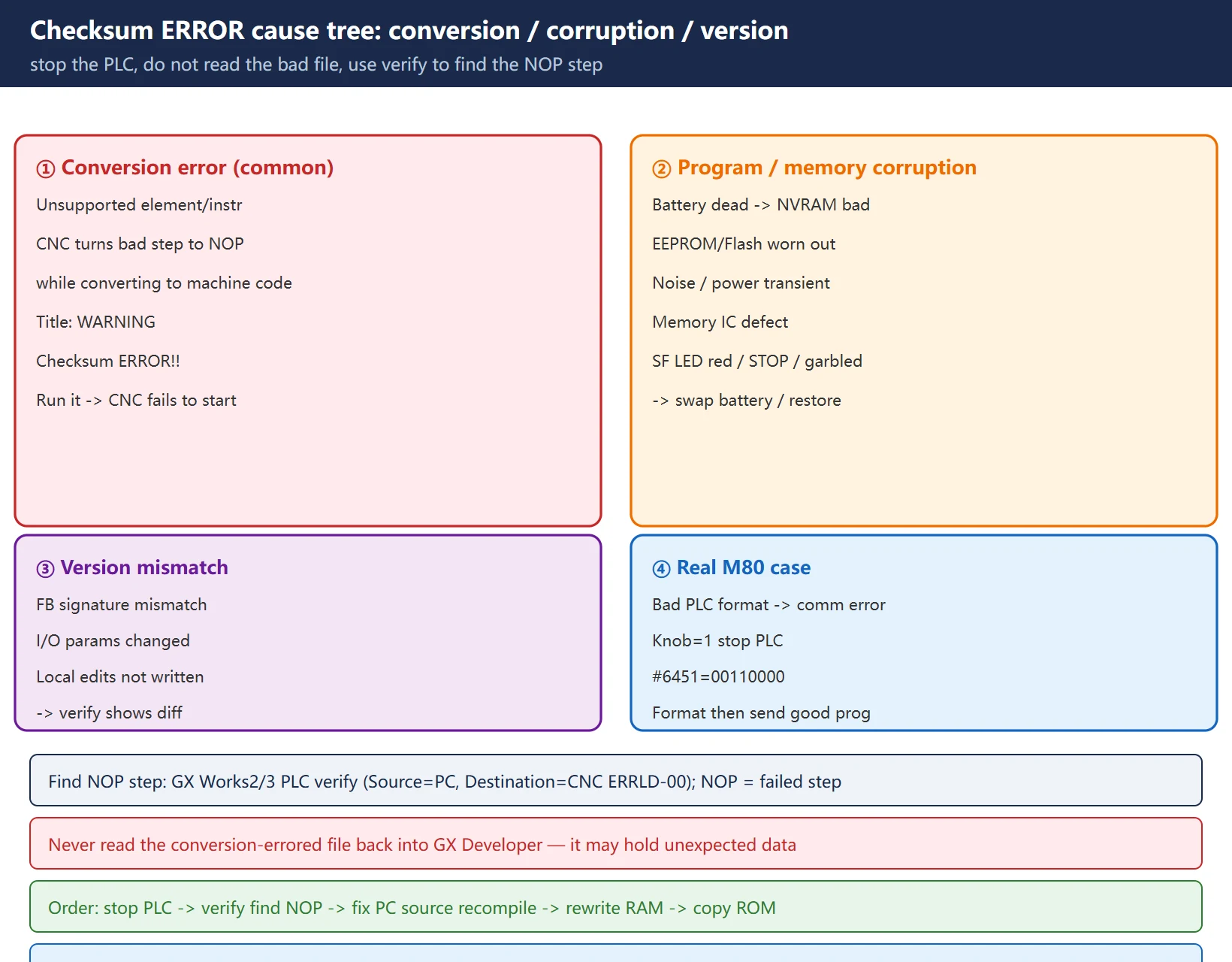
To find the bad step: use PC compare (GX Developer) or PLC verify (GX Works2/3). In GX Works2/3, Verify Source = your PC-side ladder, Verify Destination = the CNC-side error file named ERRLD-00; double-click a mismatch — the step shown as an NOP instruction on the CNC side is the conversion-failed step. Fix the element / instruction in your PC-side source, recompile and reconvert.
五、Other root causes of Checksum ERROR: corruption / version mismatch / battery
Besides conversion errors, several other classes also raise checksum-type faults:
- Program / memory corruption: backup battery depleted → NVRAM data corrupted; EEPROM/Flash write-cycle exhaustion; electrical noise or power transients corrupting data during a write; memory IC defect. Signs: SF LED solid red, CHECKSUM ERROR / fault code on screen, stuck in STOP mode, garbled or missing logic blocks on upload.
- Verify mismatch: offline project has local edits not yet written to the CPU (all “PC only”); PLC-side program came from a different machine (“PLC only”); FB signature mismatch — the FB in the CPU was written from a different FB-library version; I/O assignment parameters mismatch (base slot changed).
- Real M80 field case: one M80 fault was tied to PLC communication, caused by a “PLC program in a non-conforming format” triggering a communication error. The fix was to set the NC mode knob to 1 to stop the PLC, set
#6451=00110000to clear the PLC program’s effect, then format the PLC program and transfer the correct program — the system recovered.
六、Field troubleshooting order: don’t read the bad file, use verify to find the NOP step
- Stop the PLC first: on Checksum ERROR, set the NC knob to 1 (or STOP) so the bad program does not keep running; do not read that errored file back into GX Developer.
- Locate the NOP step: open GX Works2/3 PLC verify (Source = PC-side ladder, Destination = CNC-side
ERRLD-00), or GX Developer PC compare, and double-click a mismatch — the NOP instruction is the failed conversion step. - Fix the source: find the “unsupported element / instruction format” at that step, correct it in the PC-side project, recompile and reconvert (F4).
- Rewrite: write to RAM, confirm it runs, then copy to ROM to make it permanent.
- Memory-corruption class: if it is battery/Flash, replace the backup battery and restore from the offline backup; replace the CPU module if needed.
- Re-verify: after writing, run a PLC verify to confirm no NOP and no mismatch before handover.
七、Safety reminder and backup (have a backup before copying to ROM)
- Copying to ROM overwrites / deletes the old PLC program in ROM — confirm the current CNC program is backed up and that your version is correct before you start.
- Back up the ladder project to a PC regularly (
.gxw/.gx3/.fxp, including the comment file) — do not keep it only inside the CNC. - Keep the backup battery voltage up (normal > 2.7V); a dead battery is the most common cause of NVRAM corruption and checksum faults.
- Follow the machine builder’s safety rules (LOTO); a PLC program change affects the whole IO safety chain.
- The exact ROM location (internal / IC card) and the “copy to ROM” menu position vary by model / firmware on the M80 — trust the machine’s diagnosis screen and the Mitsubishi manual.
Frequently Asked Questions
If I only write RAM and skip ROM, is it lost on power loss?
Yes. Writing to RAM only makes it run for this power-up; without copying to ROM (Flash ROM / IC card), the ladder is gone after a power cycle and the PLC will not run on the next boot. After editing the ladder, remember the final “copy to ROM” step.
Can I just ignore Checksum ERROR?
No. The NOP-step class makes the CNC error out and not run; the memory-corruption class lands it in STOP mode. The right move: stop the PLC, do not read the bad file, use GX Works2/3 PLC verify (find the NOP step in ERRLD-00) or GX Developer PC compare to locate the bad element / instruction, fix the PC-side source, recompile and rewrite.
Does the M80 use GX Developer or GX Works?
The older M60 / 60S series mainly uses GX Developer; the M800 / M80 series uses GX Works2 / GX Works3 (M80V uses GX Works2). The tool version must match the model and firmware, or the handshake or ladder conversion fails. Exact ROM location and menu positions are per the machine manual.
Last updated: 2026-10-26
Where to go next
- FANUC Troubleshooting — the full guide library: alarms, diagnosis numbers, servo, spindle, PMC and electrical faults, organised by symptom.
- CNC Repair Tools — which instrument measures what: multimeters, clamp meters, insulation testers and oscilloscopes, with the specification that actually matters.
- Remote Technical Support — have the readings reviewed with you: alarm reverse lookup, PMC ladder analysis and servo tuning advice by call. Repair companies and integrators welcome.
Read the guide, get the right instrument, or walk the diagnosis through with someone — pick whichever you need.
The original Chinese version — same procedure, with the full field notes.










暂无评论内容