


Bit definitions, screen paths and recorded data here come from the OPERATION HISTORY / external operator message record chapter of the official FANUC (GE Fanuc) maintenance manual for Series 16/160/18/180-Model B (document A16B-1211-0090), cross-checked against Chinese field notes on
3106#4. Bit numbers and softkey names vary by series and software version – always confirm against the machine’s own parameter manual and record original values before changing anything.
30-second check
| Question | Action | Note |
|---|---|---|
| Operation history screen missing | Set parameter 3106#4 (OPH) to 1 | Manual: 0 not displayed / 1 displayed |
| History stops recording | Check 3106#7 (OHS) | Manual: 0 sampled / 1 not sampled |
| How often a timestamp is written | 3122, word, minutes, 0-1439 | 0 means 10 minutes; no timestamp if no data in that interval |
| Where is the screen | SYSTEM -> continue [>] -> [OPEHIS] twice | Path given in the manual |
| What is recorded | MDI key operations, selected I/O signal ON/OFF changes, NC alarm details, date/time stamp | Four categories listed in the manual |
| Is it cleared by power off | Do not assume; changing some bits clears existing records | Capture screenshots/exports immediately |
1. Why intermittent faults require history
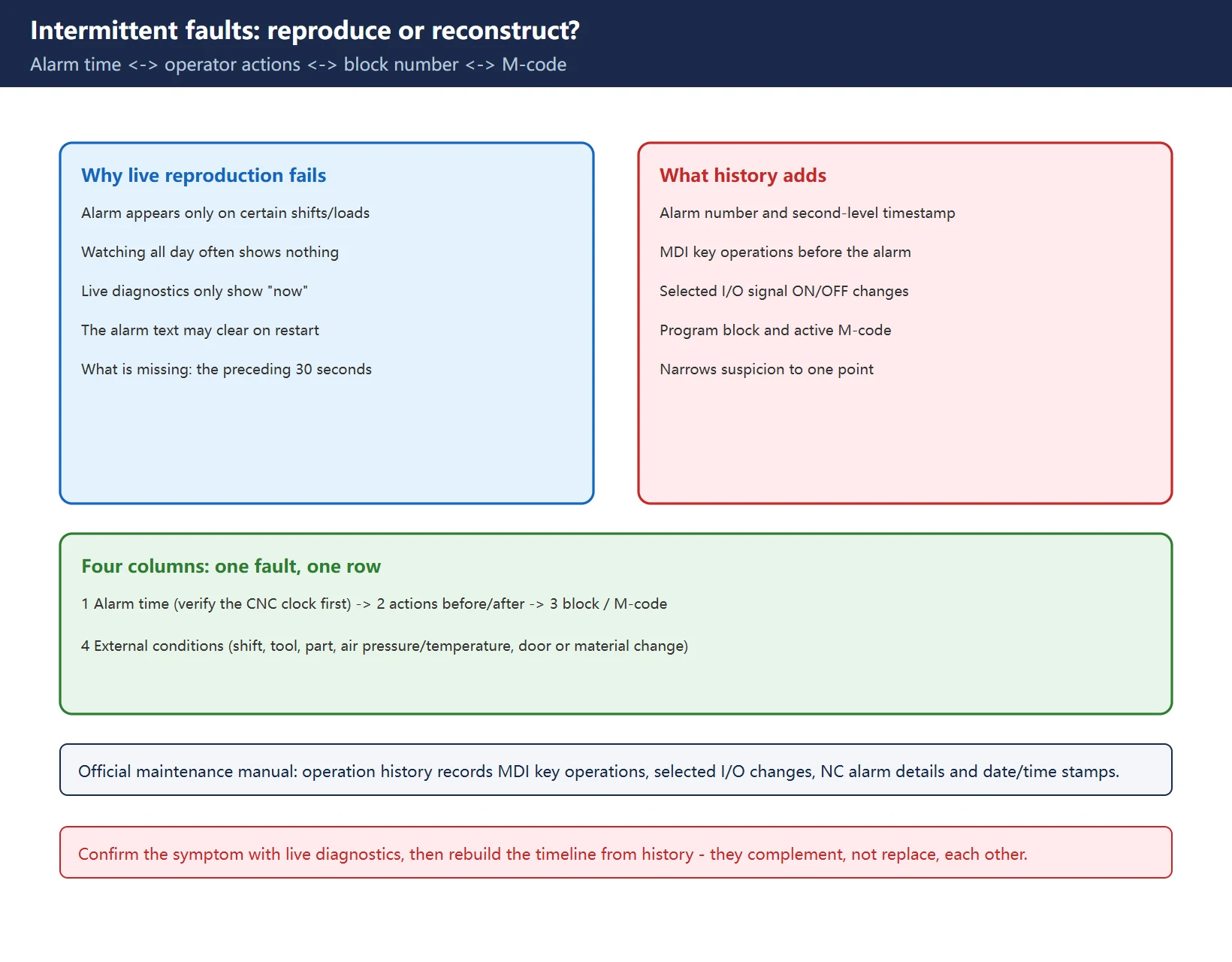
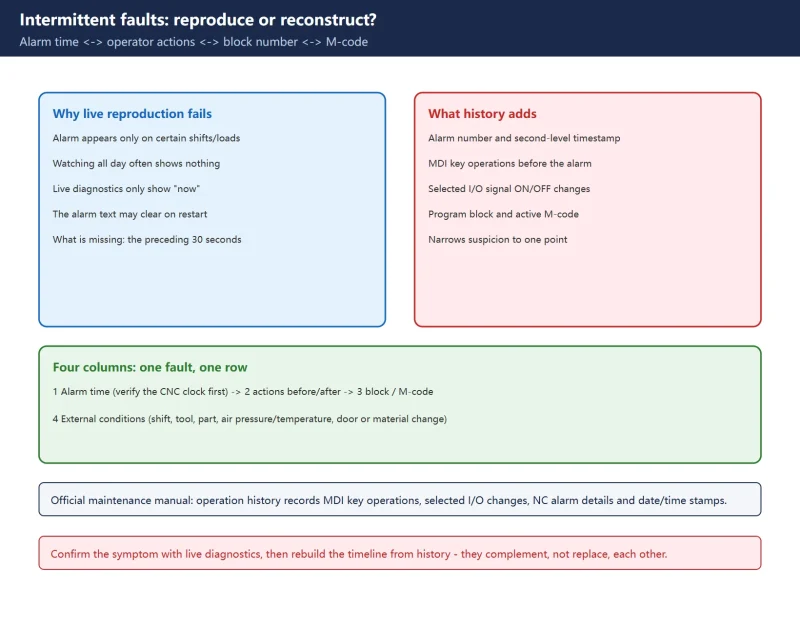
The hardest fault is the one that is healthy whenever you look at it. The value of alarm and operation history is not the alarm number (you can see that live) but what happened in the seconds around it:
- Did someone switch to MDI, change an offset, or jog an axis just before the alarm;
- Did an input signal (door, clamp, pressure, tool position) toggle at that instant;
- Which program block and which M-code were executing;
- Did a second alarm follow immediately (do not reverse cause and effect).
This site’s guide to the four FANUC diagnostic screens covers current state; this article covers recorded history. They complement rather than replace each other: confirm the symptom with live diagnostics, then reconstruct the timeline from the history.
2. Opening the two history screens
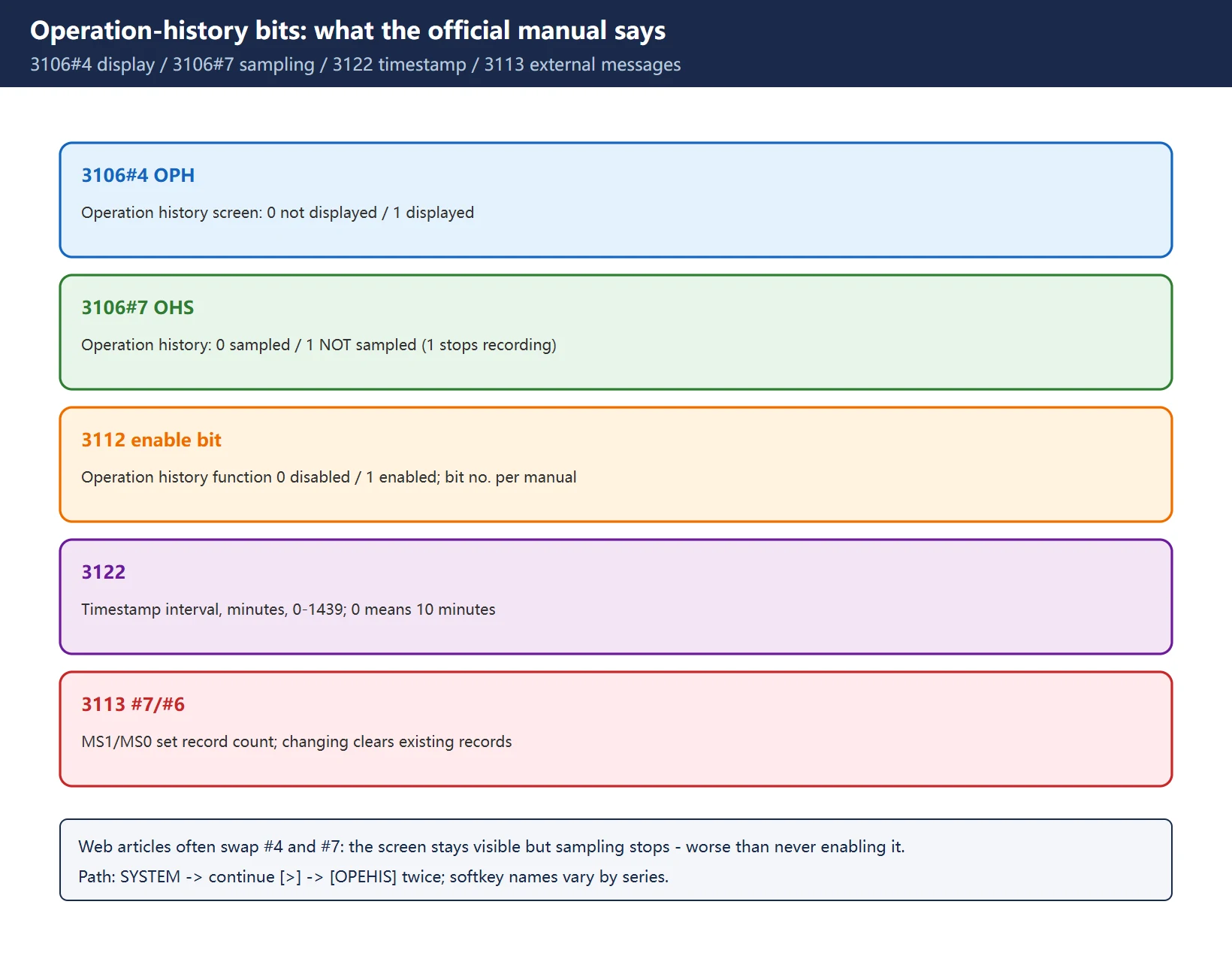
Table 1 Bits and parameters stated in the official maintenance manual
| Parameter | Official definition | Field meaning |
|---|---|---|
3106#4 (OPH) | Operation history screen: 0 not displayed / 1 displayed | After setting 1, the operation history entry appears in the bottom menu |
3106#7 (OHS) | Operation history: 0 sampled / 1 not sampled | Setting 1 stops sampling – the screen remains but no new records appear |
Operation-history enable bit in 3112 | Operation history function: 0 disabled / 1 enabled | Bit number differs by series/version; use the shipped manual |
3122 | Interval at which clock time is recorded, word, minutes, 0-1439 | 0 means 10 minutes; time is written only if data is recorded in that interval |
3112#2 (OMH) | External operator message history screen: 0 not displayed / 1 displayed | After changing, briefly power off then on |
3113#0 (MHC) | External operator message records: 0 cannot be erased / 1 can be erased | [CLEAR] softkey erases all records |
3113#7/#6 (MS1/MS0) | Select characters retained per record and number of records | 🚨 Changing these bits erases all records retained up to that point |
The manual’s display path: press SYSTEM, then the continue softkey [>], then [OPEHIS] / [OPRT] appear; press [OPEHIS] twice to open the operation history screen, and use the bottom menu for the most recent entries. An external operator message may be up to 255 characters; the record count and characters per record are selected by the MS1/MS0 combination.
Alarm history and operation history are different screens: the former mainly stores alarm numbers and occurrence times, while the latter combines key operations, signal changes, alarm details and timestamps – much better for a timeline. Softkey names and menu positions vary by series, software version and builder customisation.
3. Correction: do not swap 3106#4 and #7
Table 2 Circulating bit definitions versus the official manual
| Claim | Source | Verdict |
|---|---|---|
3106#4 (OPH) controls display of the operation history screen, 3106#7 (OHS) controls sampling | Official FANUC maintenance manual, OPERATION HISTORY chapter | Correct |
“#7 is the display switch and #4 is the sampling switch” | Some Chinese parameter summary articles | Wrong – copying it leaves the screen visible but recording disabled |
| “One bit keeps all history permanently” | Forum claim | Wrong – capacity and retention depend on parameters and model |
| “Alarm history always survives a power cycle” | No uniform official statement | Not guaranteed, see below |
This trap is subtle: setting #7 to 1 because you think it enables the display leaves the screen visible but sampling switched off, so every subsequent intermittent fault goes unrecorded – worse than never enabling it. After any change, trigger a reproducible minor alarm and confirm that a new entry appears.
4. Alarm history vs operation history vs diagnostics
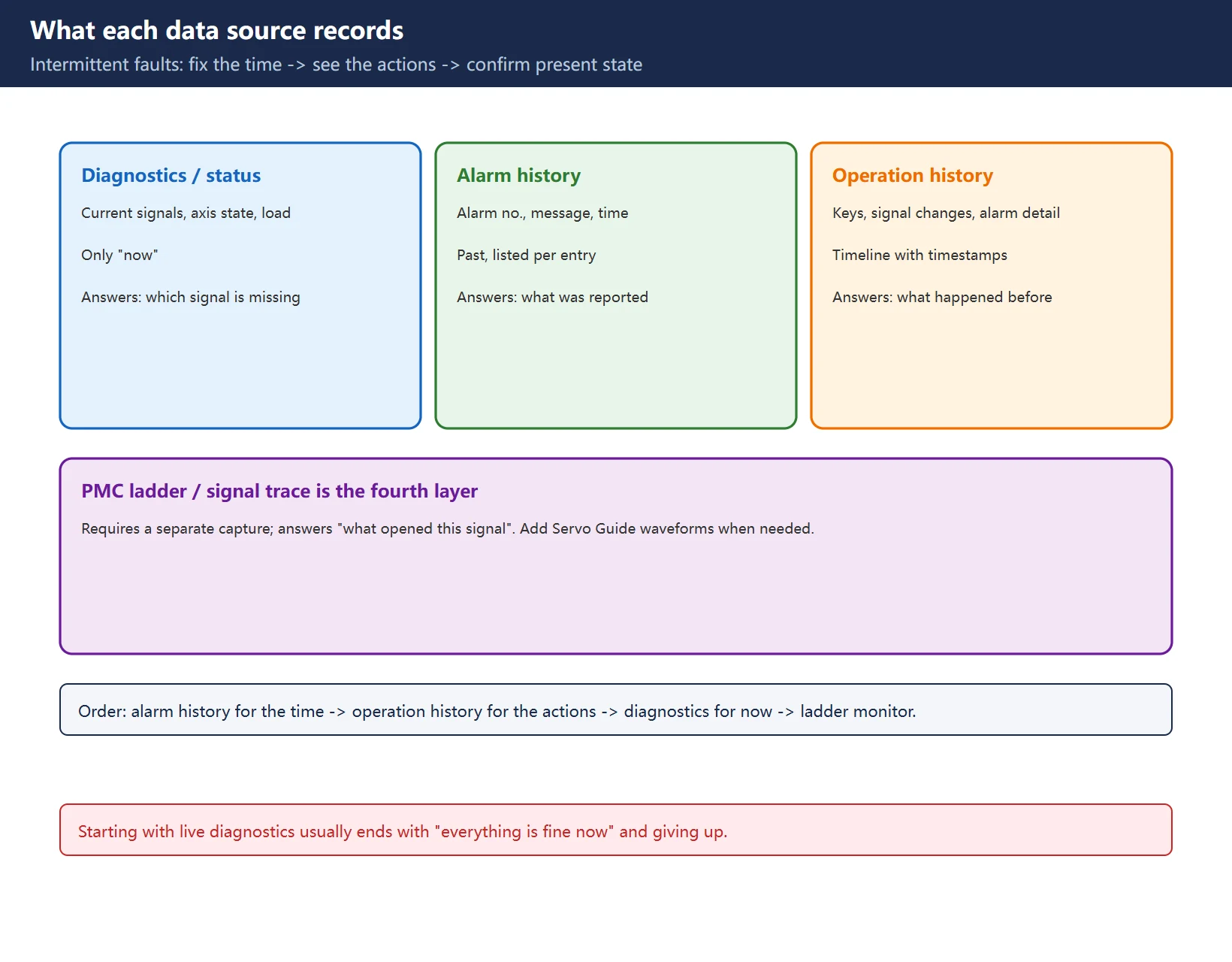
Table 3 What each data source records
| Source | Records | Time dimension | Best for |
|---|---|---|---|
| Diagnostic numbers / status screens | Current signals, axis state, load, alarms | Only “now” | “Which signal is missing right now” |
| Alarm history | Alarm number, message, occurrence time | Past, listed per entry | “What was reported yesterday” |
| Operation history | MDI key operations, selected I/O ON/OFF changes, NC alarm details, timestamps | Past, on a timeline | “What happened 30 seconds before the alarm” |
| PMC ladder / signal trace | Logic scan and signal timing | Requires separate capture | “What opened this signal” |
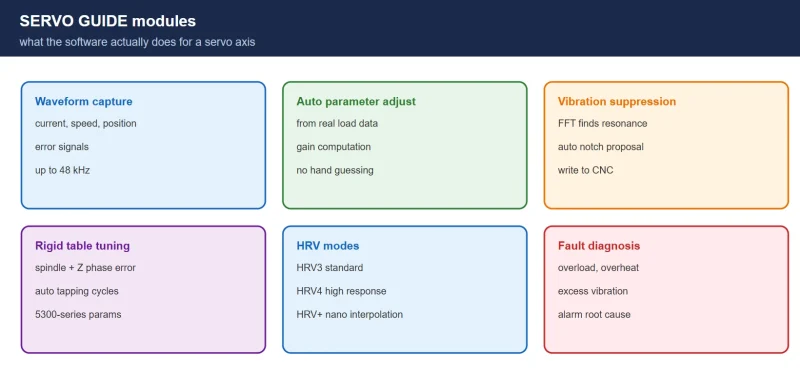
Recommended order: alarm history to fix the time -> operation history for the surrounding actions -> live diagnostics for the present state -> ladder monitor or Servo Guide waveform if needed. Staring at live diagnostics first usually ends with “everything is fine now”.
5. Building a four-column timeline
One row with four columns is worth more than ten random screenshots:
- Alarm time: read the timestamp from alarm history; if
3122is set too coarse, operation-history time points are approximate – check first; - Operator actions: which MDI key operations and which signal ON/OFF changes sit immediately before and after that instant;
- Program block: map it to the part program – which block, which M/S/T code;
- External conditions: shift, tool number, workpiece, temperature/air pressure, whether a door was opened or material changed.
If the CNC clock is wrong, the whole timeline is wrong. Verify the control date/time first before aligning it with camera footage or shift logs.
6. Three typical reconstructions
| Symptom | Look for first on the timeline | Likely root-cause direction |
|---|---|---|
| Occasional SV alarm | Feed/override/axis motion at the alarm instant, load change, whether it fell in an accel/decel section | Mechanical sticking, transient overload, encoder/cable interference |
| Occasional peripheral alarm | Which input toggled before the alarm (door, clamp, pressure, tool position) | Connector contact, air pressure fluctuation, limit-switch bounce |
| Occasional tool-change timeout | Tool-change M-code instant -> response interval of tool-position/clamp signals | Magazine count switch, air/hydraulic pressure, PMC timer setting |
None of these are “change one parameter” problems. The timeline narrows suspicion from the whole machine to one signal or one program block, so you can monitor that point deliberately.
7. Capturing evidence and handover
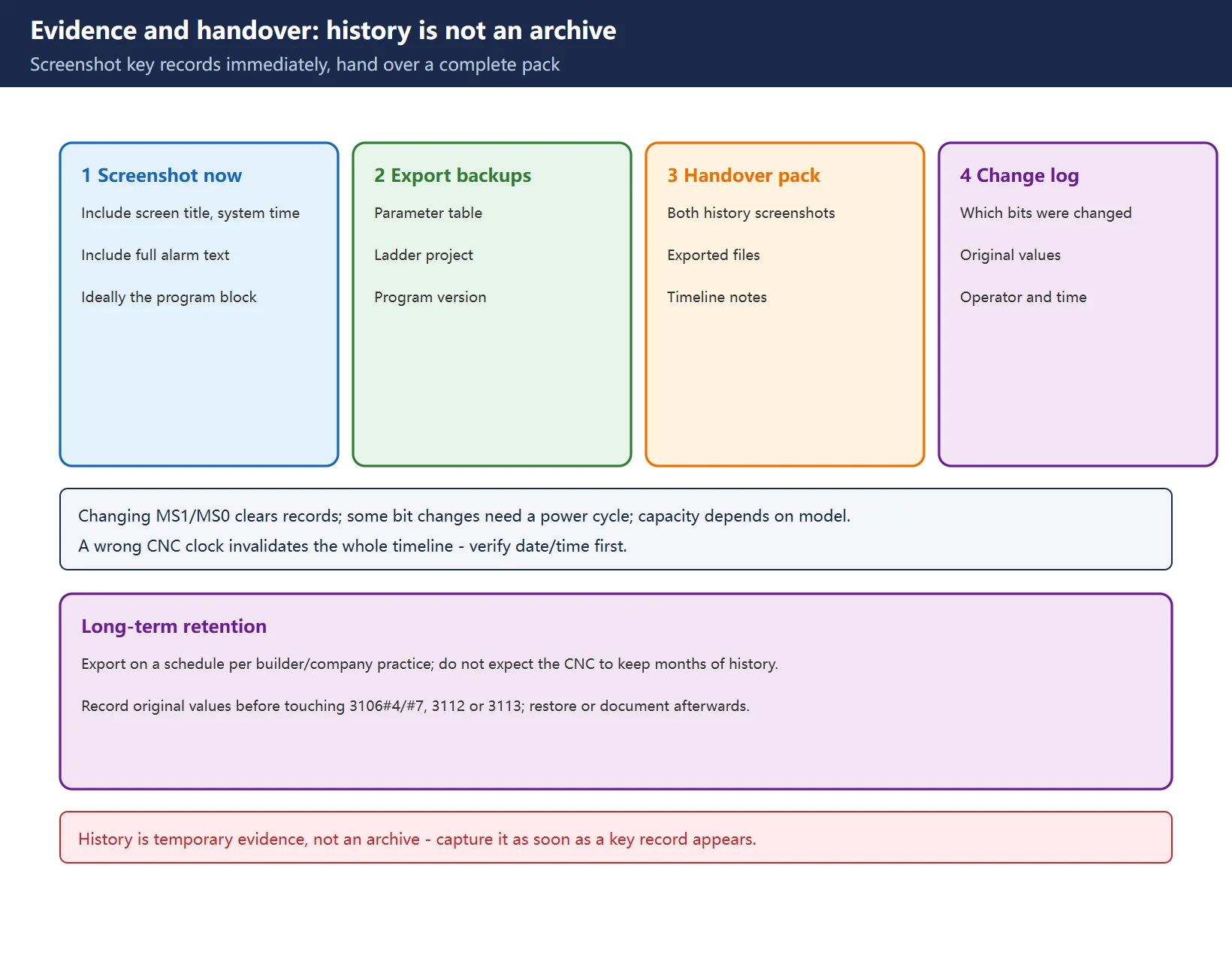
- History is not an archive: changing
MS1/MS0clears records, some parameter changes require a power cycle, and capacity depends on the model -> screenshot key evidence immediately; - Screenshots should include the screen title, system time and full alarm text, ideally with the program block number;
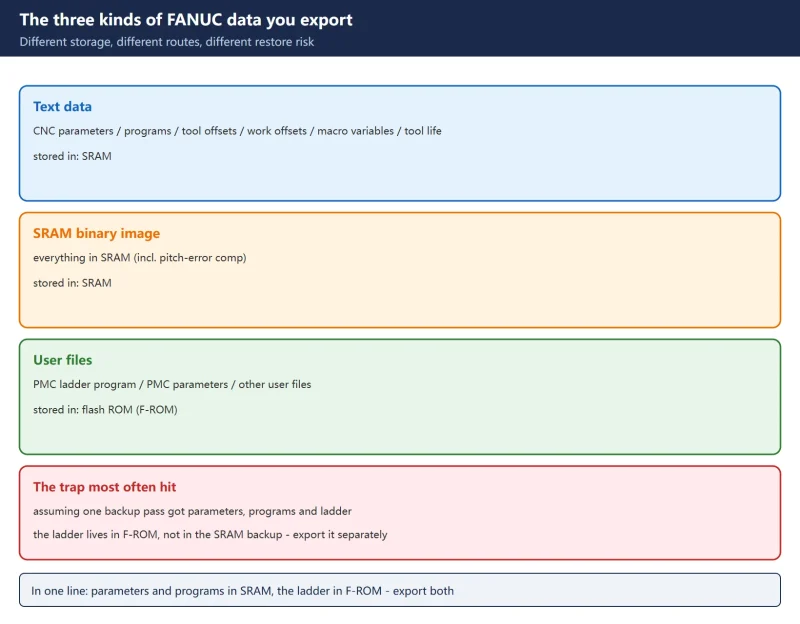
- A handover pack should contain: alarm history screenshot, operation history screenshot, parameter and ladder exports, program version, and who changed what;
- For long-term retention, export on a schedule per company/builder practice – do not expect the CNC to keep months of history;
- Before changing
3106#4/#7,3112or3113, record the original values, and restore or document the change after diagnosis.
Frequently Asked Questions
Where is the FANUC alarm history screen, and why is it missing on my machine?
Look under SYSTEM and the continue menu for [OPEHIS] or a history softkey – names vary by series and software version. If there is no entry at all, the display switch is usually off: in the official manual 3106#4 (OPH) controls display of the operation history screen (0 not displayed / 1 displayed), while 3106#7 (OHS) controls sampling (0 sampled / 1 not sampled). The function may also be unavailable or the menu customised by the builder. Record original values, then trigger a reproducible minor alarm to confirm a new entry appears; confirm bit numbers in the machine’s own parameter manual.
Is alarm history cleared when power is turned off?
There is no uniform guarantee. What the official manual does confirm: external operator message history is cleared when the MS1/MS0 bits of 3113 are changed, and changing 3112#2 OMH requires a power cycle; the number of records and characters per record are parameter-dependent. Whether records survive power-off and how many are kept varies by model, firmware and parameters – check the shipped manual. Treat history as temporary evidence, not an archive: capture screenshots or exports as soon as a critical fault occurs.
What does each history record, and which should I check first for an intermittent fault?
Alarm history mainly holds alarm numbers and occurrence times. Operation history, per the official manual, records MDI key operations, ON/OFF changes of selected I/O signals, NC alarm details and date/time stamps – a timeline with context. Start with alarm history to fix the time, use operation history for the surrounding key and signal activity, return to live diagnostics for the present state, and add ladder monitoring if needed. Looking only at live diagnostics usually ends with “everything is normal now”.
Last updated: 2026-11-08
FANUC SERVO GUIDE: Waveform Analysis
FANUC Parameter Write Protect (PWE)
FANUC 1620 / 1622 Accel-Decel Tuning
SINUMERIK Following Error and Contour Error
Where to go next
- FANUC Troubleshooting — the full guide library: alarms, diagnosis numbers, servo, spindle, PMC and electrical faults, organised by symptom.
- CNC Repair Tools — which instrument measures what: multimeters, clamp meters, insulation testers and oscilloscopes, with the specification that actually matters.
- Remote Technical Support — have the readings reviewed with you: alarm reverse lookup, PMC ladder analysis and servo tuning advice by call. Repair companies and integrators welcome.
Read the guide, get the right instrument, or walk the diagnosis through with someone — pick whichever you need.
The original Chinese version — same procedure, with the full field notes.

















暂无评论内容